2. Installation
Important
You can’t install both MetaRoad Free and MetaRoad Pro plugins simultaneously in a single UnrealEngine. Make sure you only have one version installed.
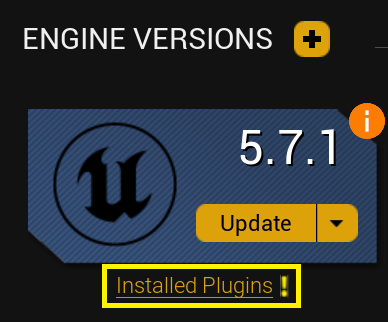
You can remove the extra version of the plugin through Epic Game Launcher here:
MetaRoad is a plugin for UnrealEngine, so the installation procedure for MetaRoad is the same as for a regular UnrealEngine plugin (see Working with Plugins in UnrealEngine):
Copy the MeteRoad Plugin folder to the Plugins folder of your UnrealEngine project (next to the .uproject file) or to the Engine\Plugins folder of the engine. If you purchased and installed the plugin through fab.com, it will already be copied to the Engine\Plugins\Marketplace folder.
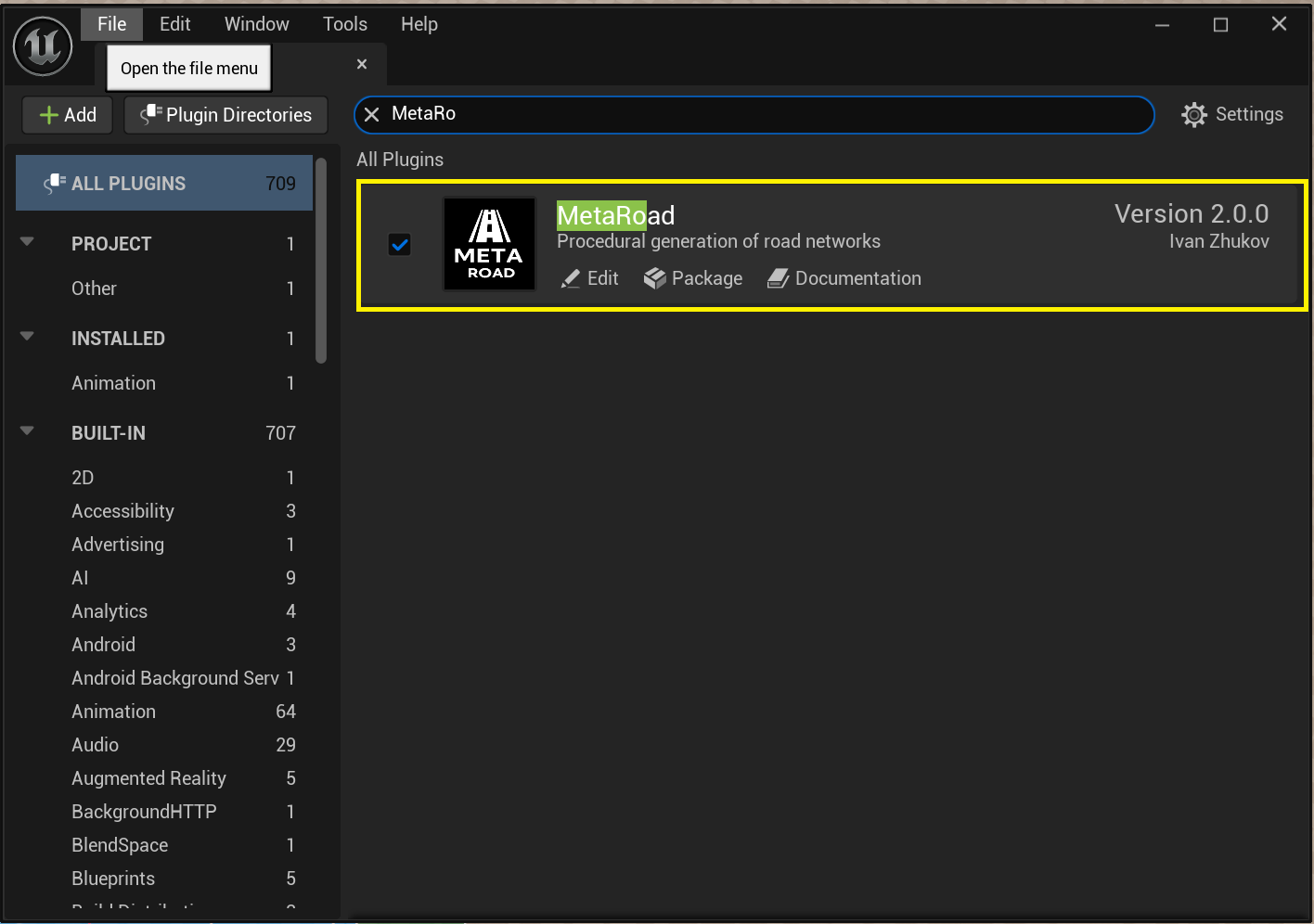
From the main menu, go to Edit -> Plugins. This opens the Plugins window and enables the MetaRoad plugin:
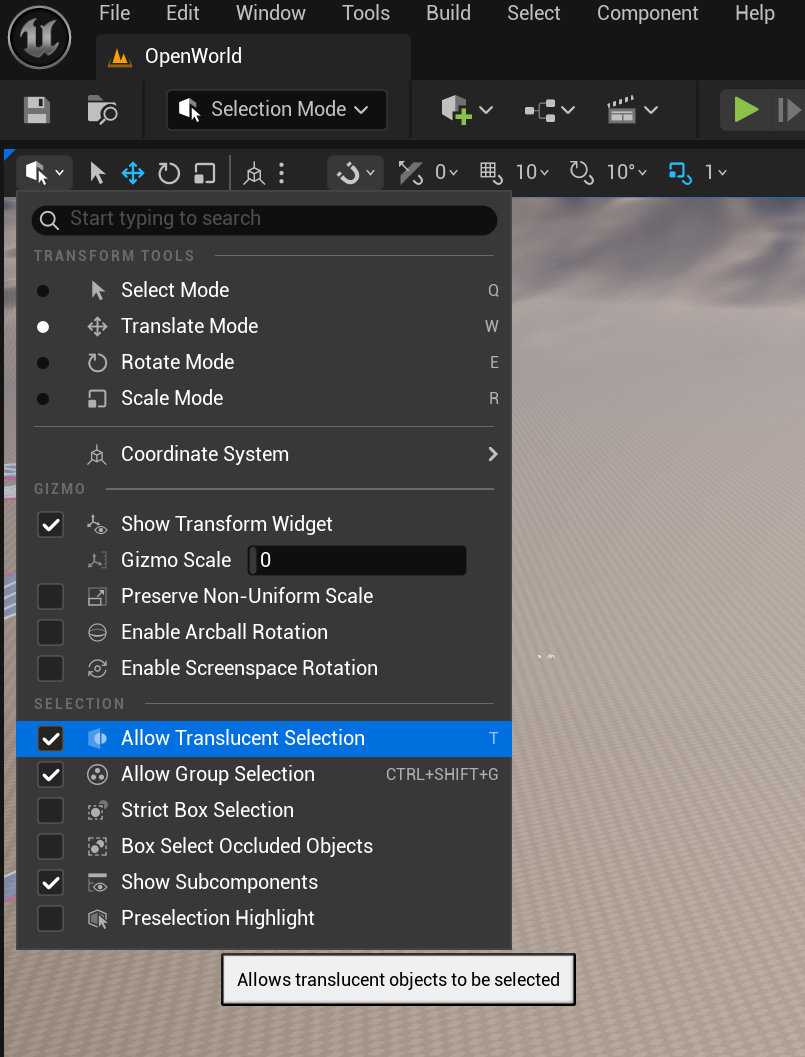
Make sure that Translucent Selection is allowed, otherwise there may be problems with selecting road lanes: