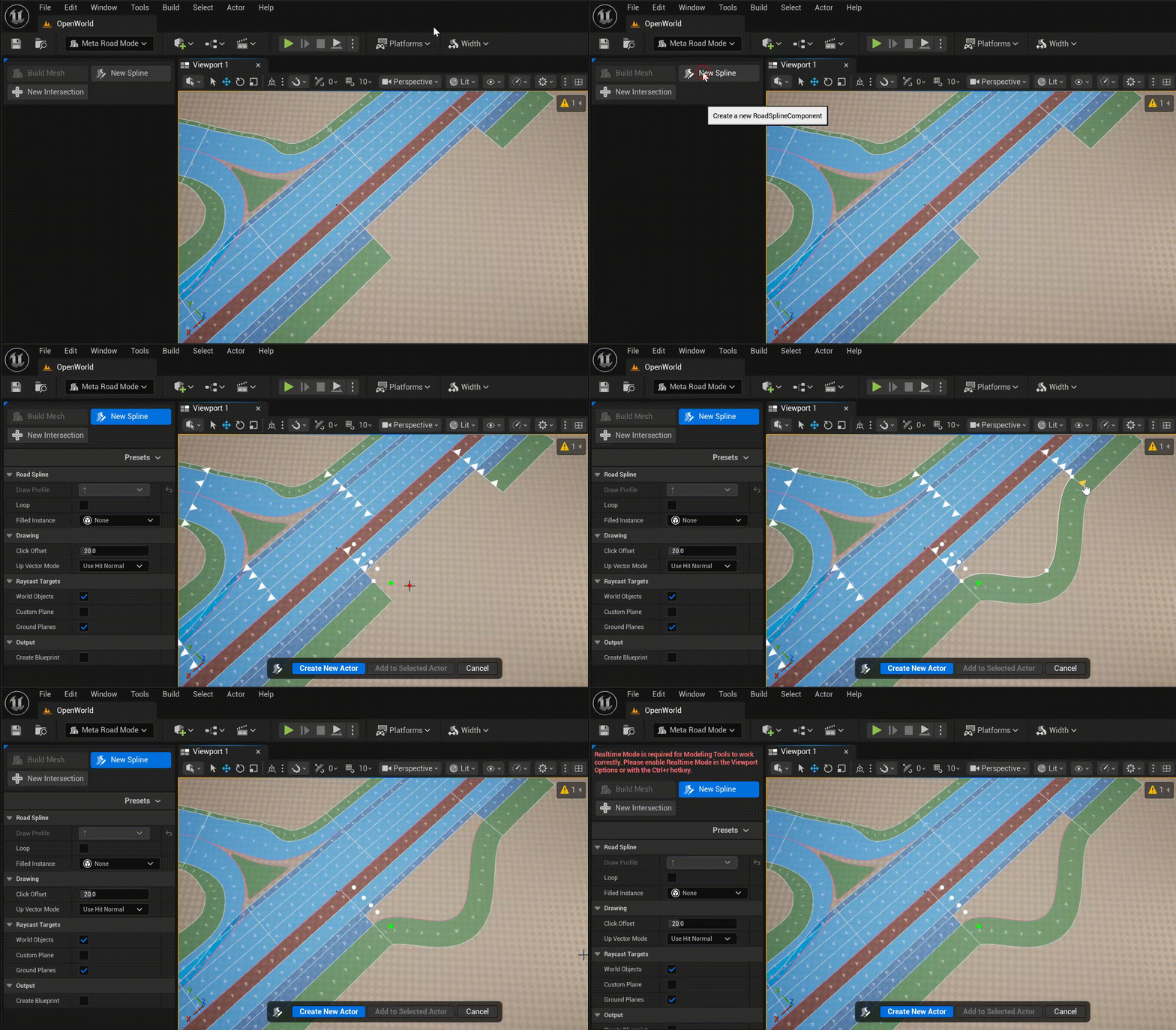
5.1. Draw Spline Tool
Draw Spline Tool allow to “draw” URoadSplineComponent in the usual way, as in popular 2D vector editors. There are two drawing modes:
Drawing from Profile
Drawing from Lane Successor Connection
The drawing mode is determined automatically based on where you start drawing the spline. If you start drawing the spline from a Lane Successor Connection mode Drawing from Lane Successor Connection will be selected, otherwise, mode Drawing from Profile will be selected.
5.1.1. Drawing from Profile
If you start drawing a spline from any point other than the Lane Successor Connection, the Drawing from Profile mode will be selected.
In this mode, you can select a profile from the Draw Profile drop-down menu:
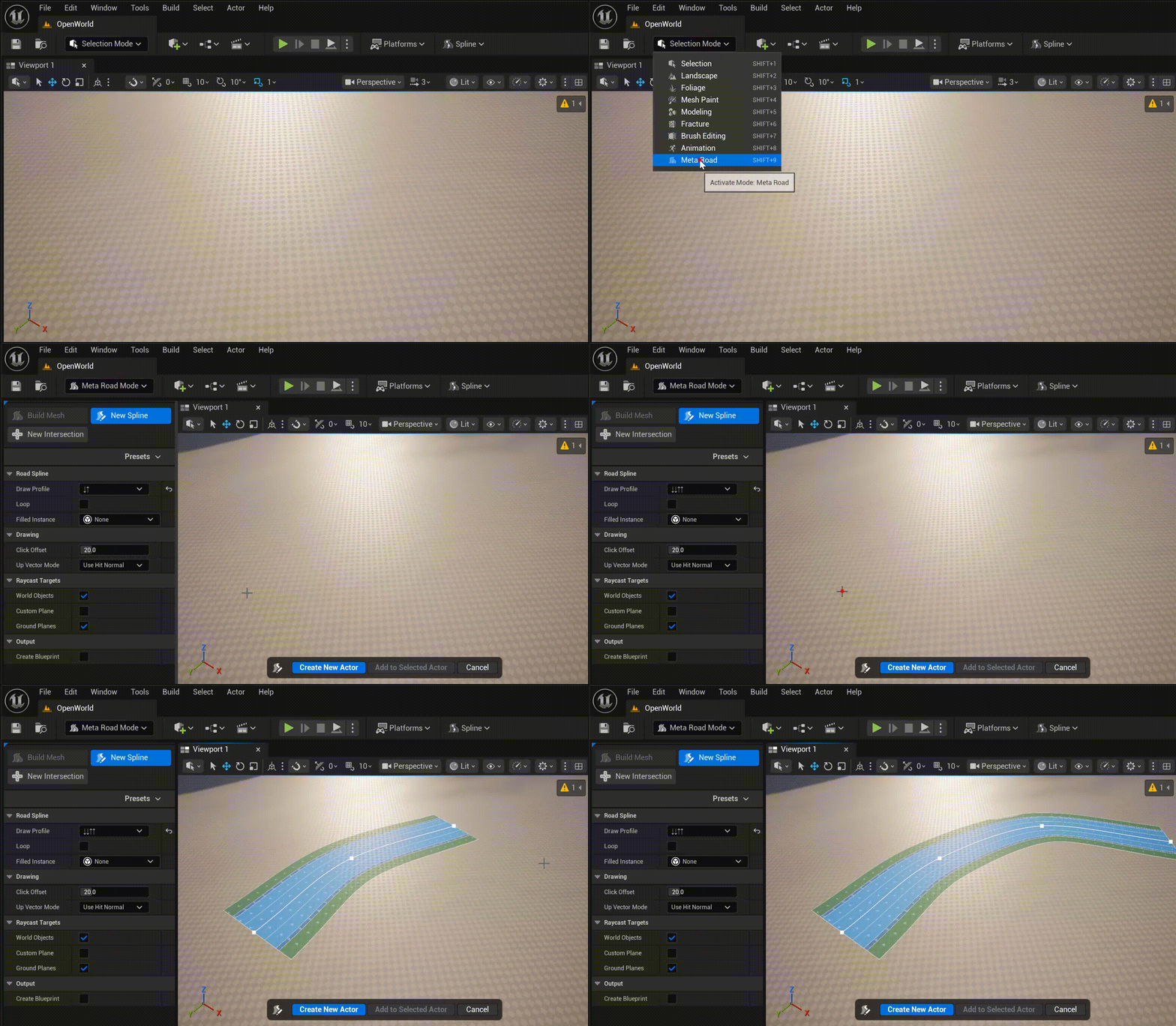
A new road profile can be added in presets.
5.1.2. Drawing from Lane Successor Connection
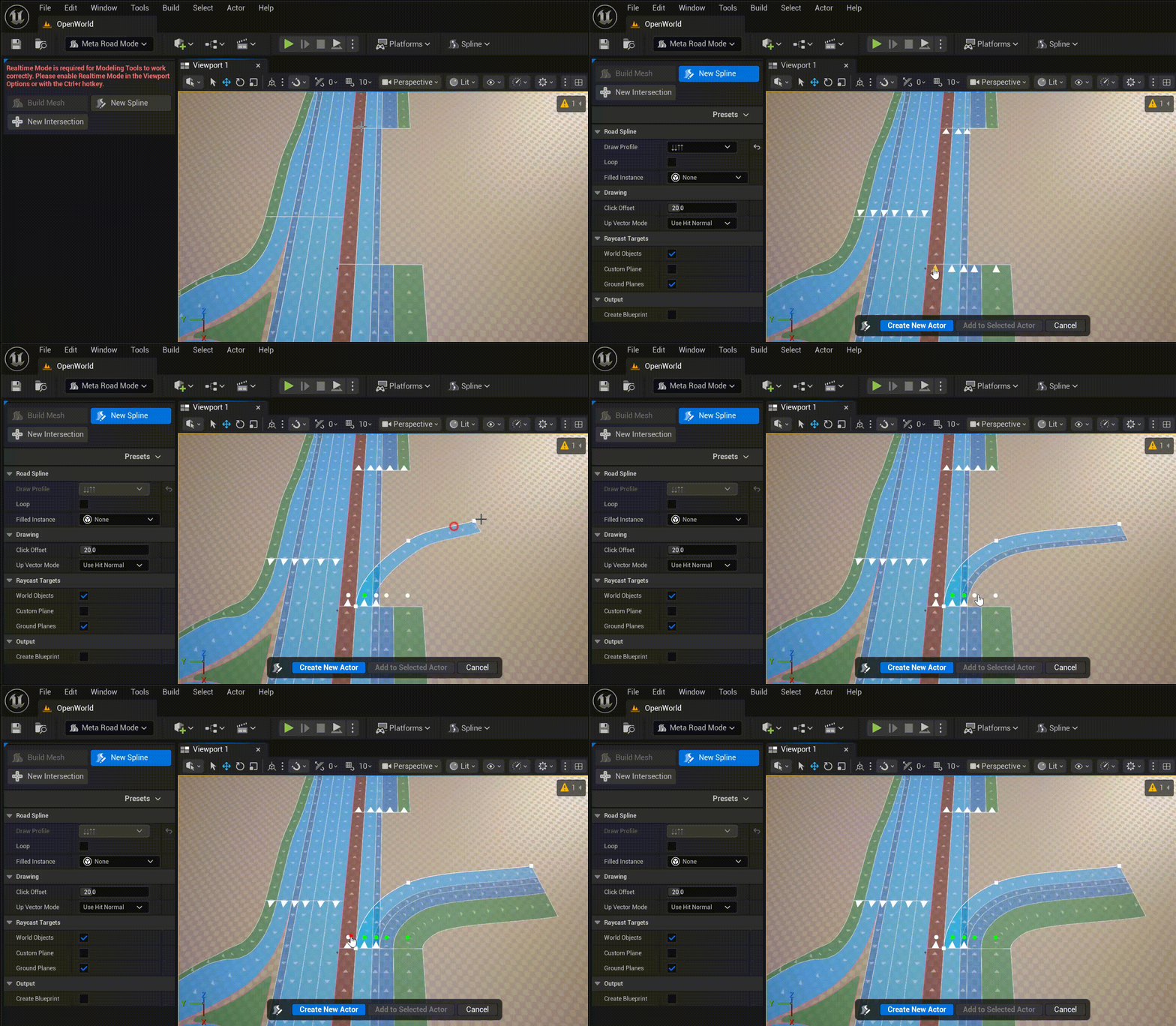
If you start drawing a spline with the Lane Successor Connection, the Drawing Lane Successor Connection mode will be selected.
In this mode, profiles are not available, but you can specify the number of lanes on the left and right of the source road.
5.1.3. Finishing Spline Drawing
Once you’ve finished drawing a spline, you have two ways to create it:
Create a new actor and add a URoadSplineComponent to it.
Add a URoadSplineComponent to a selected actor that already contains at least one URoadSplineComponent.
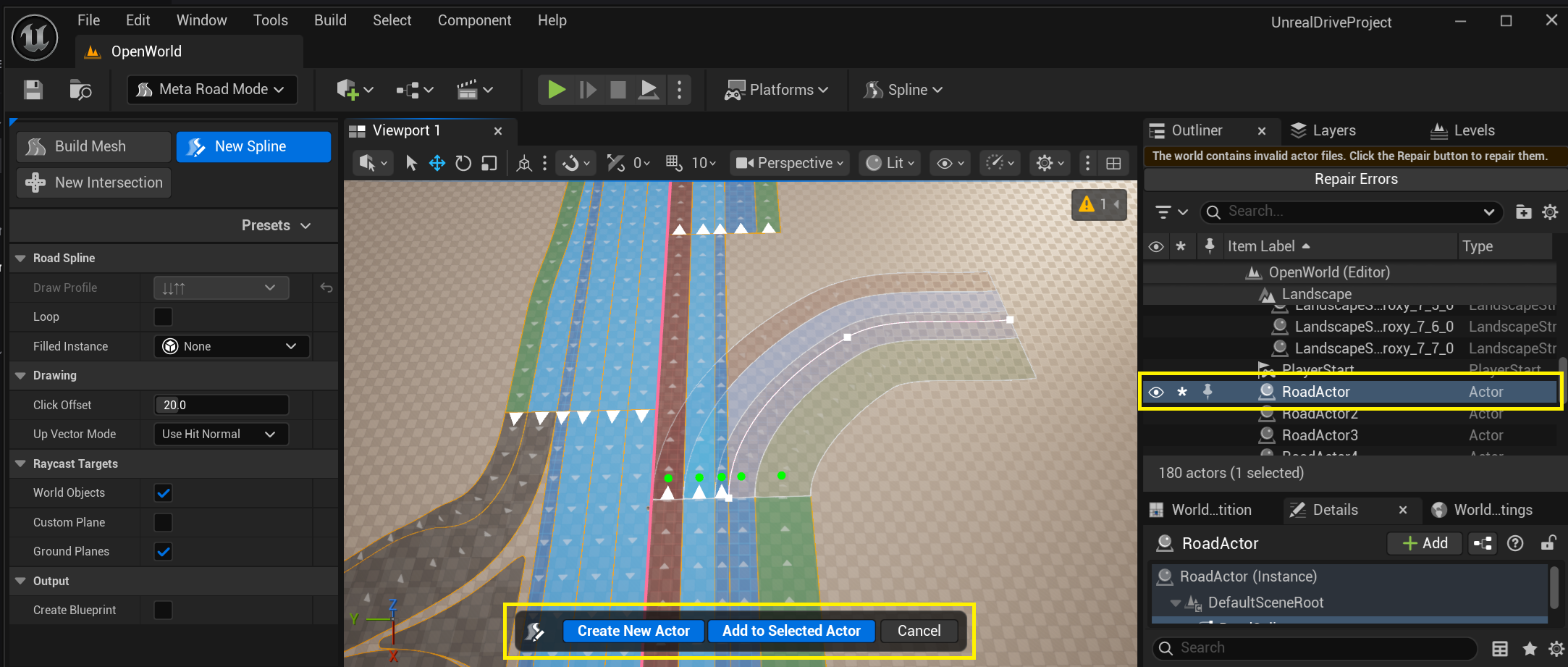
You can finish drawing a spline at the Lane Predecessor Connection. In this case, the spline drawing will be completed and you will need to choose one of the possible options for creating the URoadSplineComponent or cancel: