4. Spline Editing Modes
Spline Editing Modes allows to switch between URoadSplineComponent editing modes to edit spline properties described in Road Model:
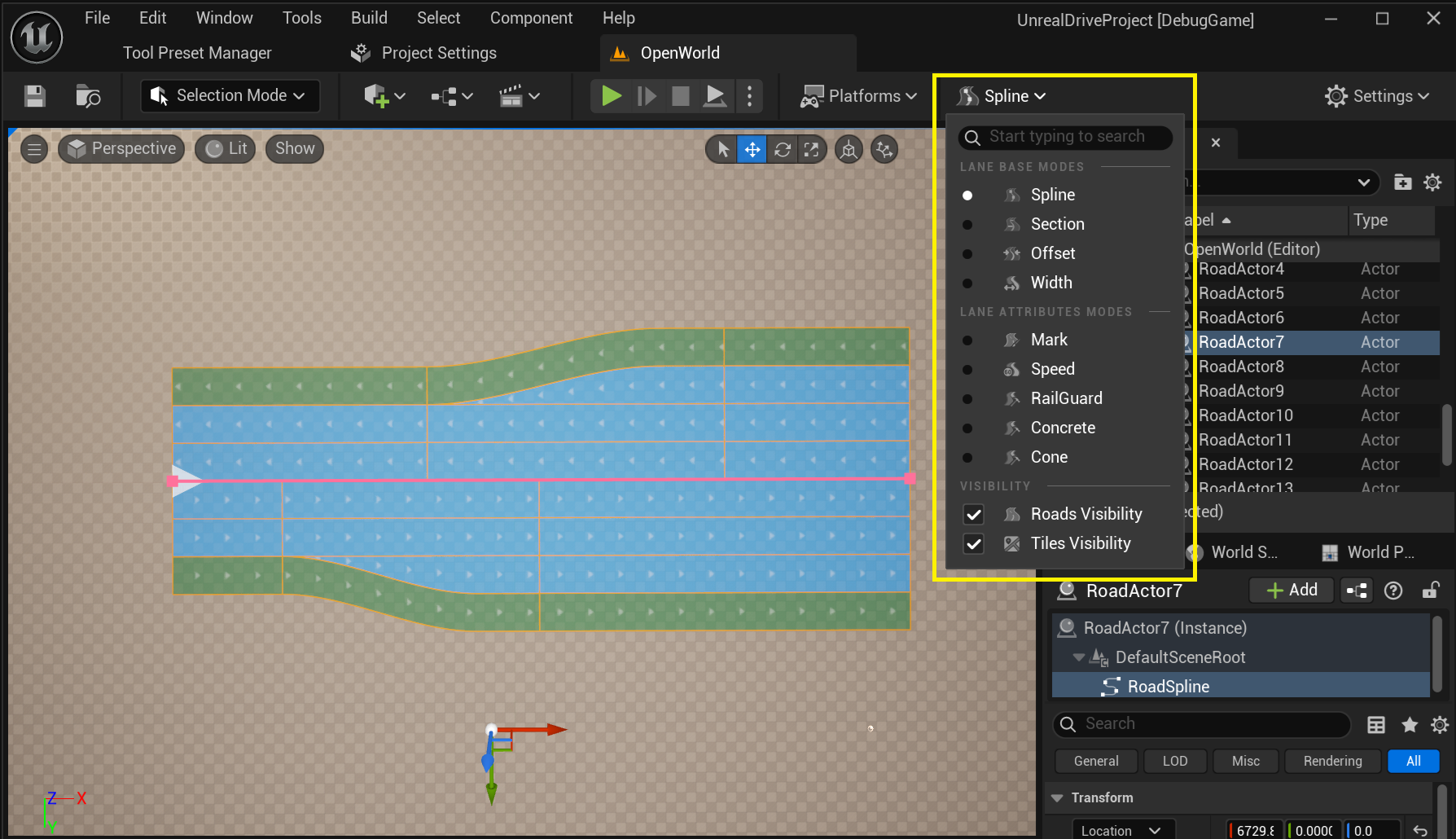 .
.
4.1. Base Modes
4.1.1. Spline Mode
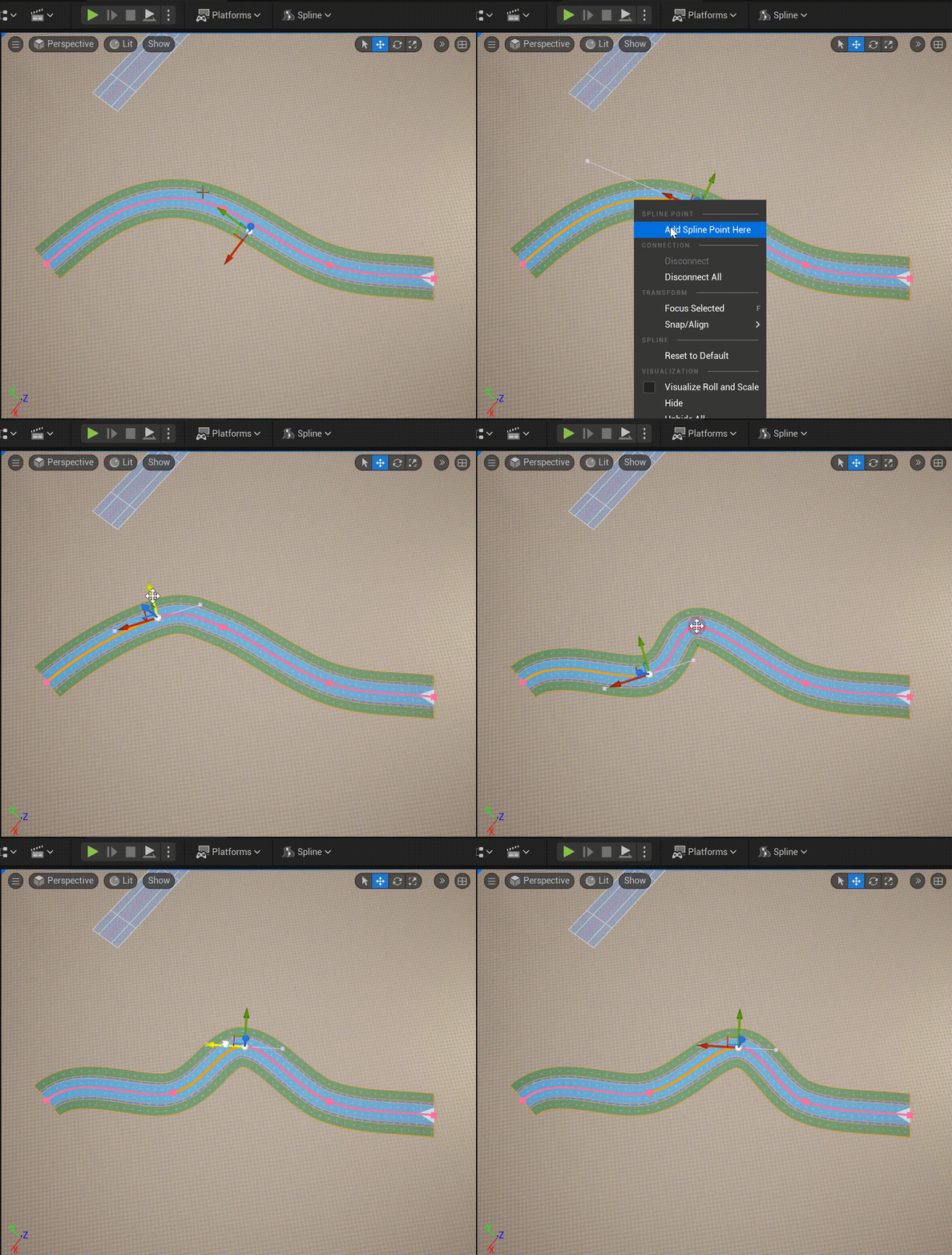
This mode allows to interact with URoadSplineComponent as with a regular UnrealEngine spline - create and delete nodes, edit tangents. The spline itself is pink in this mode.
According to Road Model, Spline Mode is the editing mode for the Road Reference Line:
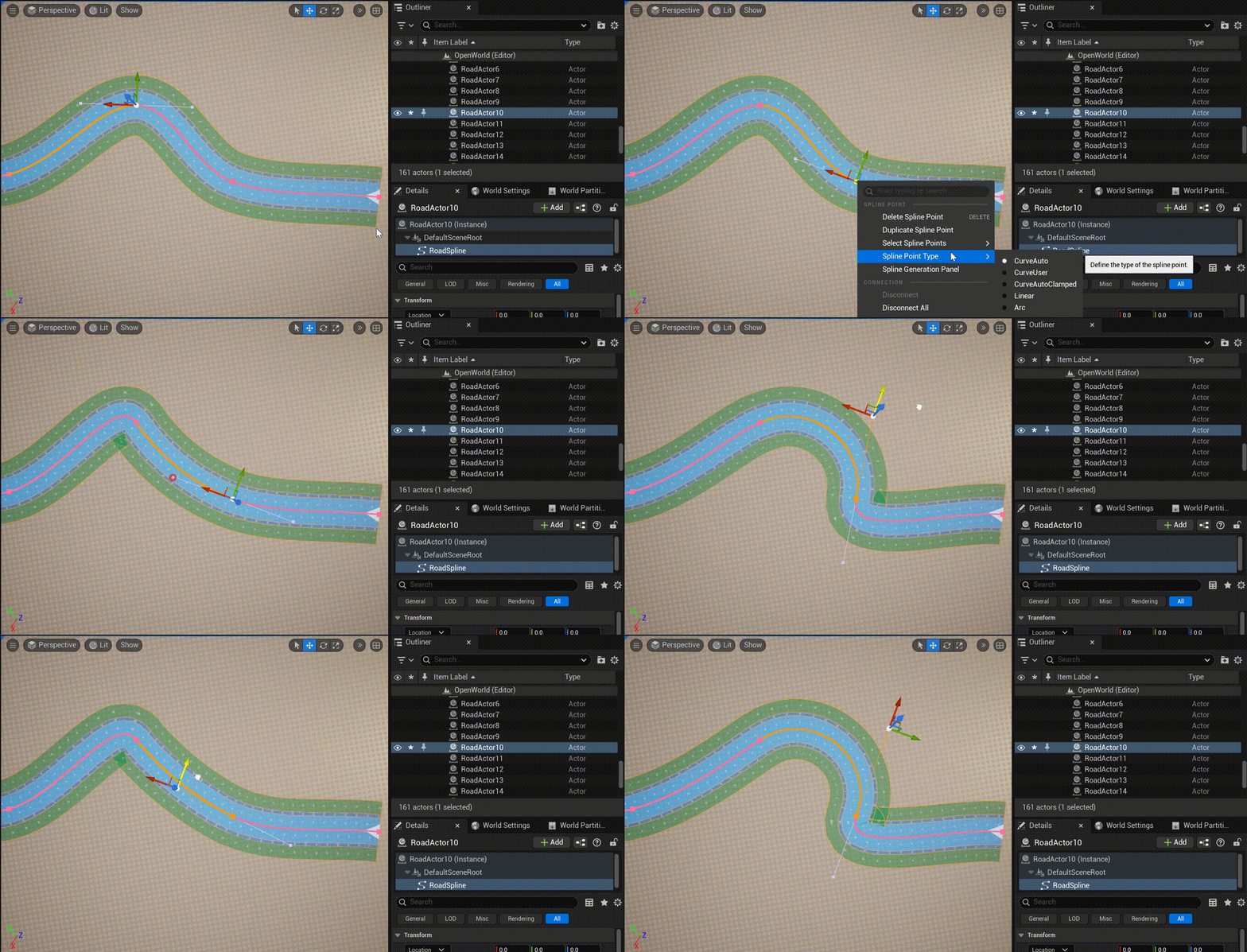
Additional spline editing features - the ability to assign a node type - Arc:
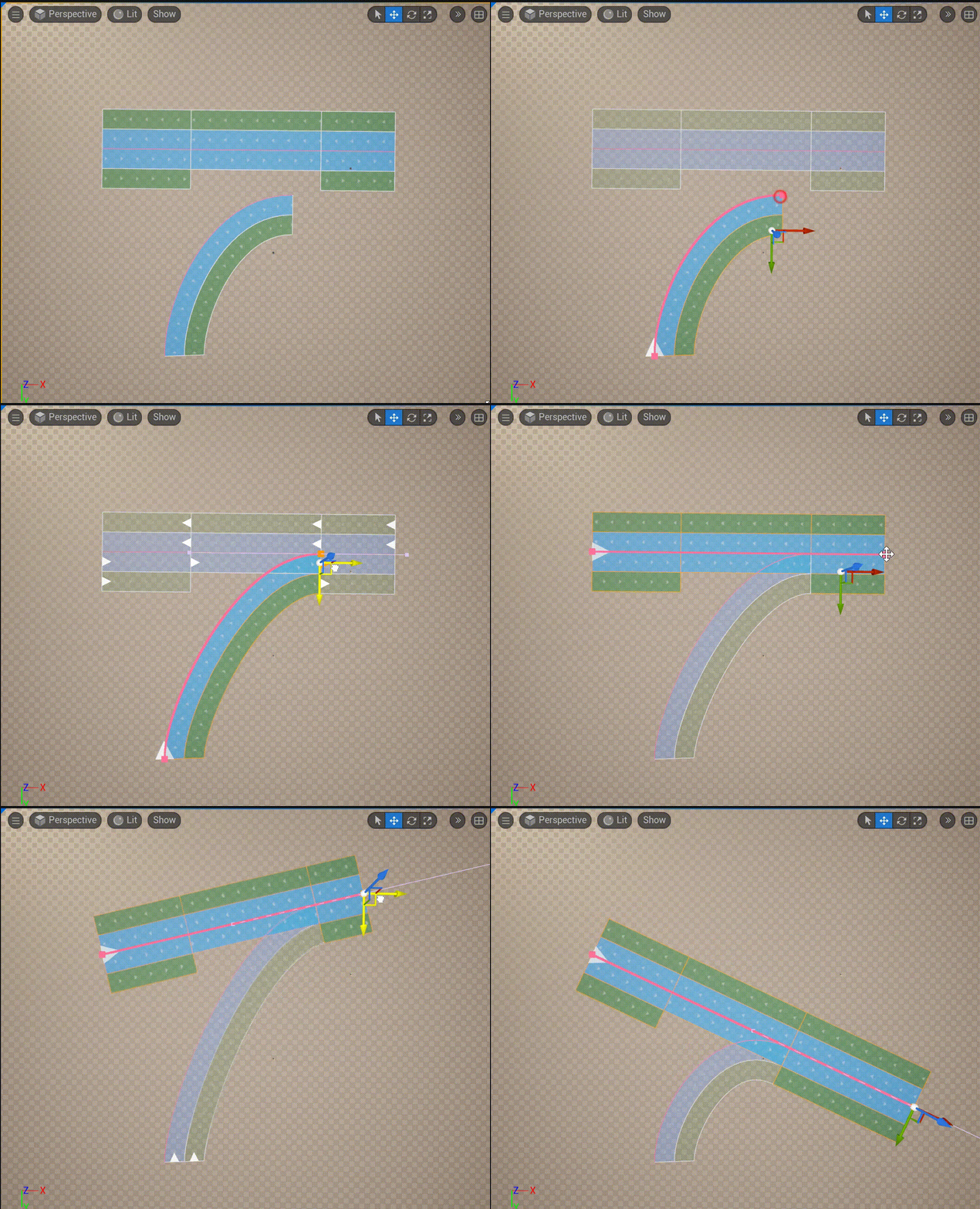
You can also manage spline connections in this mode (see Intersections and Junctions):
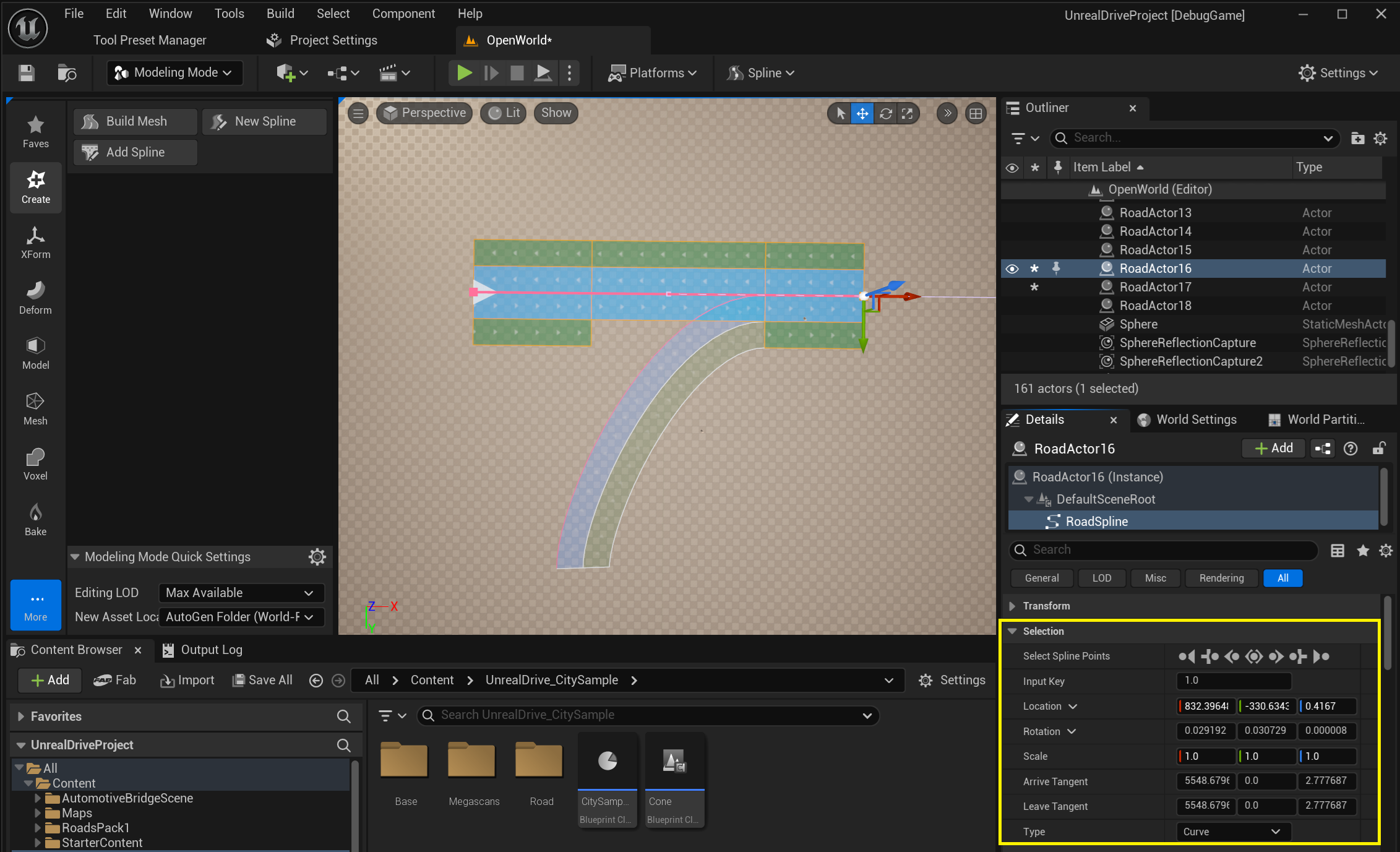
In the Details Panel, in the Selection group, you can edit the selected spline node:
4.1.2. Section Mode
This mode allows to edit Road Lanes and Lane Sections described in the Road Model:
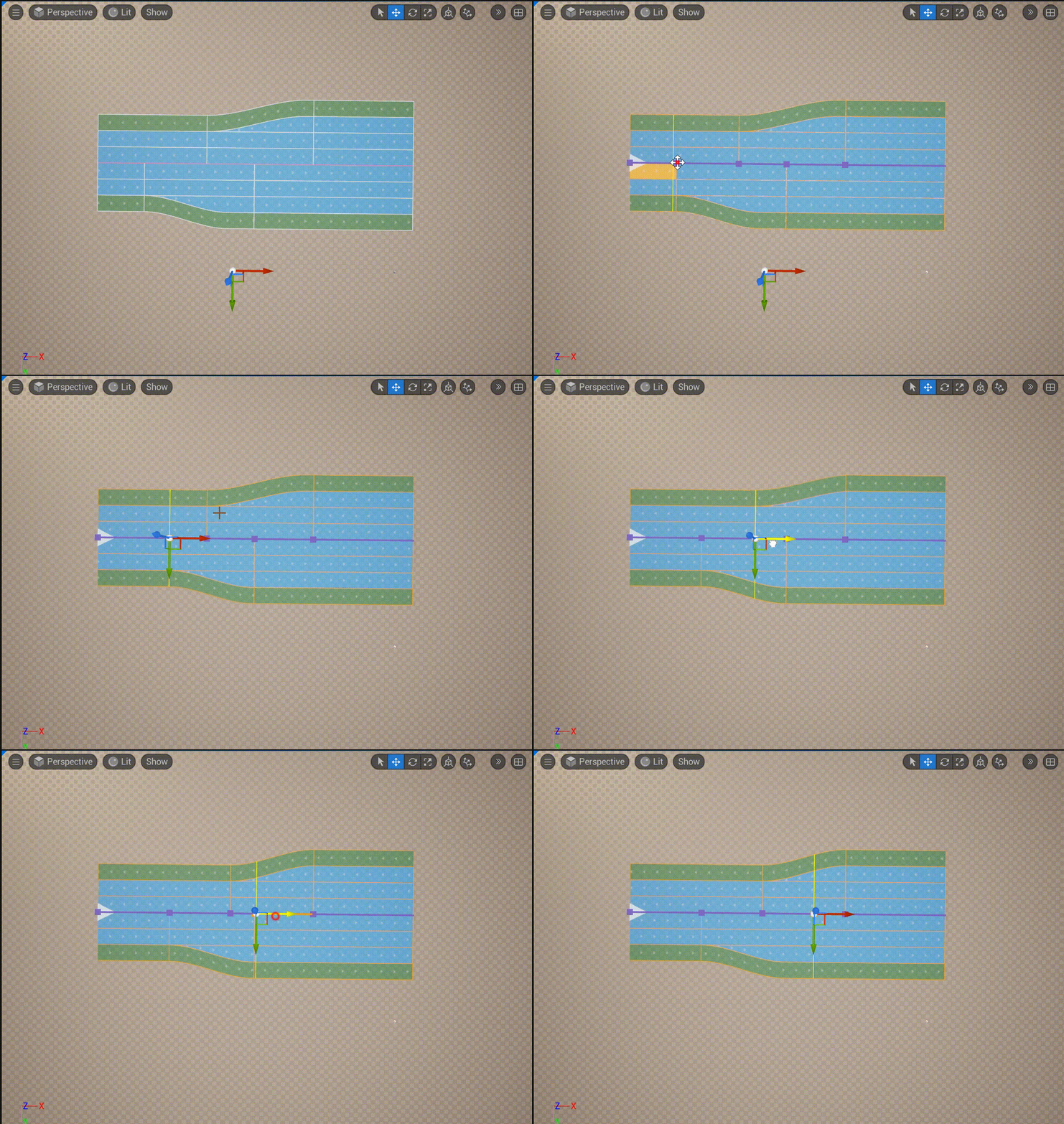
You can add and delete Road Sections via the context menu:
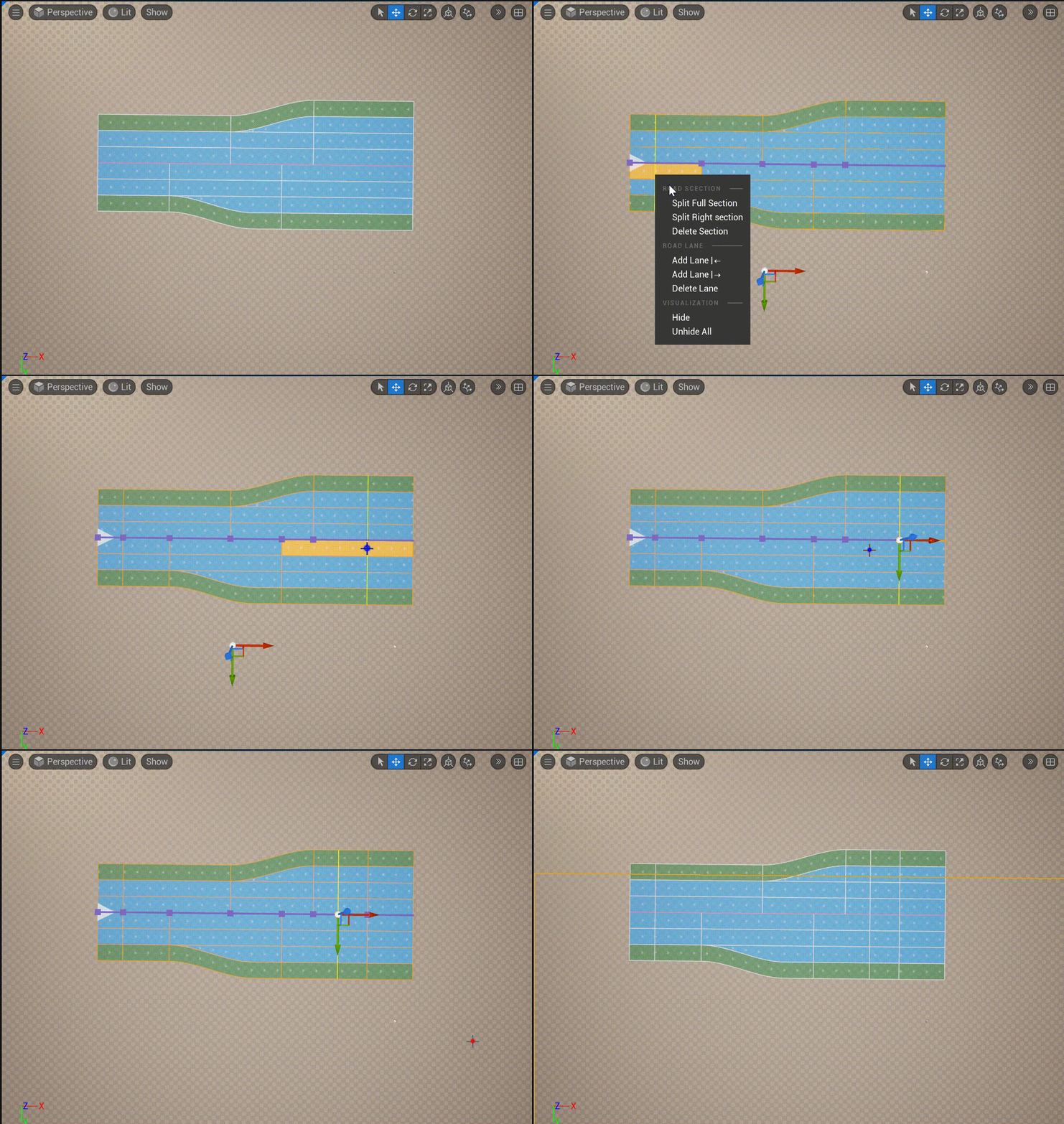
You can also add and delete Road Lanes:
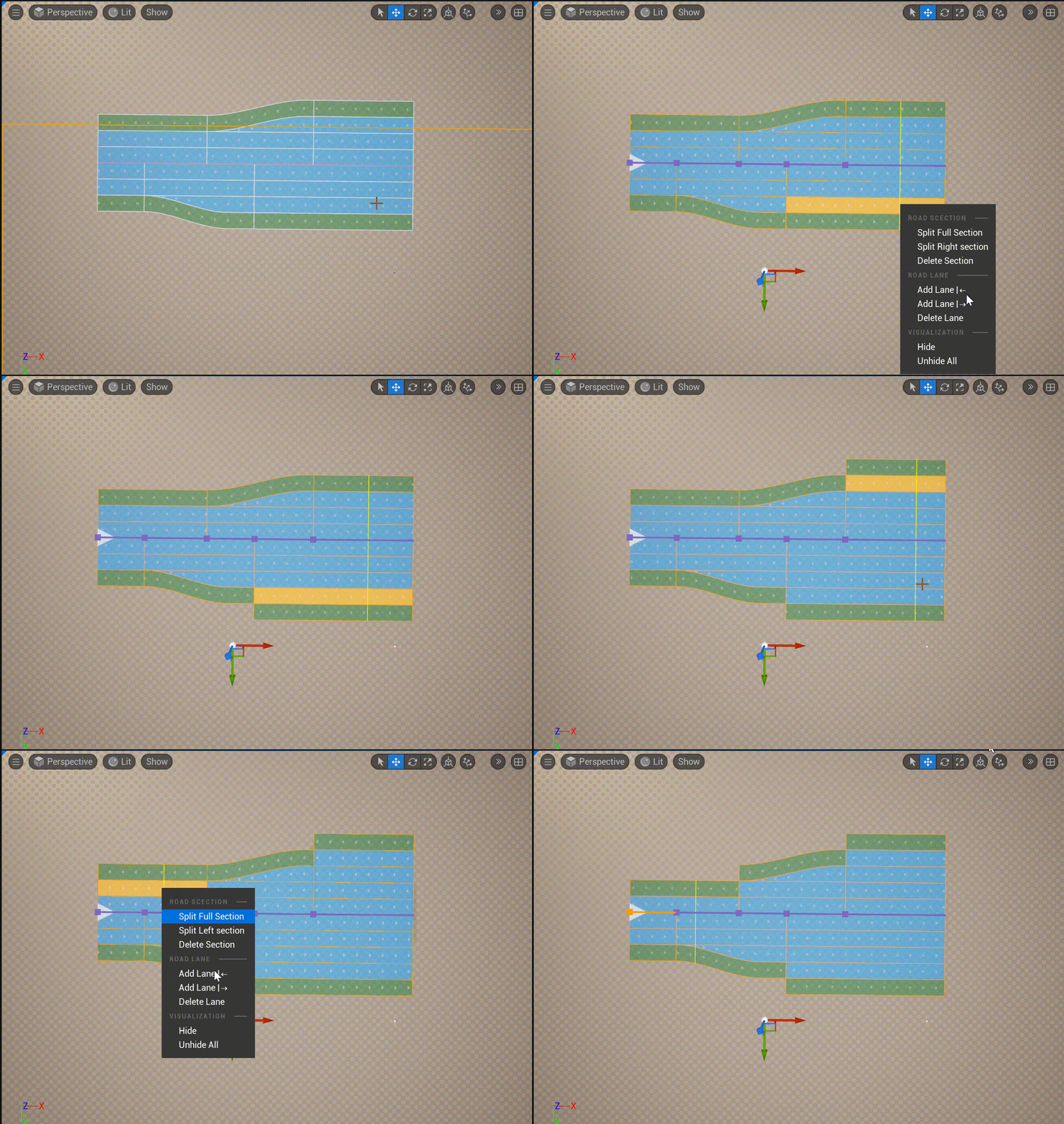
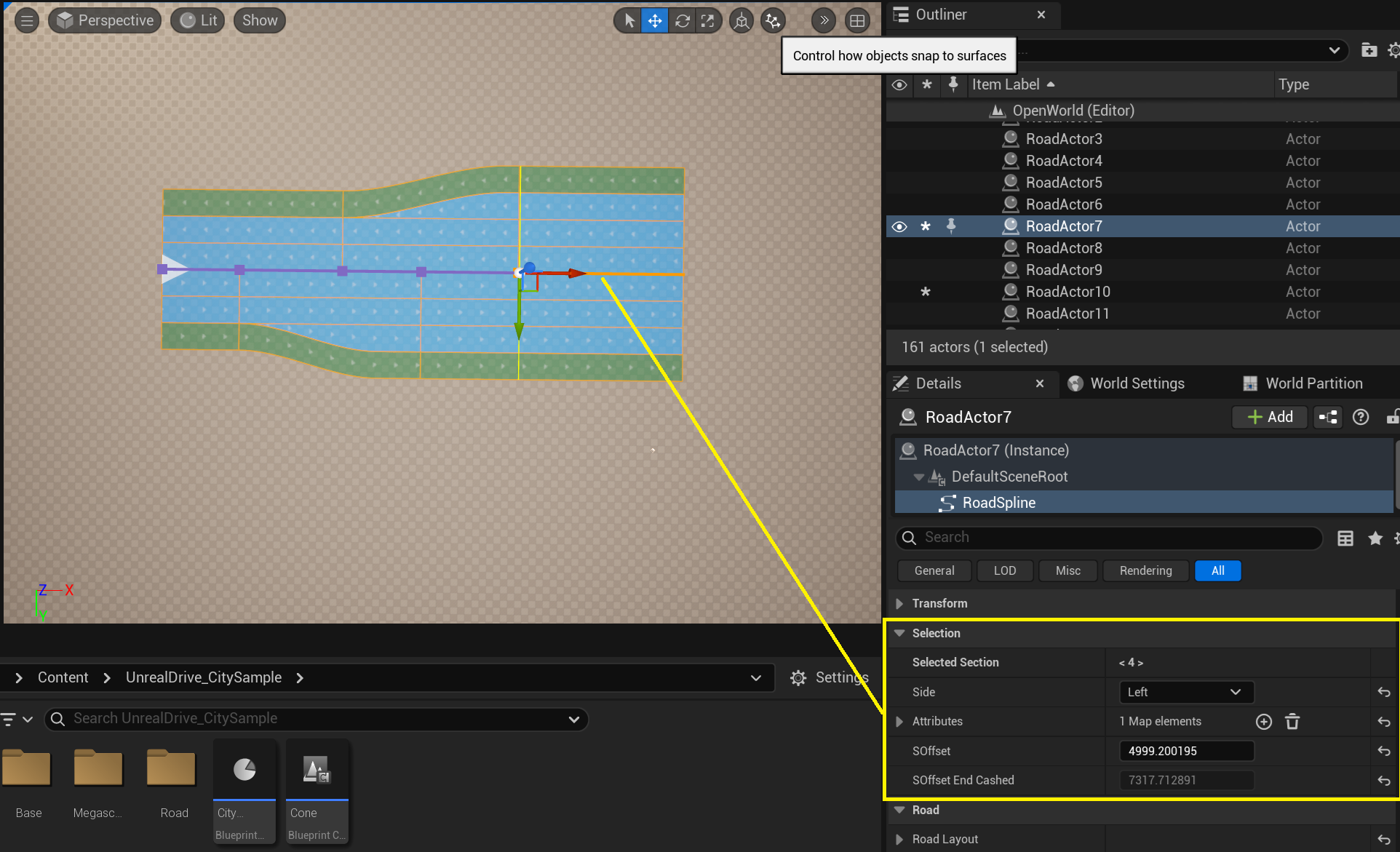
In the Details Panel, in the Selection group, you can edit the selected Road Section:
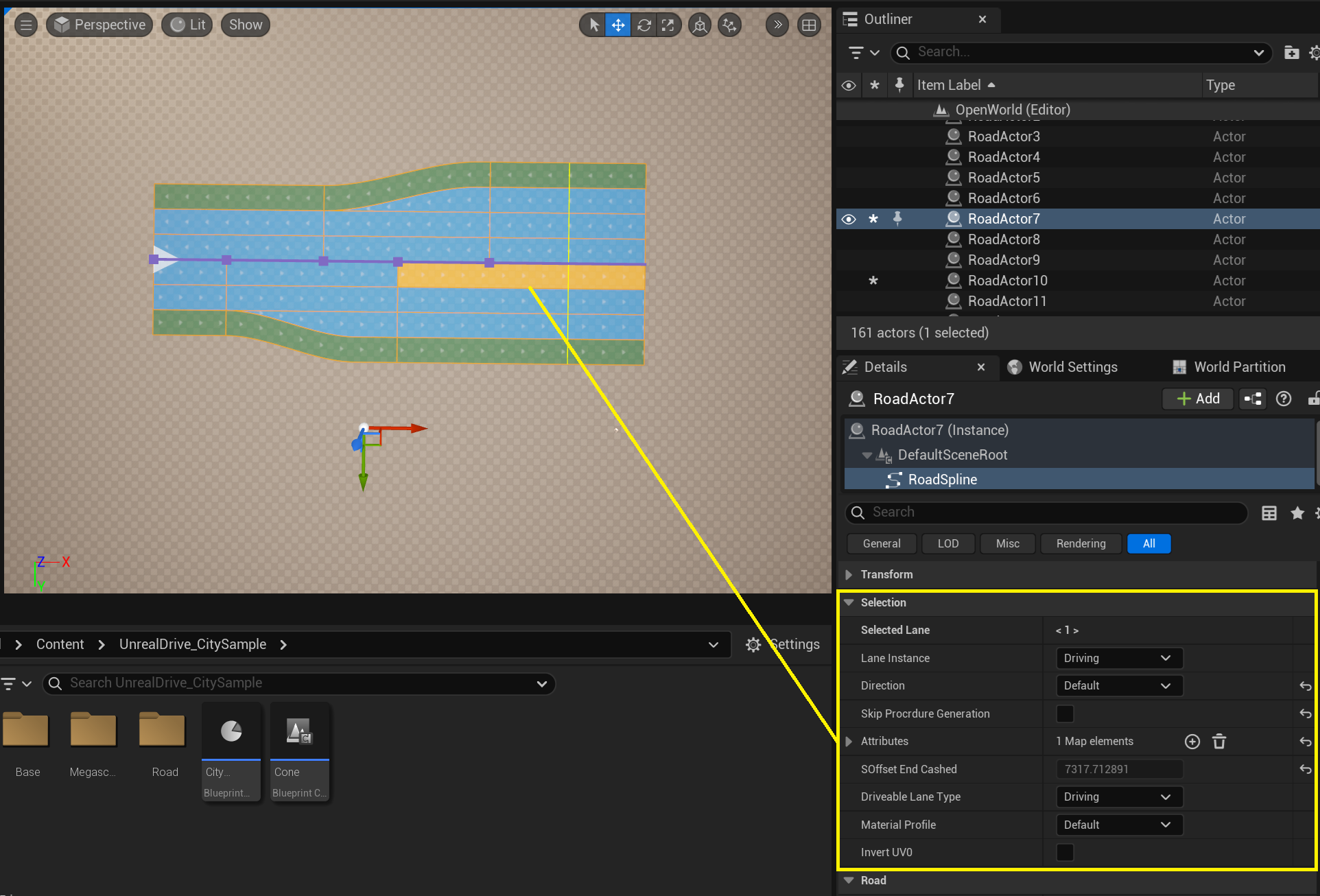
The Details Panel in the Selection group also allows you to edit the selected Road Lane:
4.1.3. Offset Mode
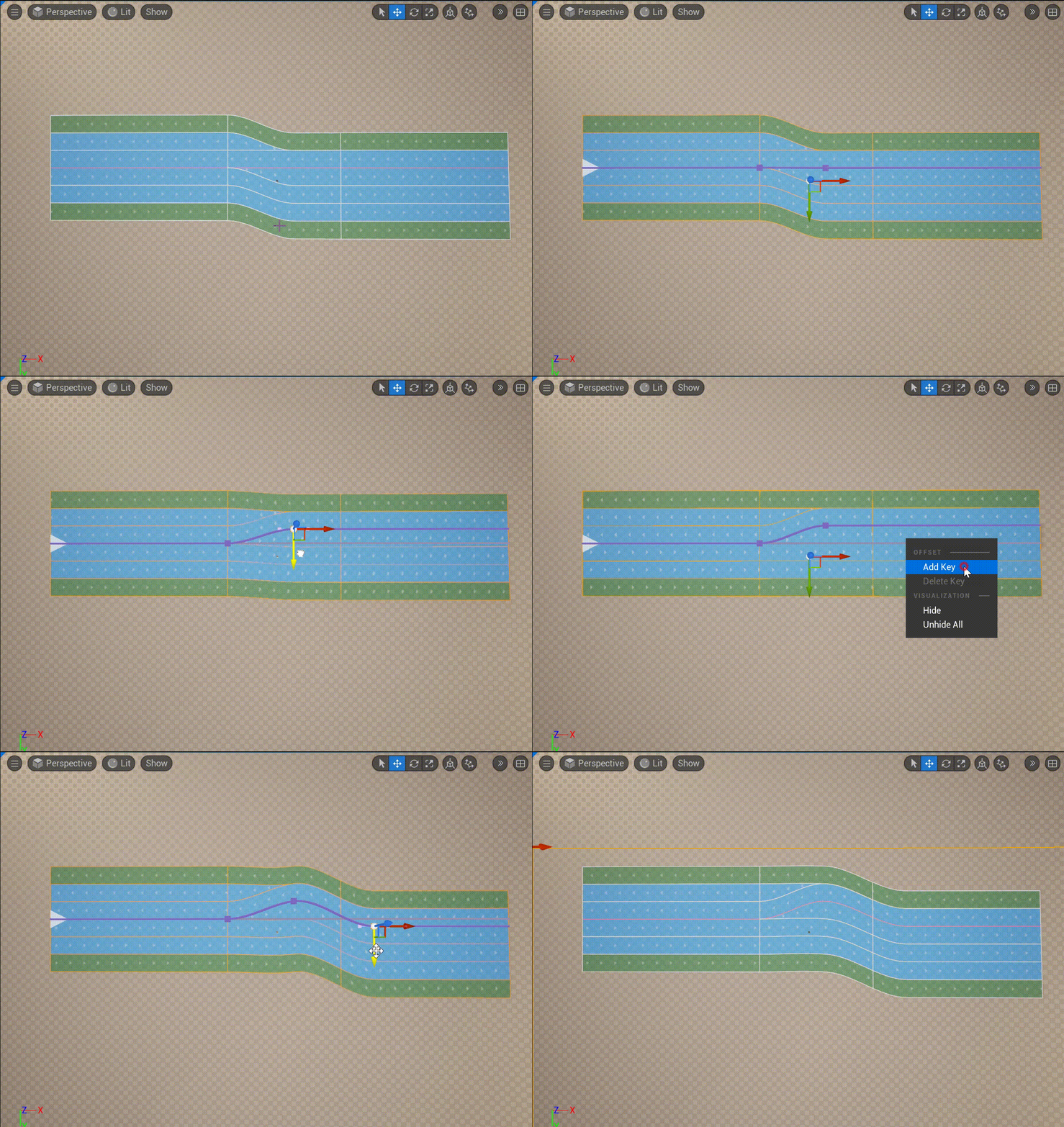
This mode allows to set the Center Lane offset relative to the Road Reference Line and corresponds to the Lane Offset described in Road Model.
Editing the Road Offset width is similar to editing a spline - you can set any shape, add/delete nodes, and edit tangents:
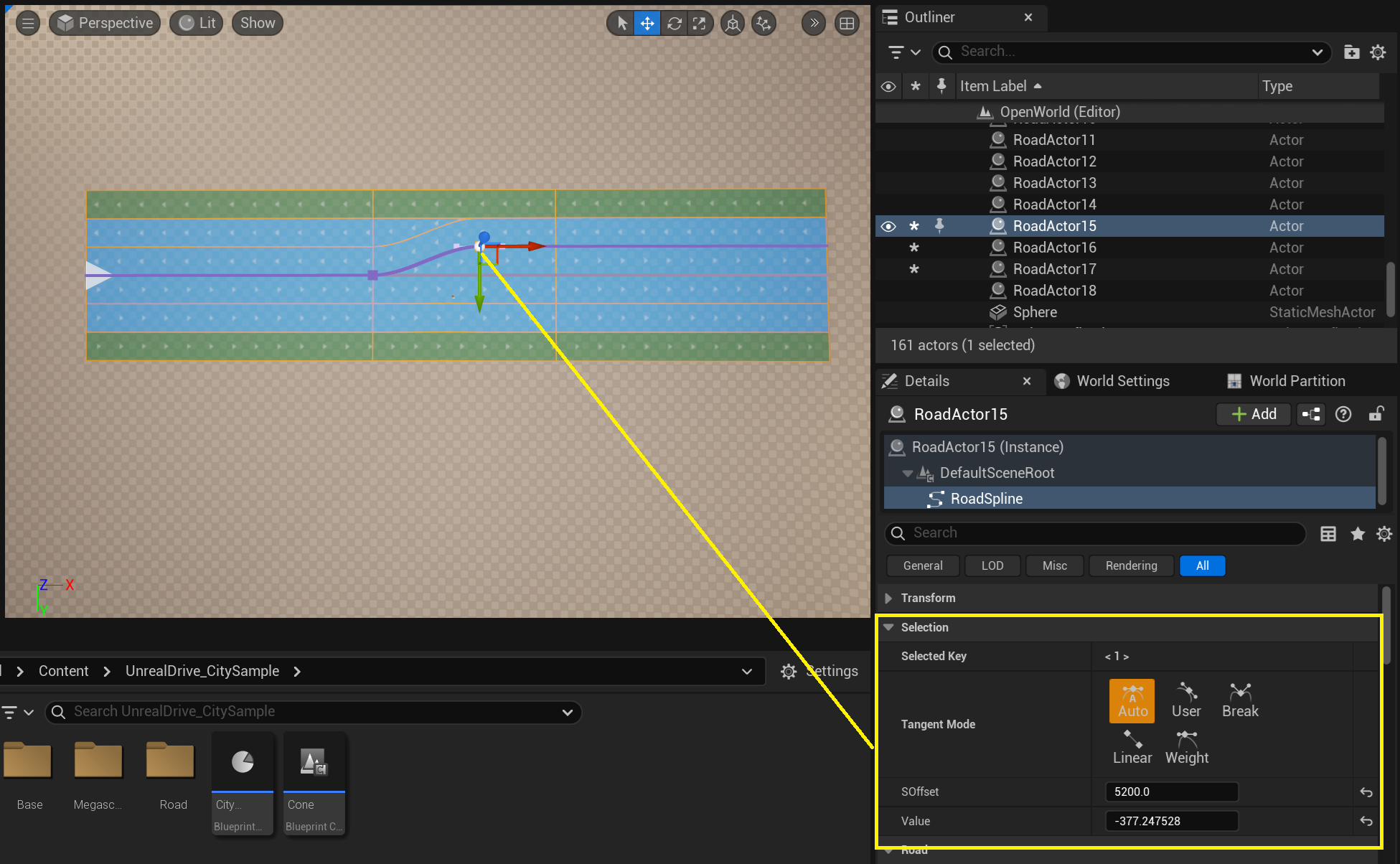
In the Details Panel, in the Selection group, you can edit the selected Offset Key:
4.1.4. Width Mode
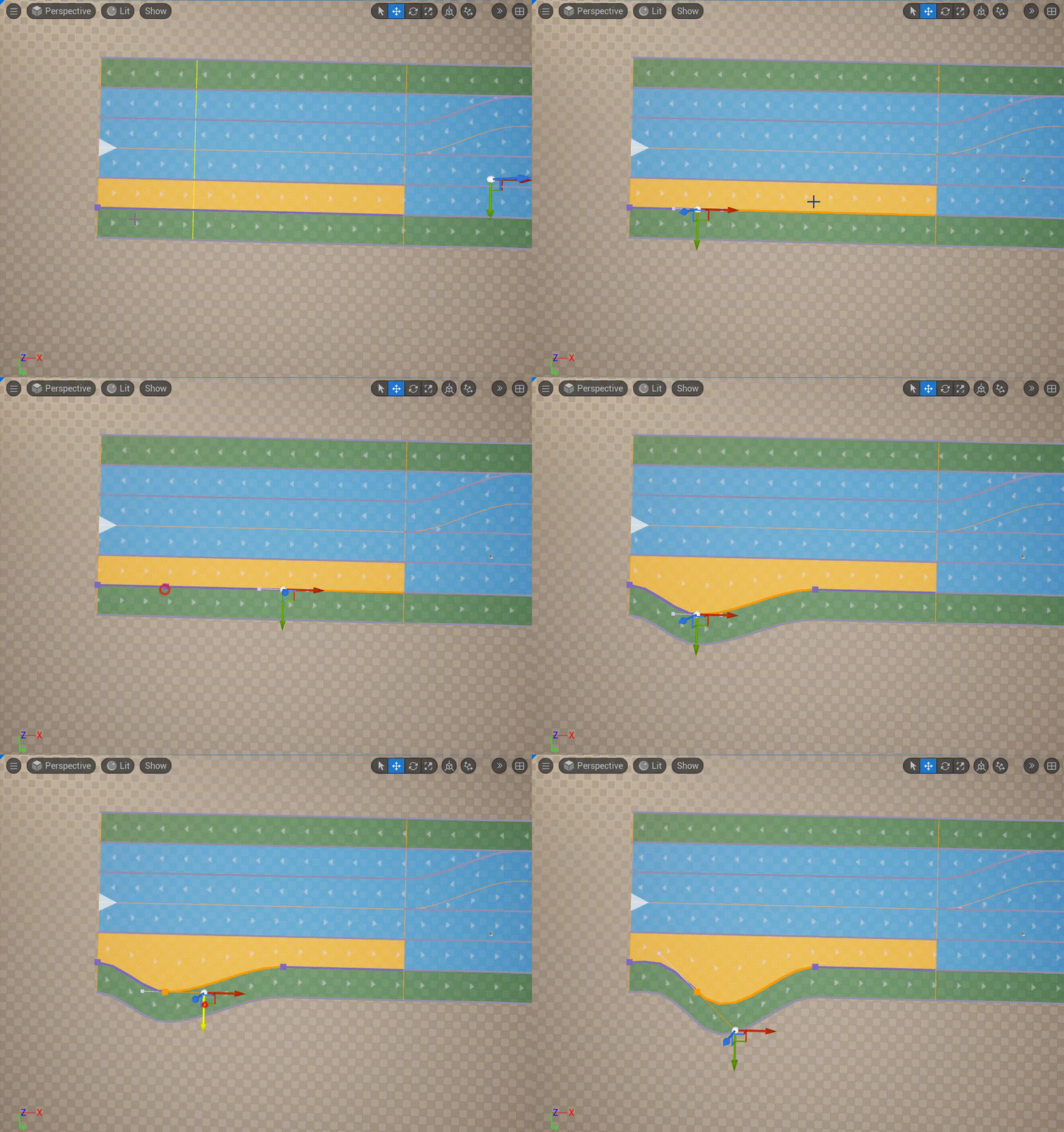
This mode allows you to edit the width of the Road Lane.
Editing the Road Lane is similar to editing a spline - you can set any shape, add/delete nodes, and edit tangents:
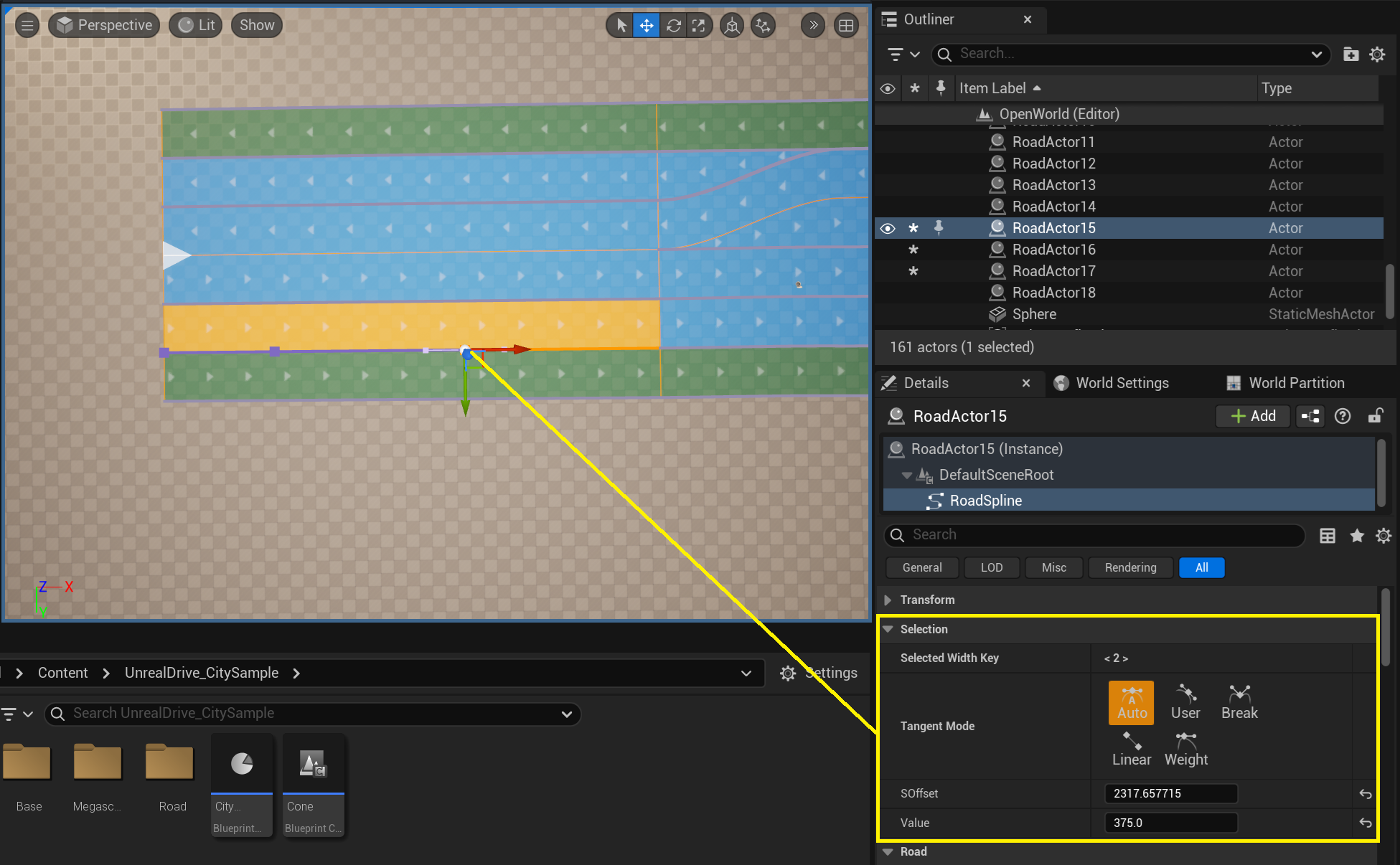
In the Details Panel, in the Selection group, you can edit the selected Width Key:
4.2. Attribute Modes
These mode allow to add various Road Attributes to Road Lane, which can be used for procedural generation or any other purposes (see the Road Attributes section):
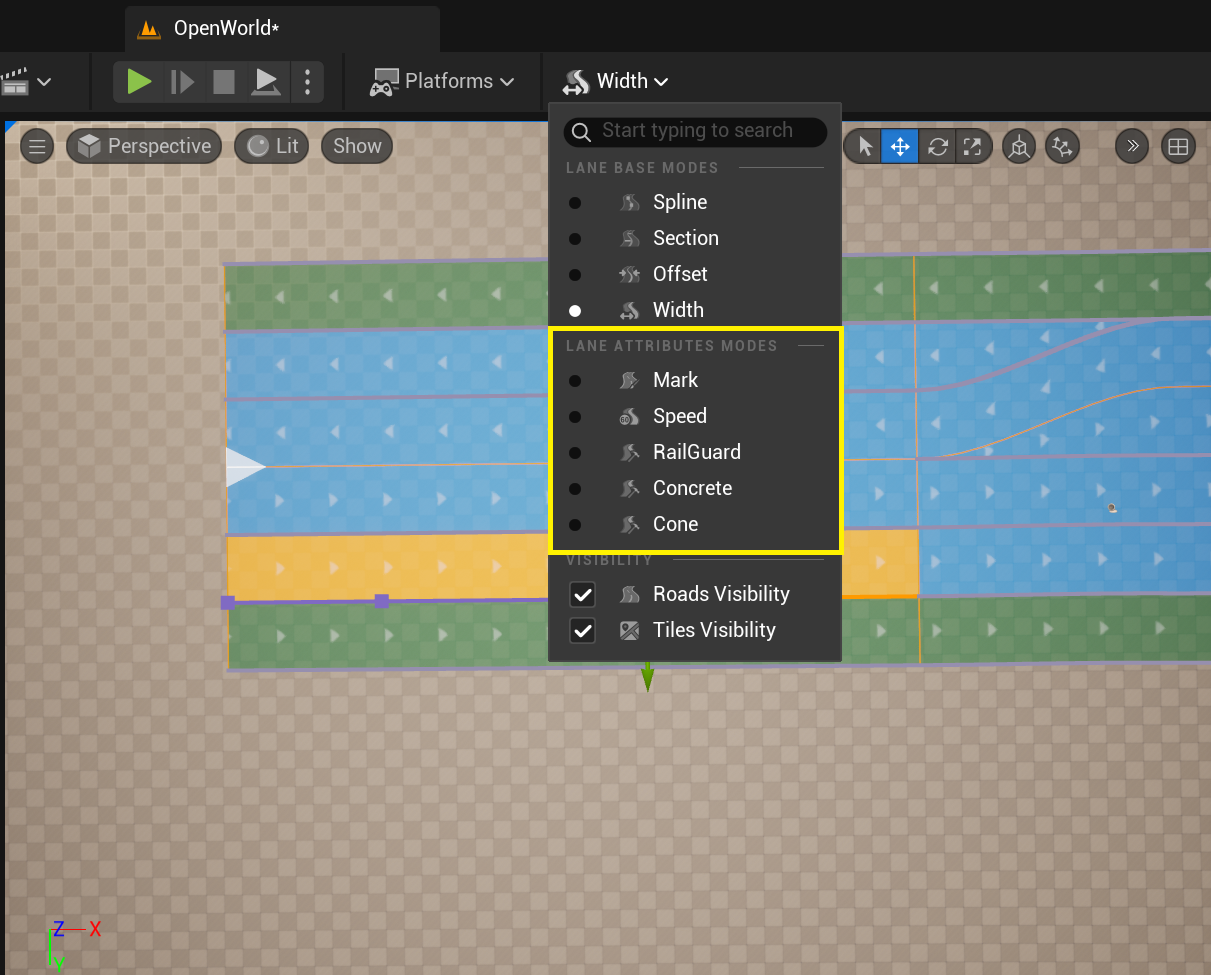
By default, two types of attributes are available: speed limit and road markings.
To learn how to create new attribute types, see Road Attribute Entries.
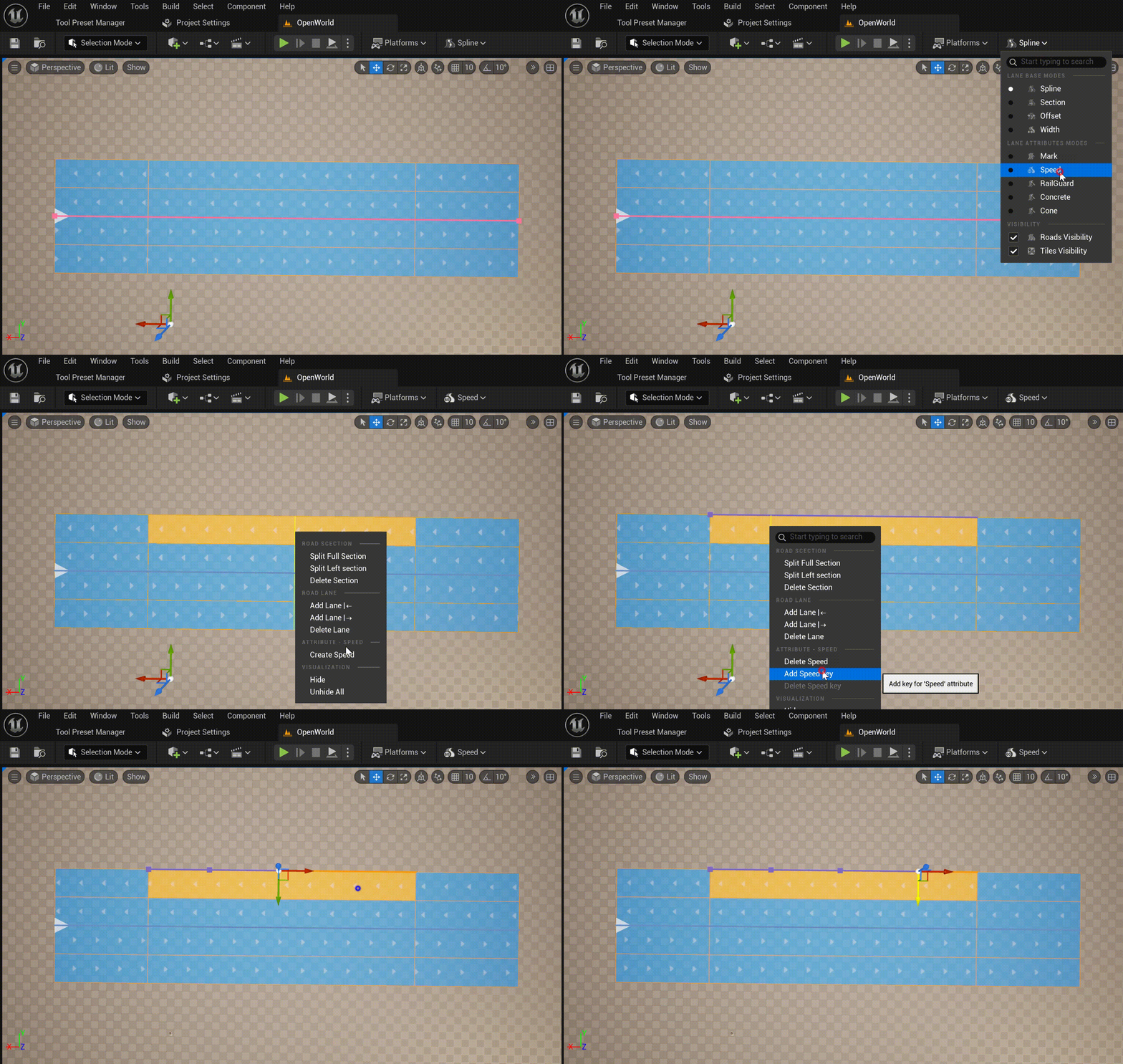
To add a new attribute for a lane, select the appropriate mode in the Road Editing Modes menu, select the required Road Lane, and select Create ATTRIBUTE_NAME from the context menu. Then, add the required Attribute Keys from the same context menu:
In the Details Panel, in the Selection group, you can edit the selected Attribute Key:
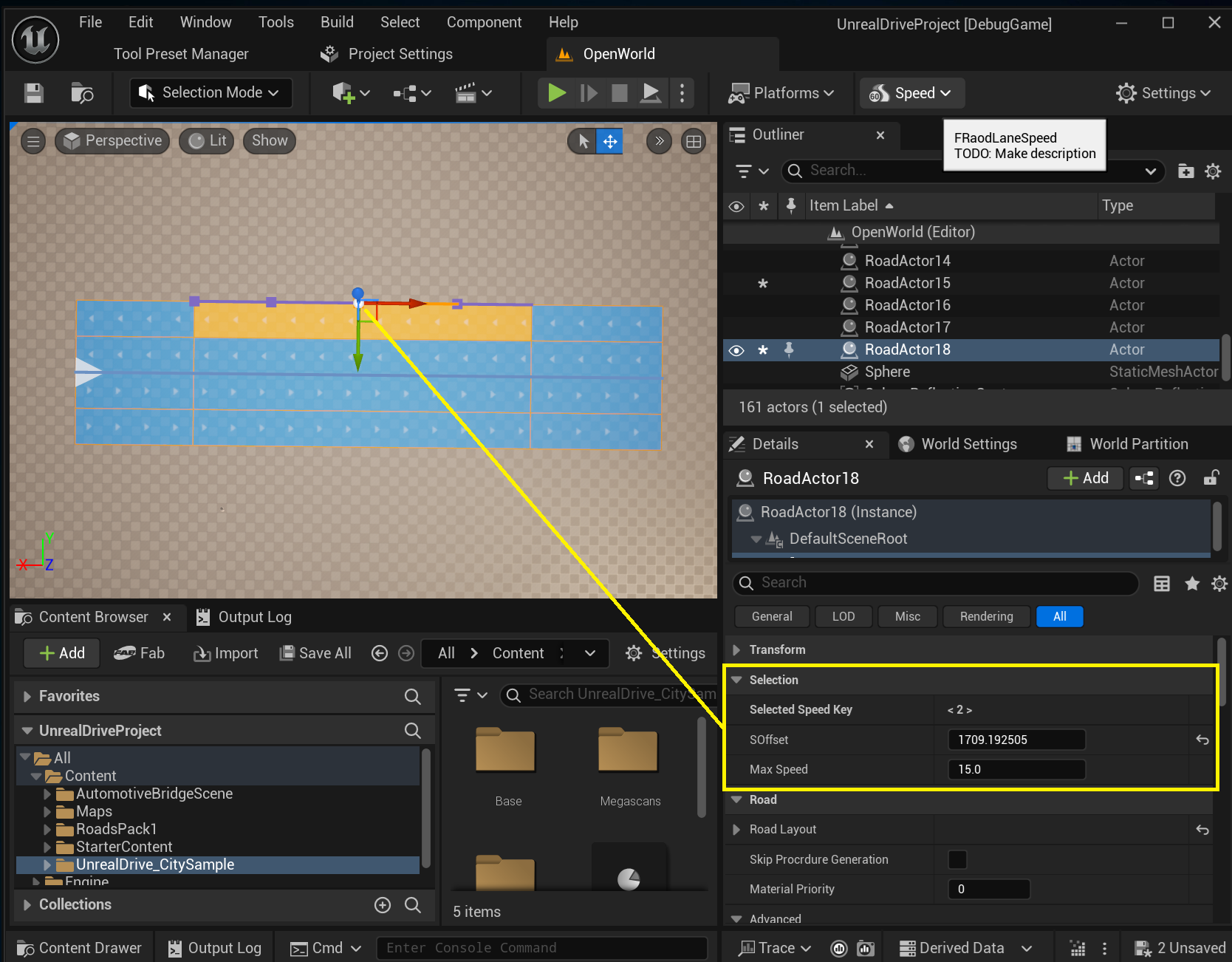
4.2.1. Road Mark Attribute
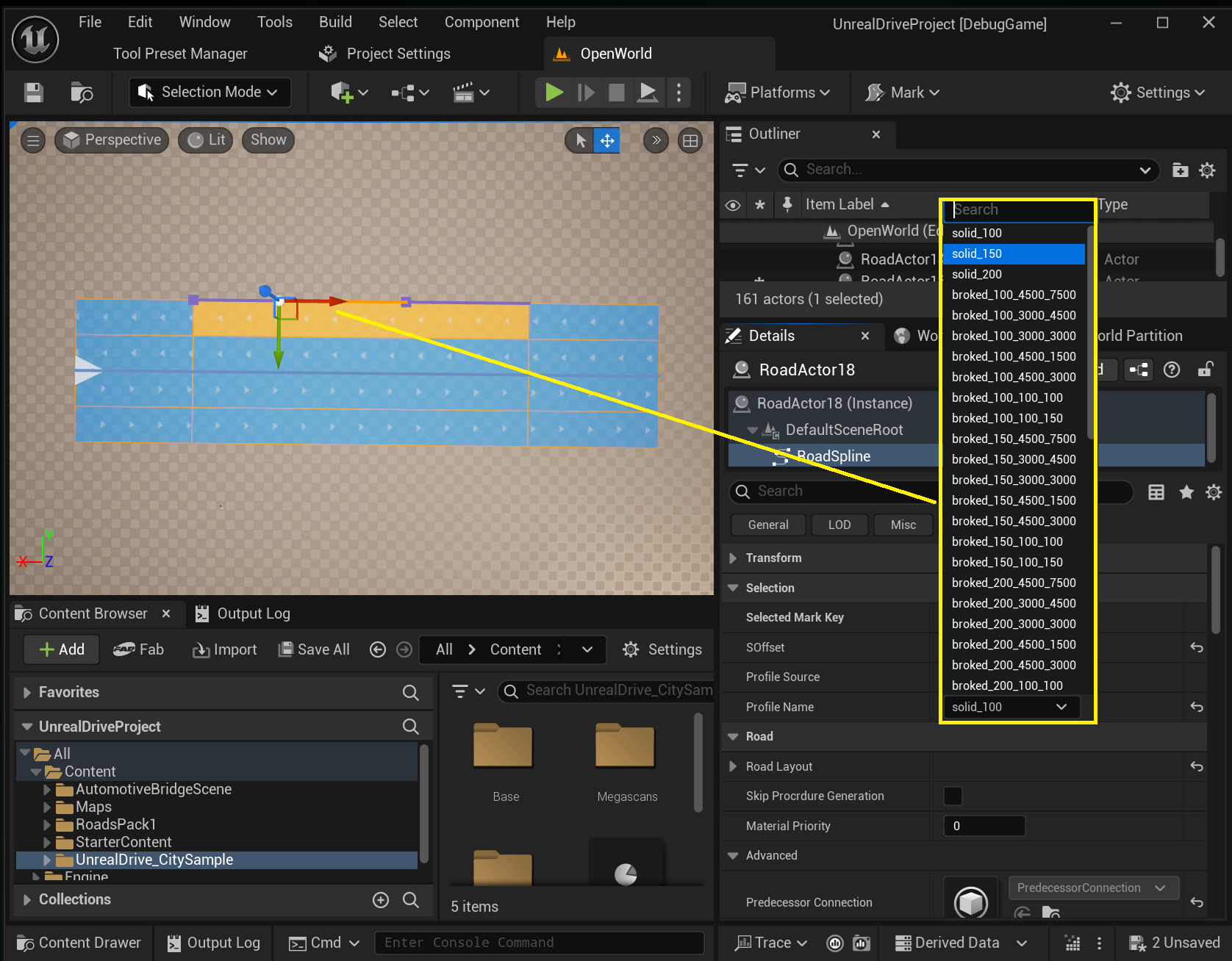
Road Mark Attribute is one of the Road Attributes types that is available “out of the box” and allows you to add a Mark attribute to Road Lane, which is used in Procedural Generation to generate road markings. Each Attribute Key is assigned a road marking type, which can be selected in Profile Name. Or you can create a new type on the spot (Profile Name -> Use Custom):
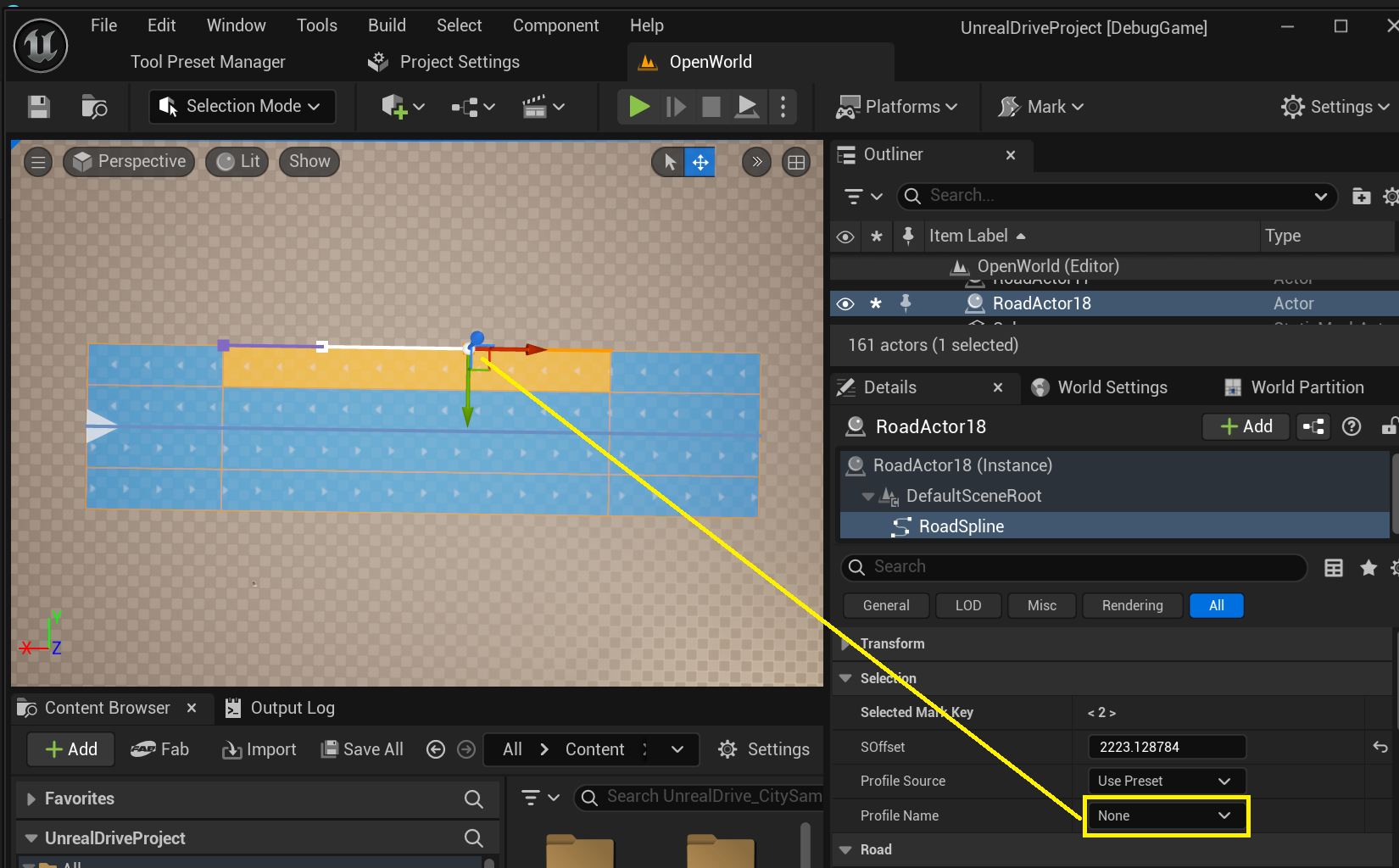
If you need to remove markings for any of the sections on Road Lane, set Profile Name to None:
To add new road marking profiles, see Lane Mark Profiles.