2. Installation
UnrealDrive is a plugin for UnrealEngine, so the installation procedure for UnrealDrive is the same as for a regular UnrealEngine plugin (see Working with Plugins in UnrealEngine):
Copy the UnrealDrive Plugins folder to the Plugins folder of your UnrealEngine project (next to the .uproject file) or to the Engine\Plugins folder of the engine. If you purchased and installed the plugin through fab.com, it will already be copied to the Engine\Plugins\Marketplace folder.
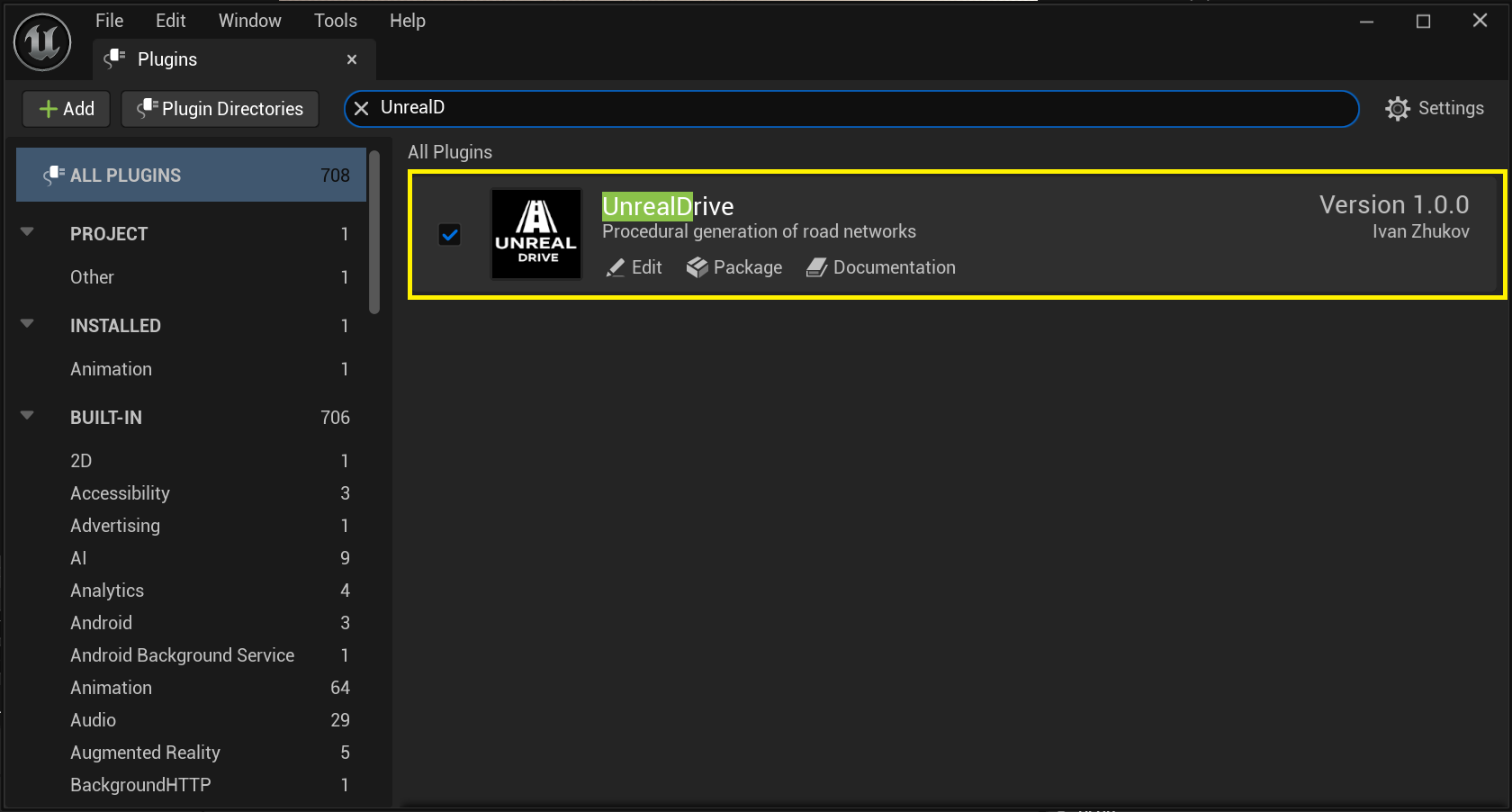
From the main menu, go to Edit -> Plugins. This opens the Plugins window and enables the UnrealDrive plugin:
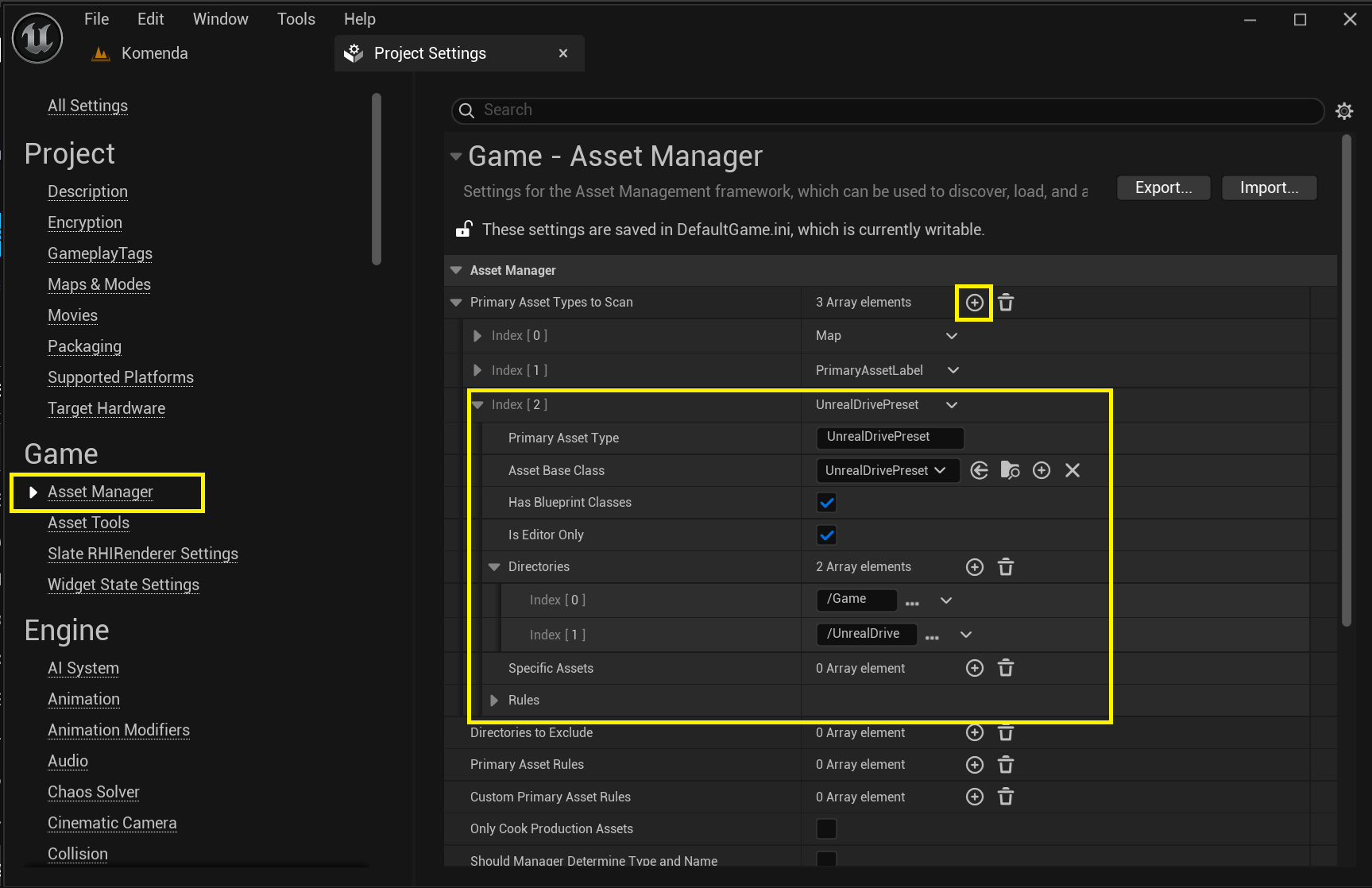
Add Unreal Drive Preset to Primary Assets to Scan. This is necessary for the engine to detect all Preset in the project. To do this, from the main menu, go to Edit -> Project Settings. Navigate to the Asset Manager and add a new item to the Primary Assets to Scan with the following options:
Enter the value UnrealDrivePreset in the Primary Assets Type field
Choose the UnrealDrivePreset in the Primary Base Class field
Set the Has Blueprint Classes field
Set the Is Editor Only field
Add /Game and /UnrealDrive values to the Directories field
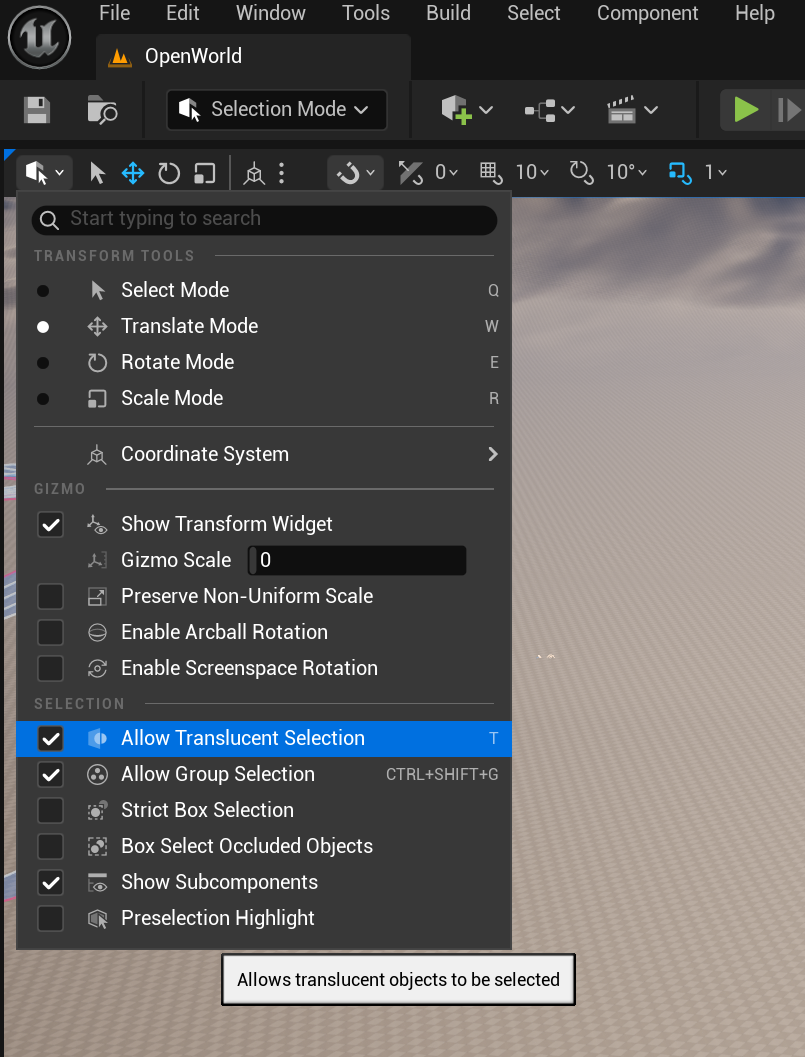
Make sure that Translucent Selection is allowed, otherwise there may be problems with selecting road lanes: