7. Build Mesh Modeling Tool
This Modeling Tool allows you to generate assets (static meshes, dynamic meshes, spline meshes, etc.) and create Actors with these assets on the scene.
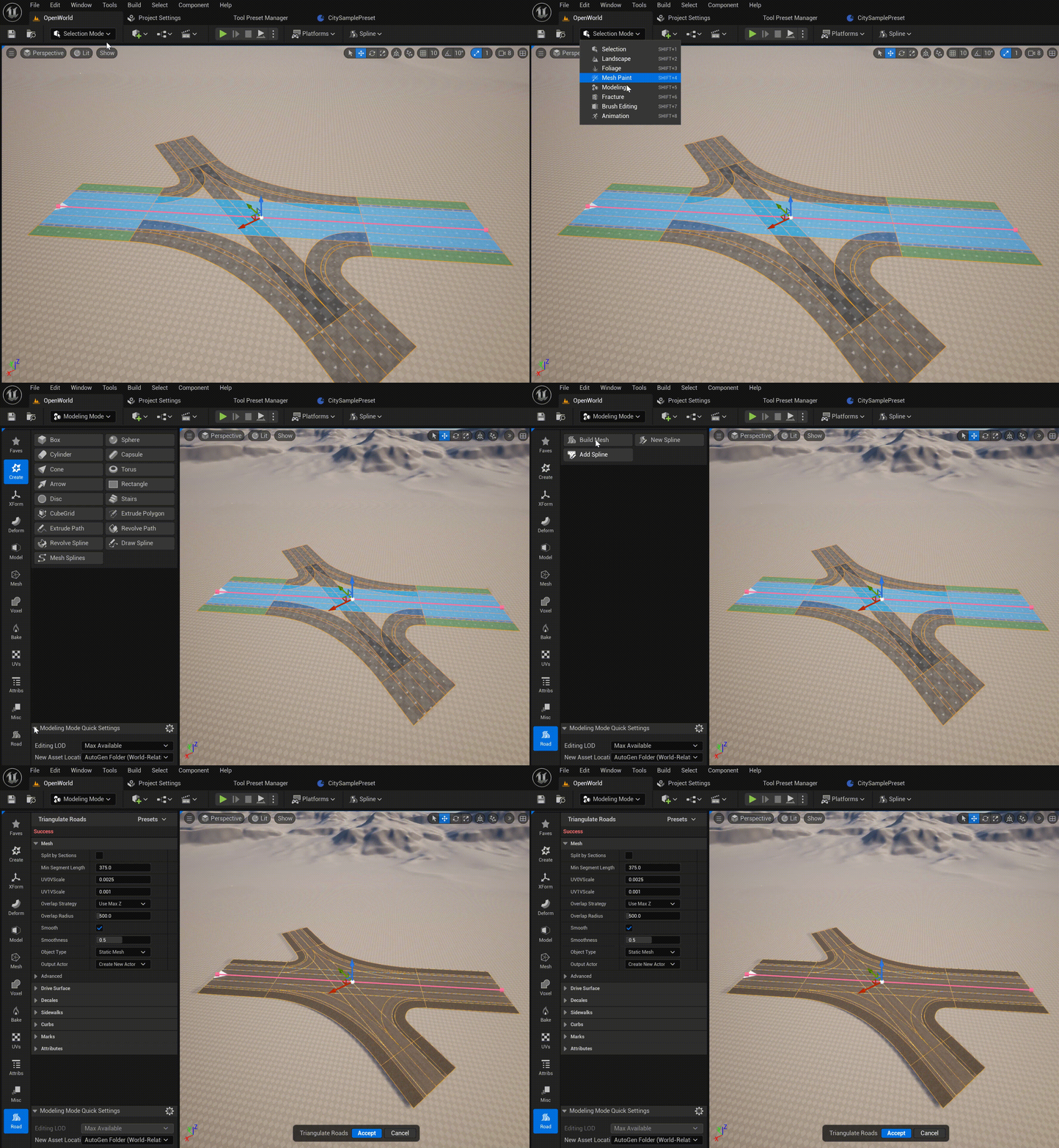
To use the Build Mesh Tool, simply select one or more actors containing URoadSplineComponent, activate the Build Mesh Tool, and it will immediately display the preliminary result:
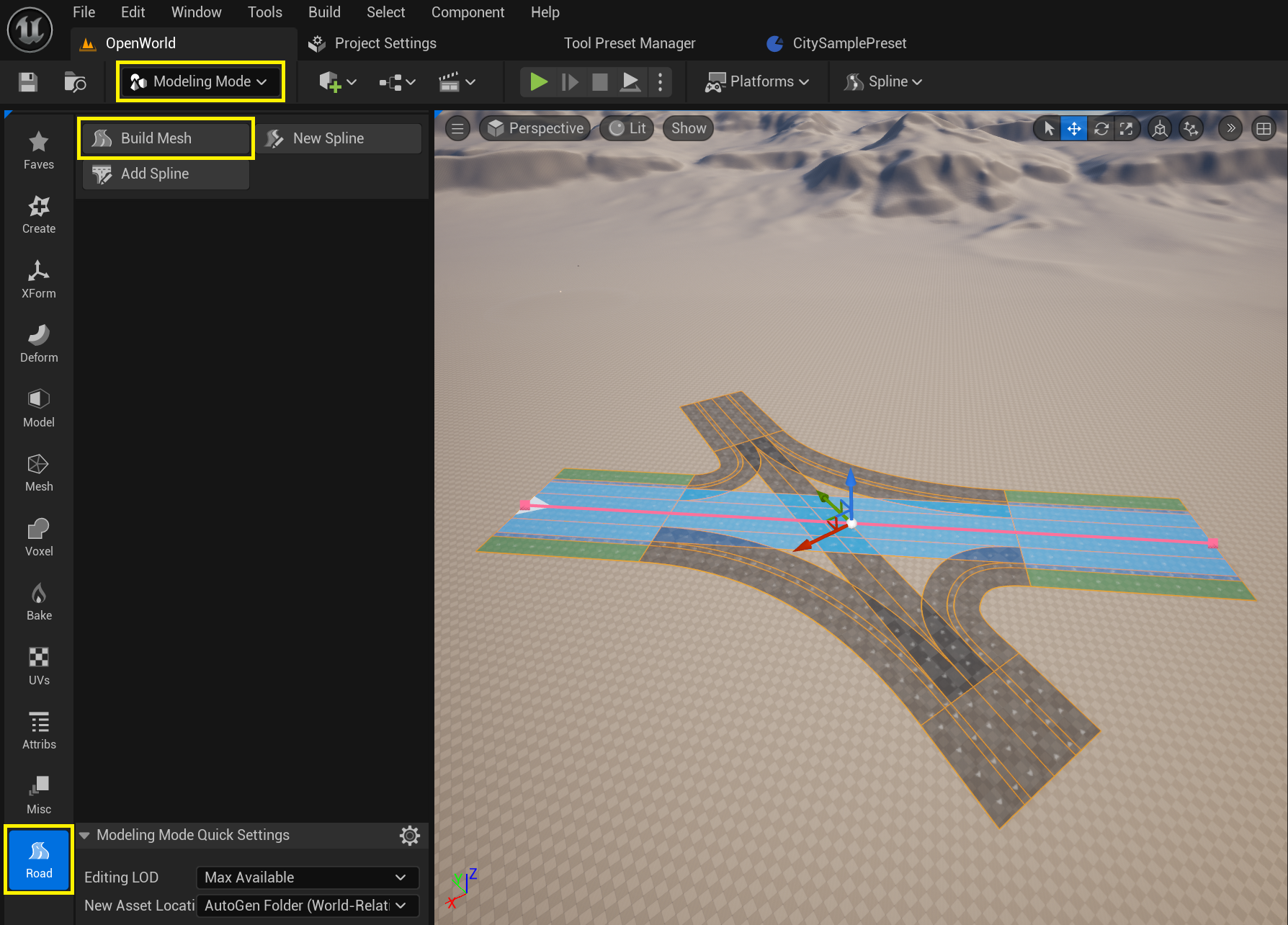
To access the Build Mesh Tool, switch Editor Mode to Modeling Mode and select the Road toolset:
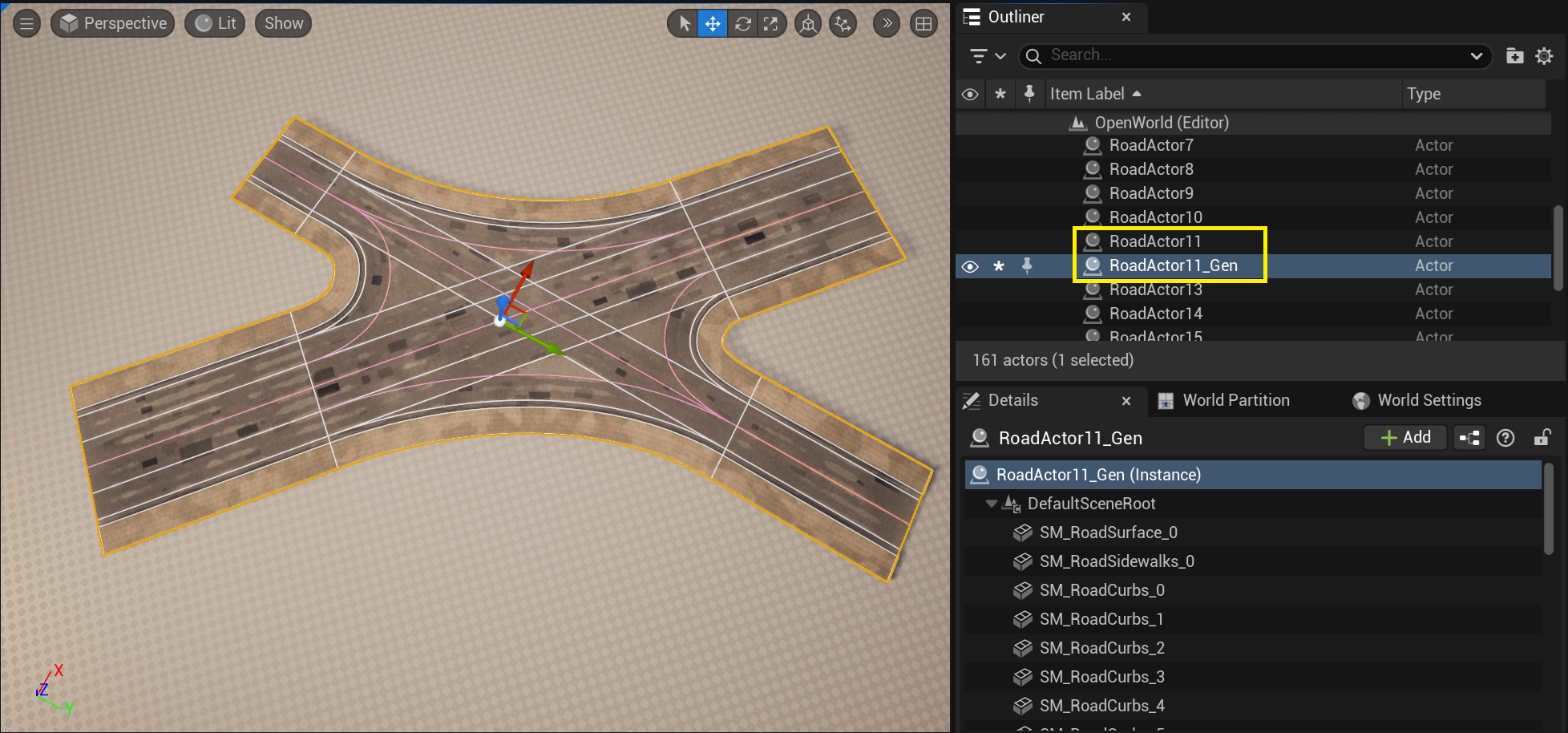
After clicking the Accept button for each selected actor, a new actor with the suffix _Gen will be created. For example, for the actor RoadActor11, the actor RoadActor11_Gen will be generated:
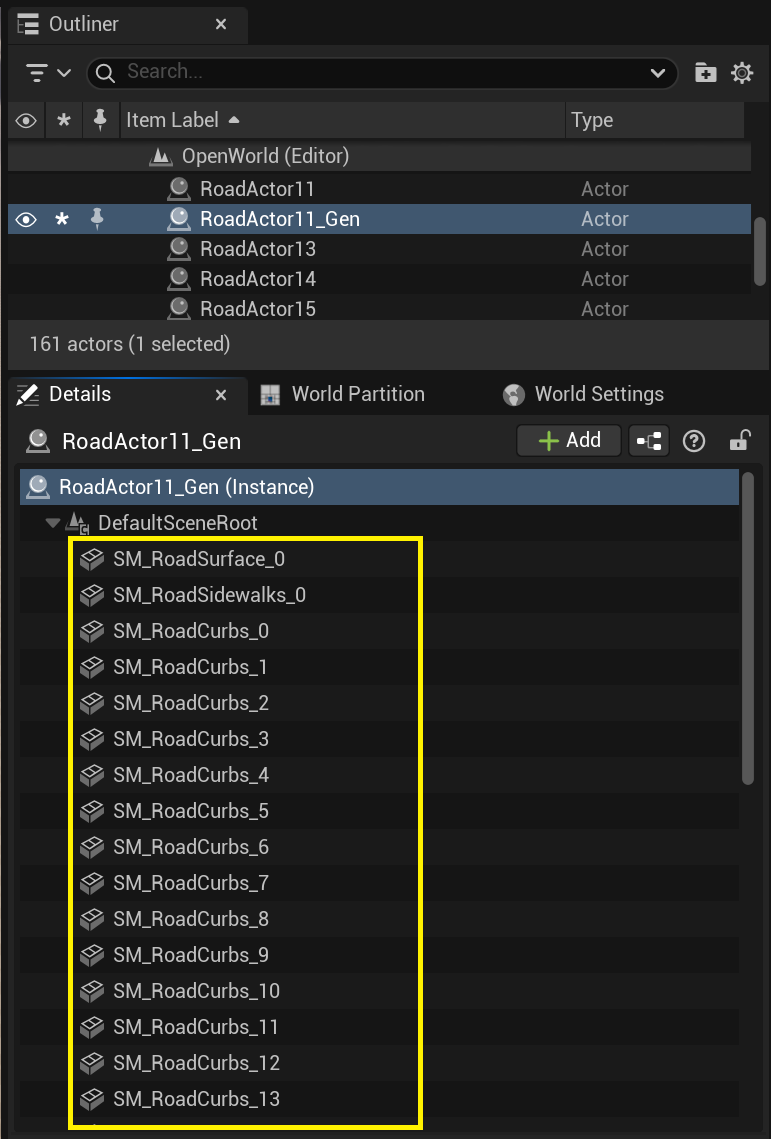
The generated actor contains ActorComponents (usually UStaticMeshComponent, USplineMeshComponent) with references to the generated assets:
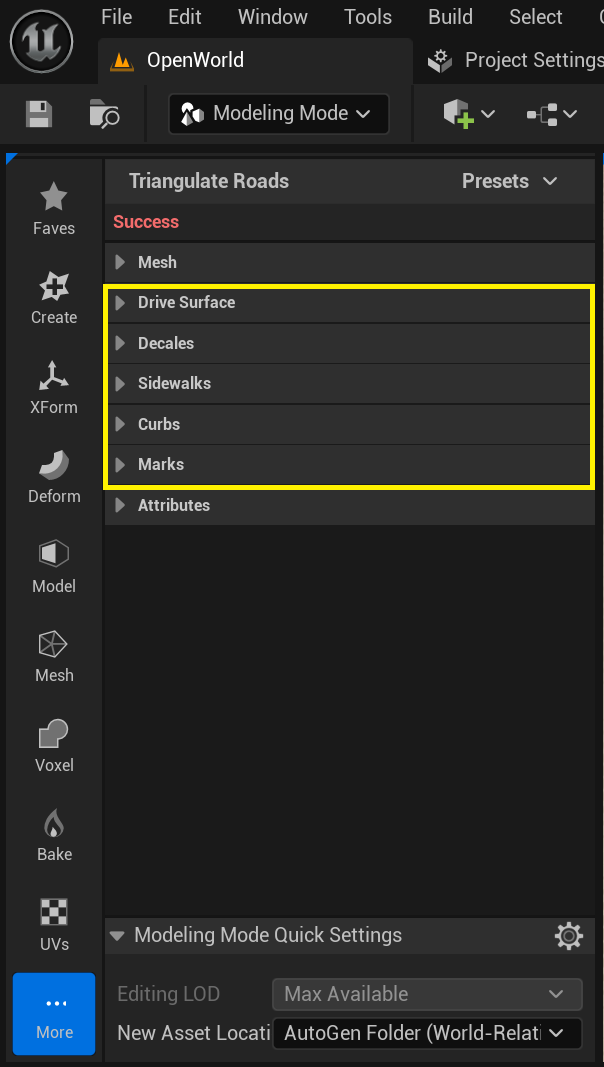
The Build Mesh Tool separately generates assets for:
Drive Surface + Decals
Sidewalks
Curbs
Marks
SplineMeshes
For each of these asset types, there is a corresponding group of parameters in the Build Mesh Tool:
7.1. Mesh Materials
For each type of generated asset (Drive Surface, Sidewalks, Curbs, etc.), there is a Materials parameter. It allows you to replace materials from Preset Profiles set in Road Lanes:
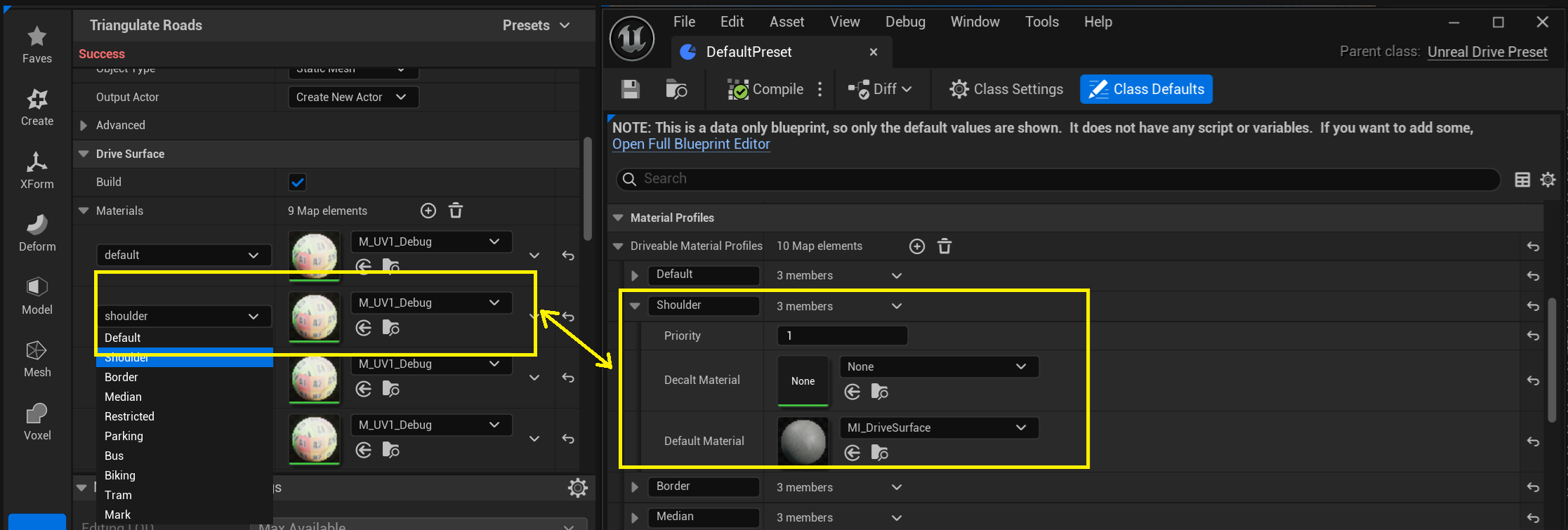
Why was this necessary, instead of simply defining all the necessary materials in Preset Profiles? In practice, Preset Profiles usually define profile “domains,” such as Tram, and set a default material for them. And in the Build Mesh Tool, it is convenient to override the default material if necessary. This approach is more flexible and allows you to quickly switch between sets of materials for the same road, even those obtained from different sources. But there is nothing to prevent you from creating several Tram profiles in Preset Profiles (e.g., Tram-1, Tram-new, Tram-old) and assigning the appropriate profiles to Road Lanes.
7.2. Mesh UVs
Procedural generation for Road Surface generates two levels of texture coordinates:
UV0 - a separate track for each lane. UV0 is useful for displaying road ruts or tram tracks.
UV1 - a track for the left and right sides of the road. UV1 is useful for displaying road patches.
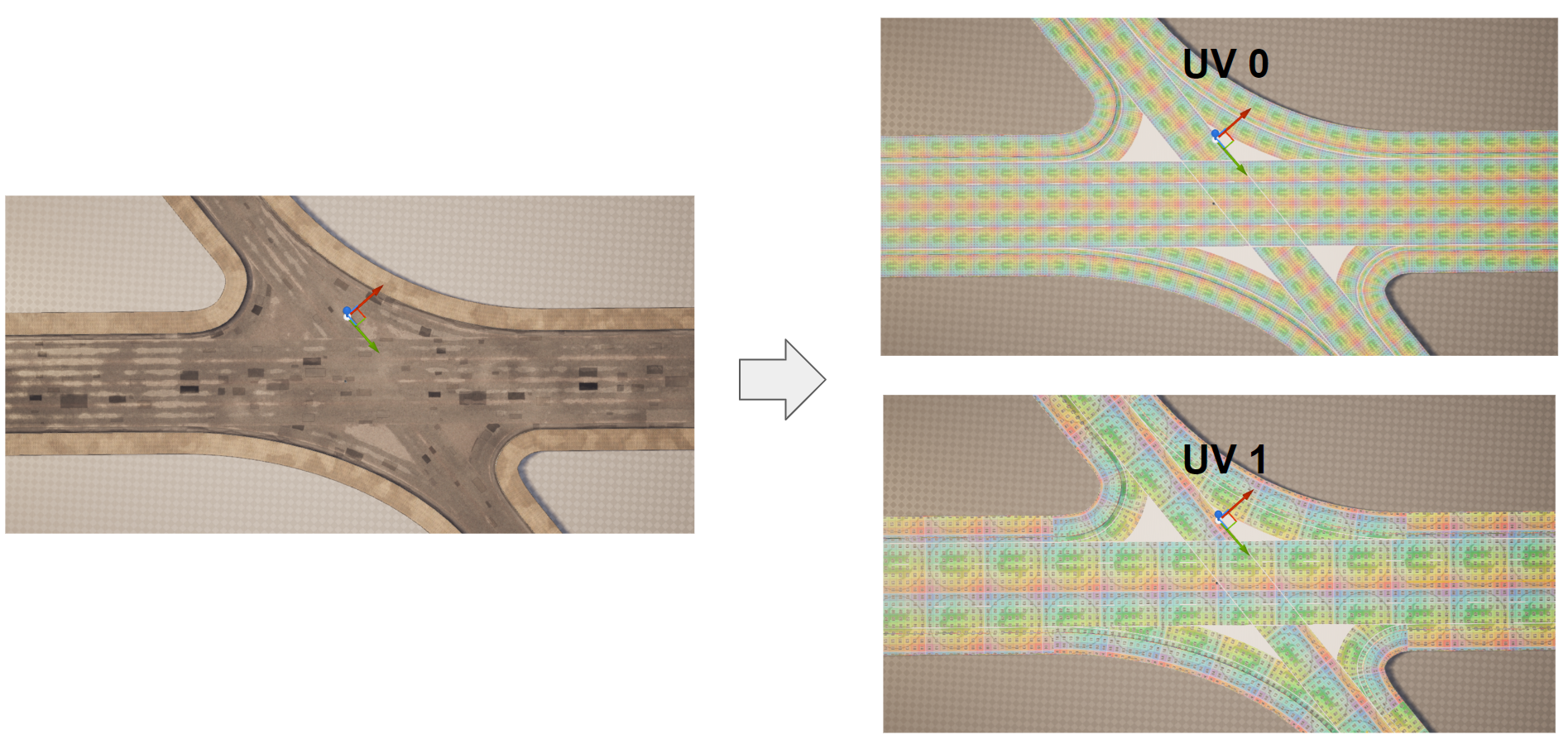
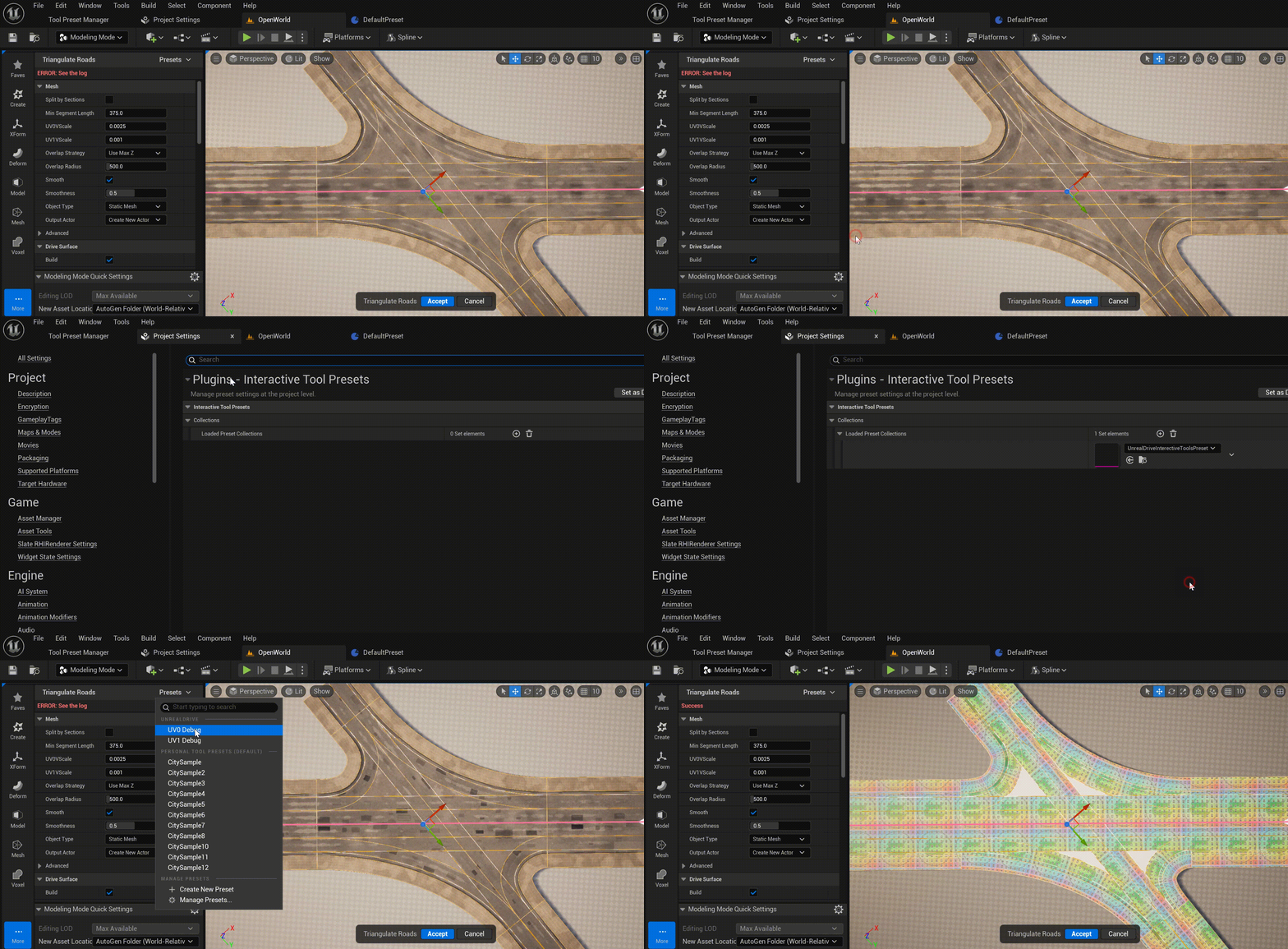
To display debugging materials (as shown in the image above), you need to add UnrealDriveInteractiveToolsPreset to the Loaded Preset Collection in the Project Settings -> Plugins -> Interactive Tool Presets menu. After that, two presets, UV0 Debug and UV1 Debug Debug, will become available:
7.3. Mesh Vertex Color
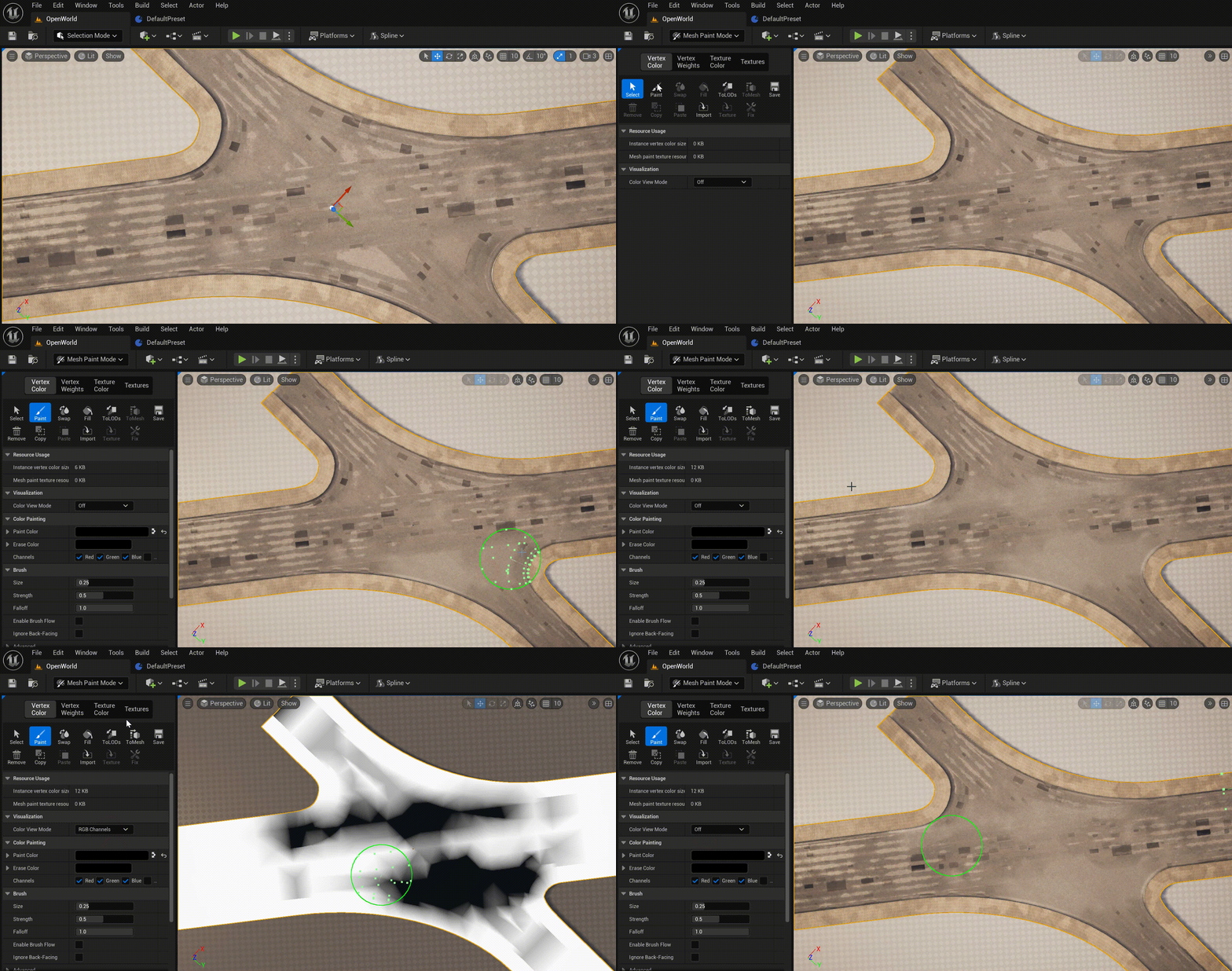
For road surface materials, we recommend using the Vertex Color mesh attribute to designate areas of the mesh where you need to control the presence of textures stretched across the UV0 and UV1 channels (such as puddles, ruts, and patches). This will eliminate artifacts at the seams (areas where several URoadSplineComponent intersect) and improve the overall appearance of the roads:
The following parameters are suggested for parameterizing Vertex Color for Drive Surface:
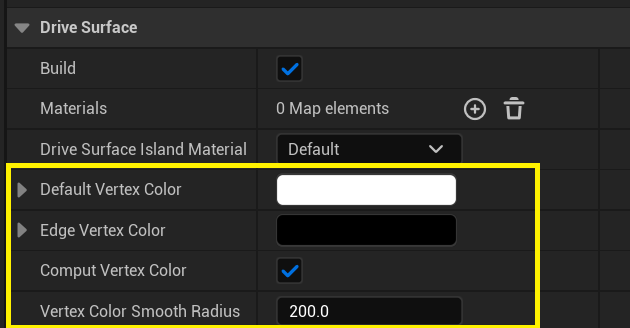
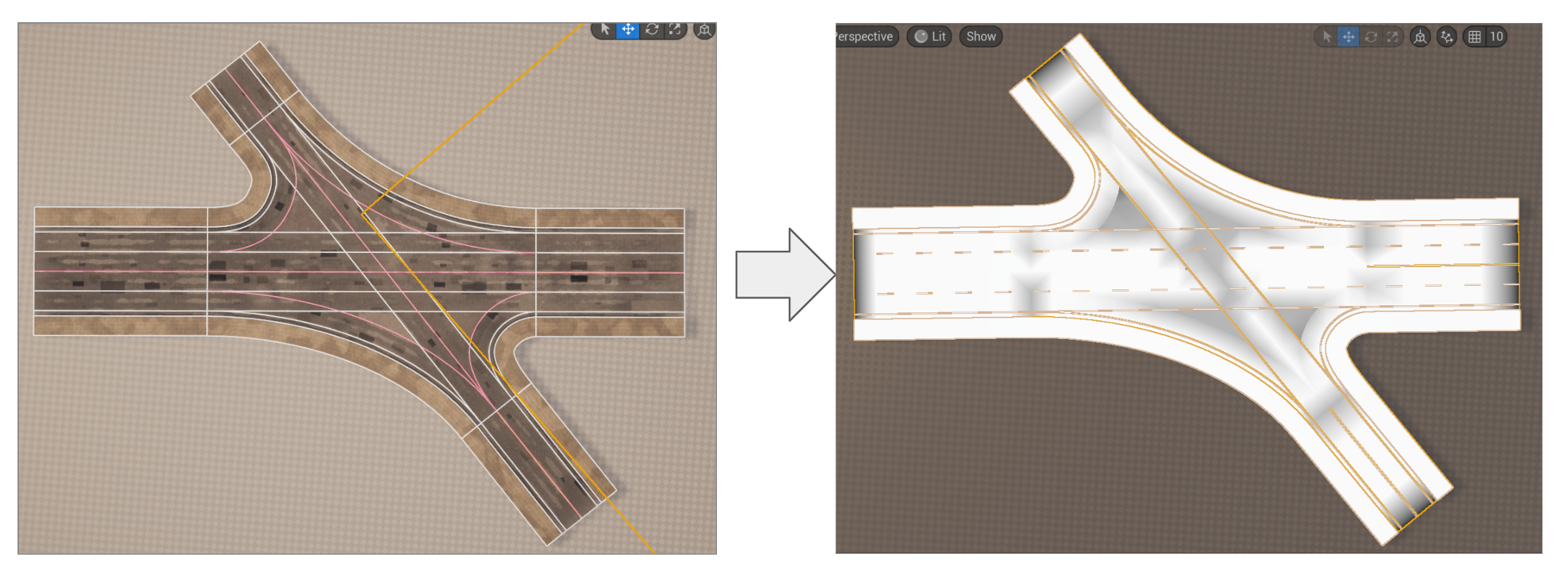
These parameters allow to set the color of vertices in the center and at the edges of the mesh, as well as in the areas where lanes intersect:
However, for complex intersections, you will most likely have to manually “paint” the necessary vertices in Mesh Paintmode, as shown above. In future releases of UnrealDrive, it may be possible to improve the vertex color generation mechanism so that you don’t have to resort to Mesh Paint mode.
7.4. The principle of spline grouping
Important
It is important to remember that procedural road generation treats each actor containing at least one URoadSplineComponent as a separate generation unit, unrelated to other actors and URoadSplineComponent on the scene. This leads to two rules:
A group of URoadSplineComponents representing an intersection or junction must be located within a single AActor.
Do not place too large sections of the road network in a single actor, otherwise large static meshes will be generated, and UnrealEngine will not work efficiently in terms of rendering and physics optimization.
Examples:
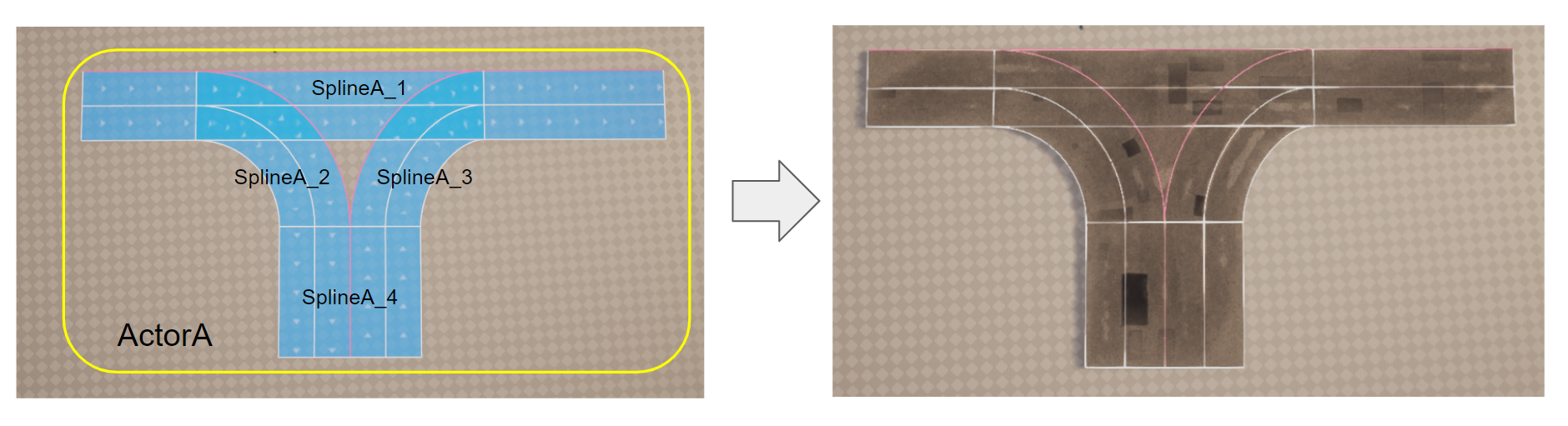
In this example, four URoadSplineComponent (SplineA_1, SplineA_2, SplineA_3, SplineA_4) are located in one actor (ActorA), and accordingly, procedural generation for ActorA will take all four splines into account and correctly generate the intersection.
In this example, there are already two actors (ActorA and ActorB), each containing two components (SplineA_1, SplineA_2, SplineB_1, SplineB_2):
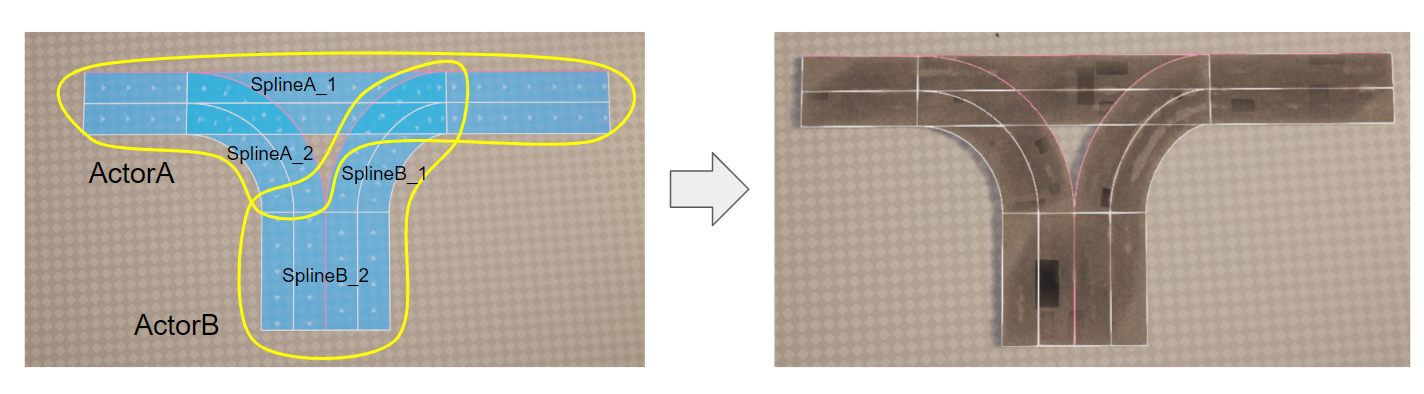
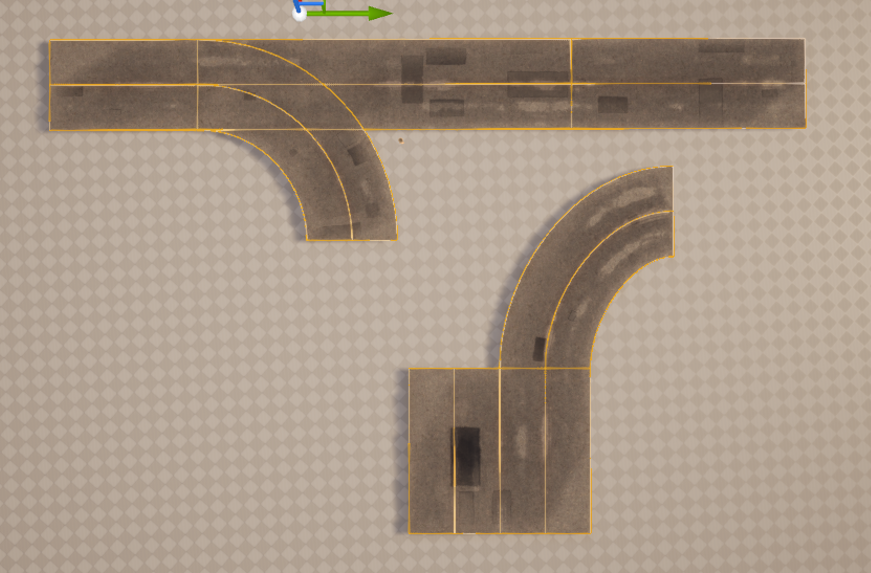
This happens because splines SplineA_1 + SplineA_2 and SplineB_1 + SplineB_2 are triangulated separately, resulting in the following outcome:
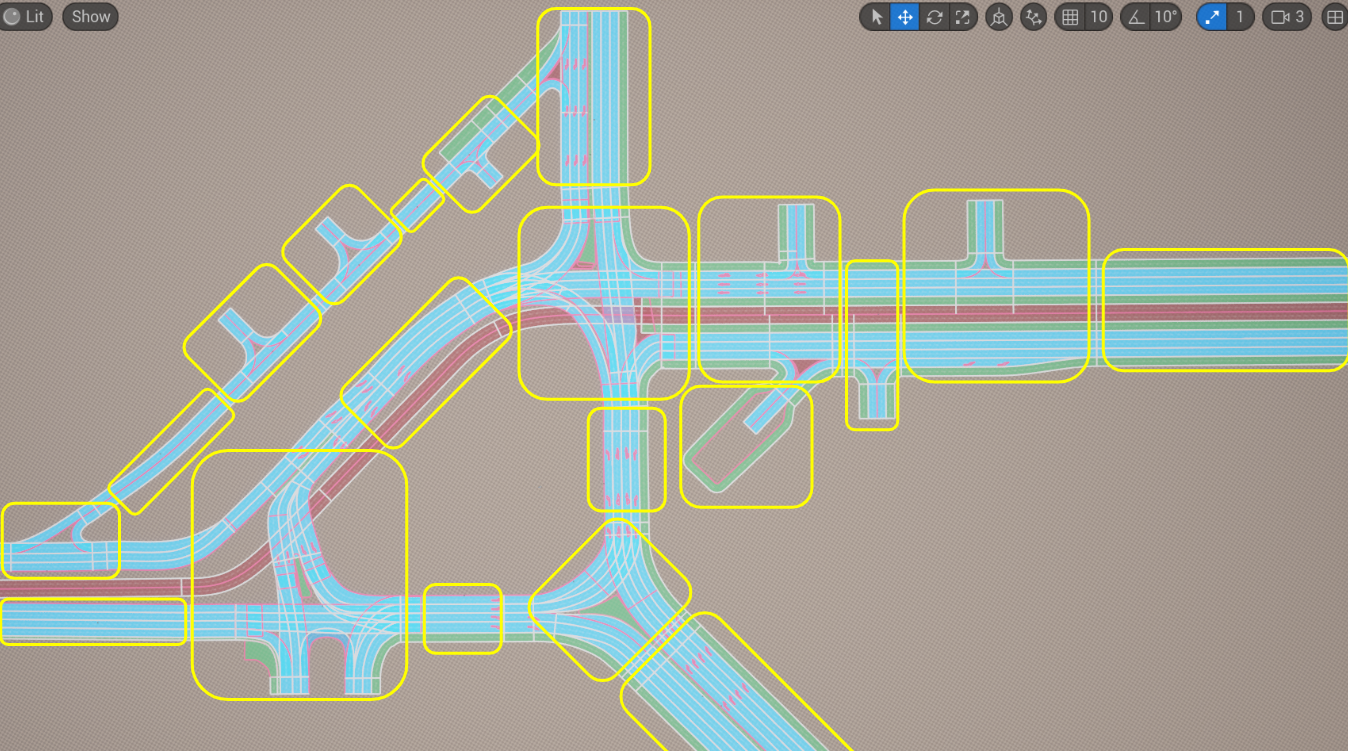
The following example shows how to divide the road network into actors, based on the principle that each intersection/junction is placed in a separate actor:
That is why, for convenience, two modes for drawing splines have been introduced: New Spline and Add Spline (see Draw Modeling Tools). This allows to either add a new spline to an actor or create a new actor with a spline inside it.