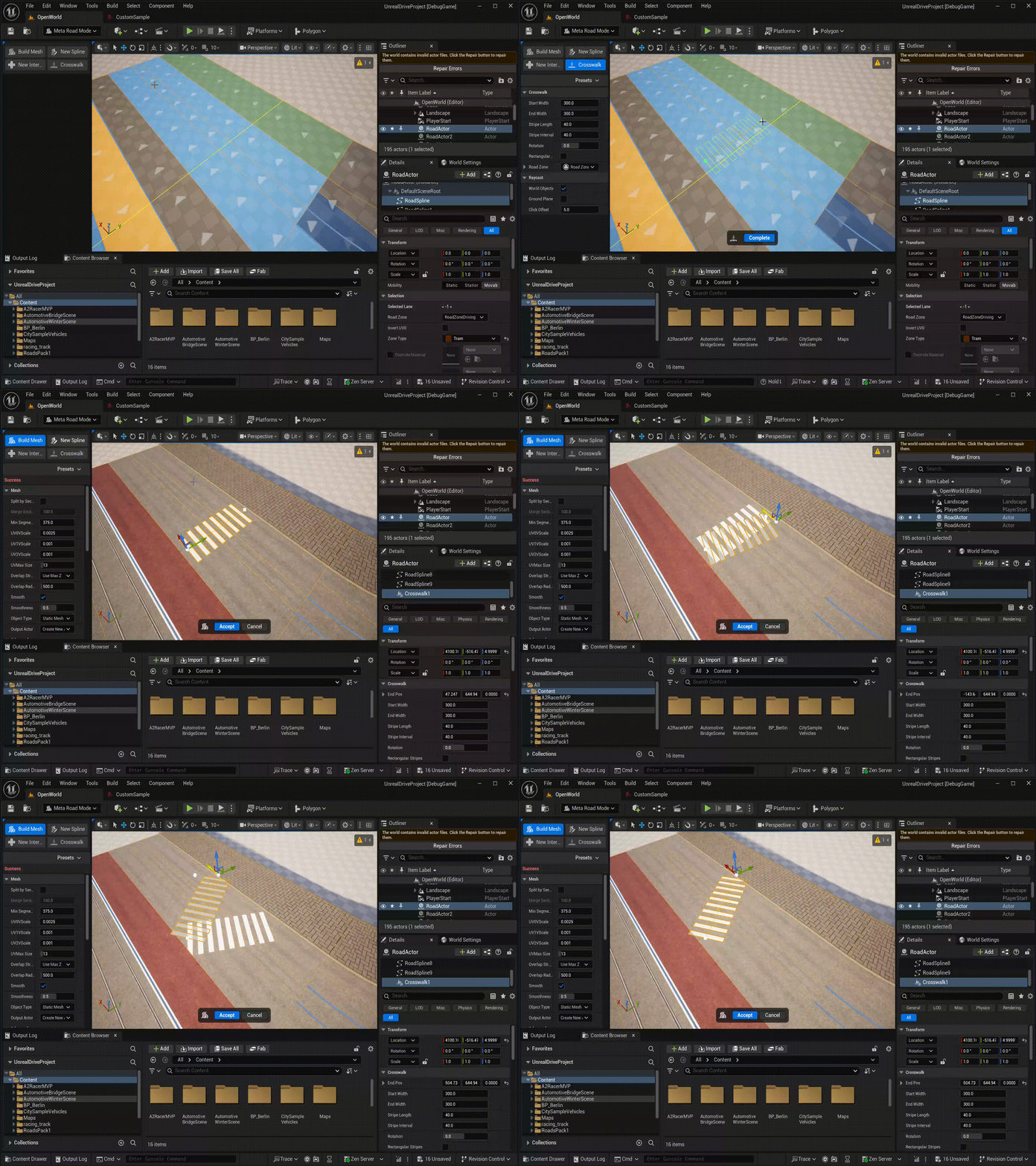
2. Draw Crosswalk Tool
The Draw Crosswalk Tool lets you place pedestrian crosswalks on road actors with a single click-drag gesture. Each crosswalk is stored as a UCrosswalkComponent attached to the selected actor and participates in procedural mesh generation together with the road surface.
2.1. Requirements
Exactly one actor containing at least one URoadSplineComponent must be selected before activating the tool.
2.2. Drawing a Crosswalk
Select an actor that contains a
URoadSplineComponent.Activate Draw Crosswalk Tool from the MetaRoad toolbar.
Press and hold LMB at the start position of the crosswalk — the tool raycasts against world geometry (or falls back to Z=0 if nothing is hit).
Drag to set the length and direction — a live stripe preview updates in the viewport.
Release LMB to place the crosswalk. The tool stays active so you can place additional crosswalks without re-activating it.
After placement, select the UCrosswalkComponent in the Details Panel to edit its properties, or drag the start/end handles directly in the viewport.
2.3. Properties
Property |
Description |
|---|---|
|
Crosswalk width at the start end |
|
Crosswalk width at the finish end (linearly interpolated along the center line) |
|
Length of each white stripe along the center line direction |
|
Gap between consecutive stripes |
|
Rotation of each stripe around its own center (clamped to ±45°) |
|
|
|
Road surface type (material/color) applied to all generated stripe polygons |
|
UV texture rotation in degrees |
|
UV texture scale multiplier |