Draw Spline Tool
Note
This is the Spline tile in the Create palette of the Meta Road editor mode (see The Meta Road Editor Mode).
The Draw Spline Tool lets you “draw” a URoadSplineComponent the way you would in a 2D vector editor. There are two
drawing modes, chosen automatically by where you start:
Drawing from Profile — start anywhere except on a lane connection.
Drawing from Lane Successor Connection — start on an existing lane connection.
Drawing from Profile
If you start drawing from any point other than a Lane Successor Connection, the Drawing from Profile mode is selected. Pick the starting lane layout from the Draw Profile dropdown:
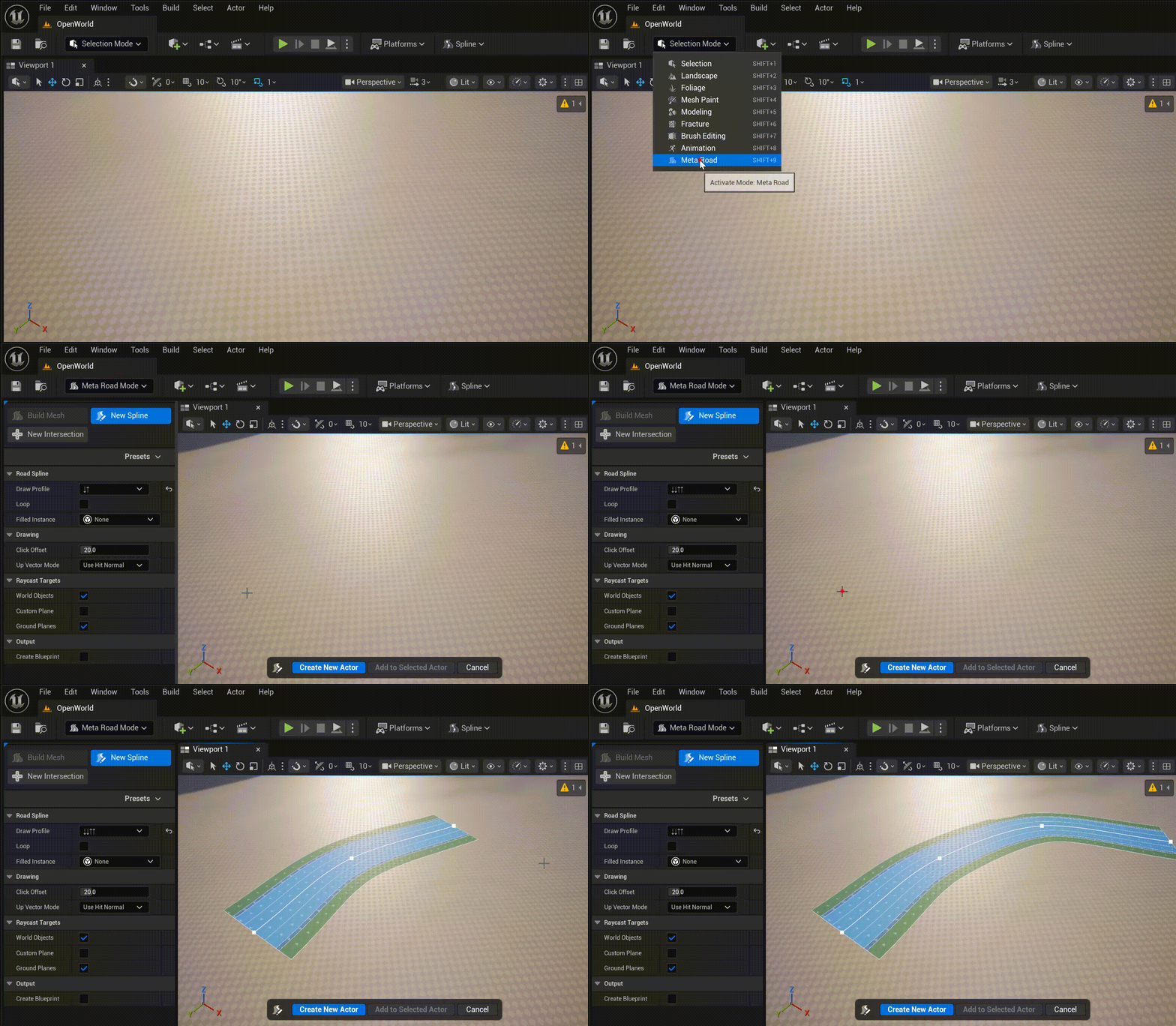
A new road profile can be added in Profiles.
Start Drawing from Lane Successor Connection
If you start drawing from a Lane Successor Connection, the Drawing from Lane Successor Connection mode is selected. Profiles are not available here; instead you set the number of lanes on the left and right of the source road by clicking the on-screen lane discs:
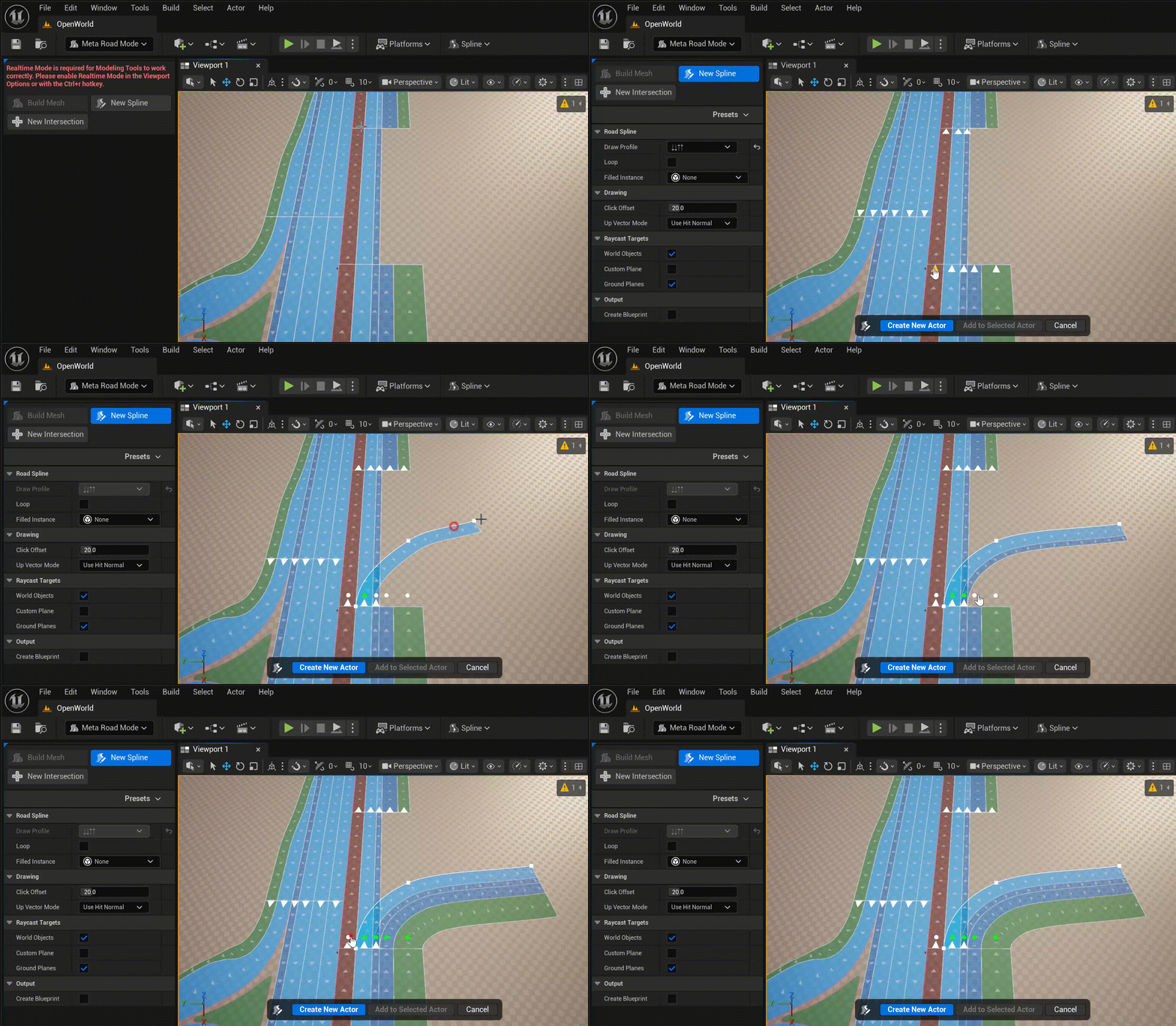
Stop Drawing from Lane Predecessor Connection
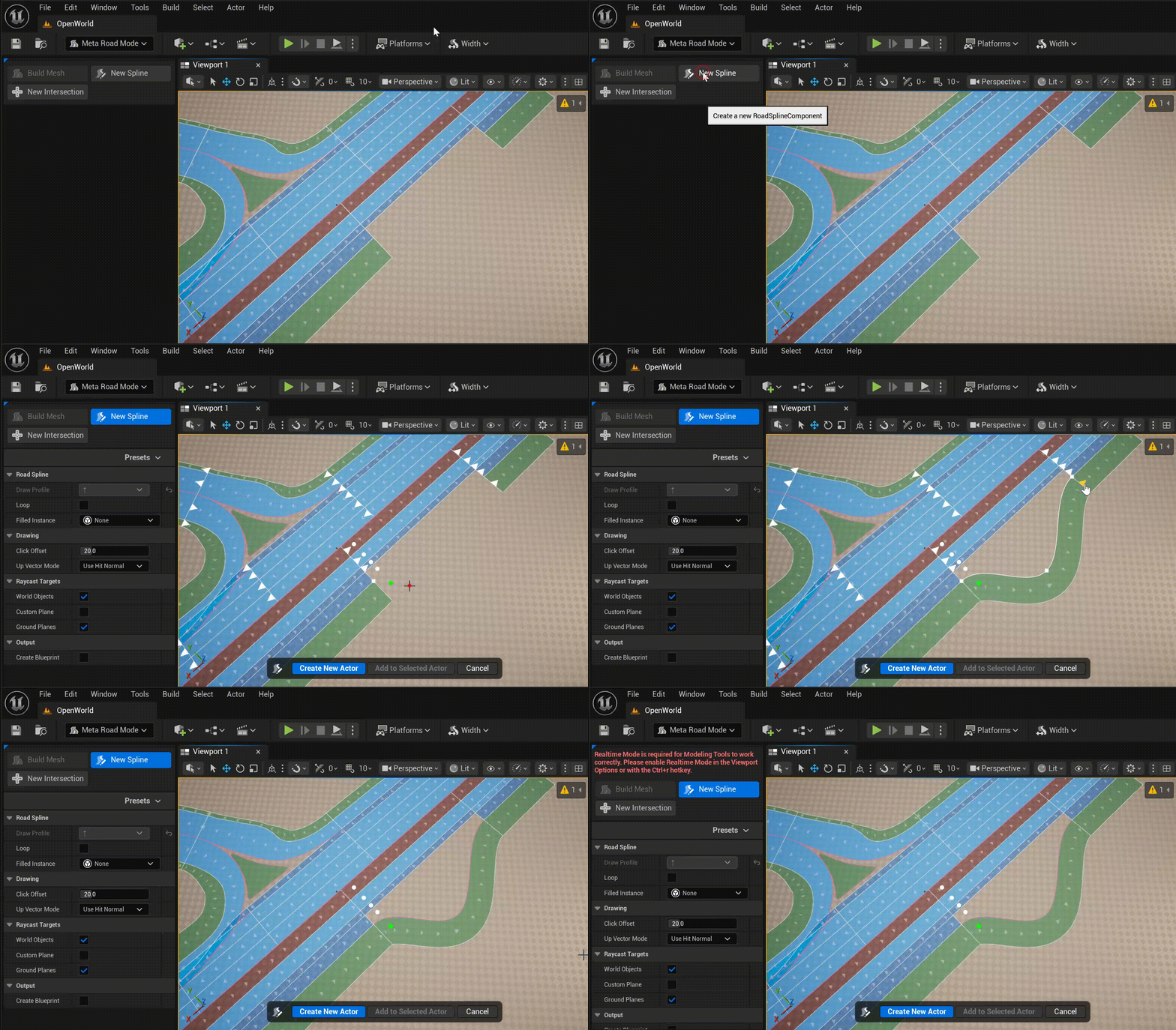
You can finish a spline at a Lane Predecessor Connection — the drawing completes and you
choose how to create the URoadSplineComponent (or cancel):
Finishing Spline Drawing
Once the spline is drawn, there are two ways to create it:
Create a new actor and add a
URoadSplineComponentto it.Add to the selected actor — a
URoadSplineComponentis added to a selected actor that already contains at least one (this is how you build a junction inside a single actor).
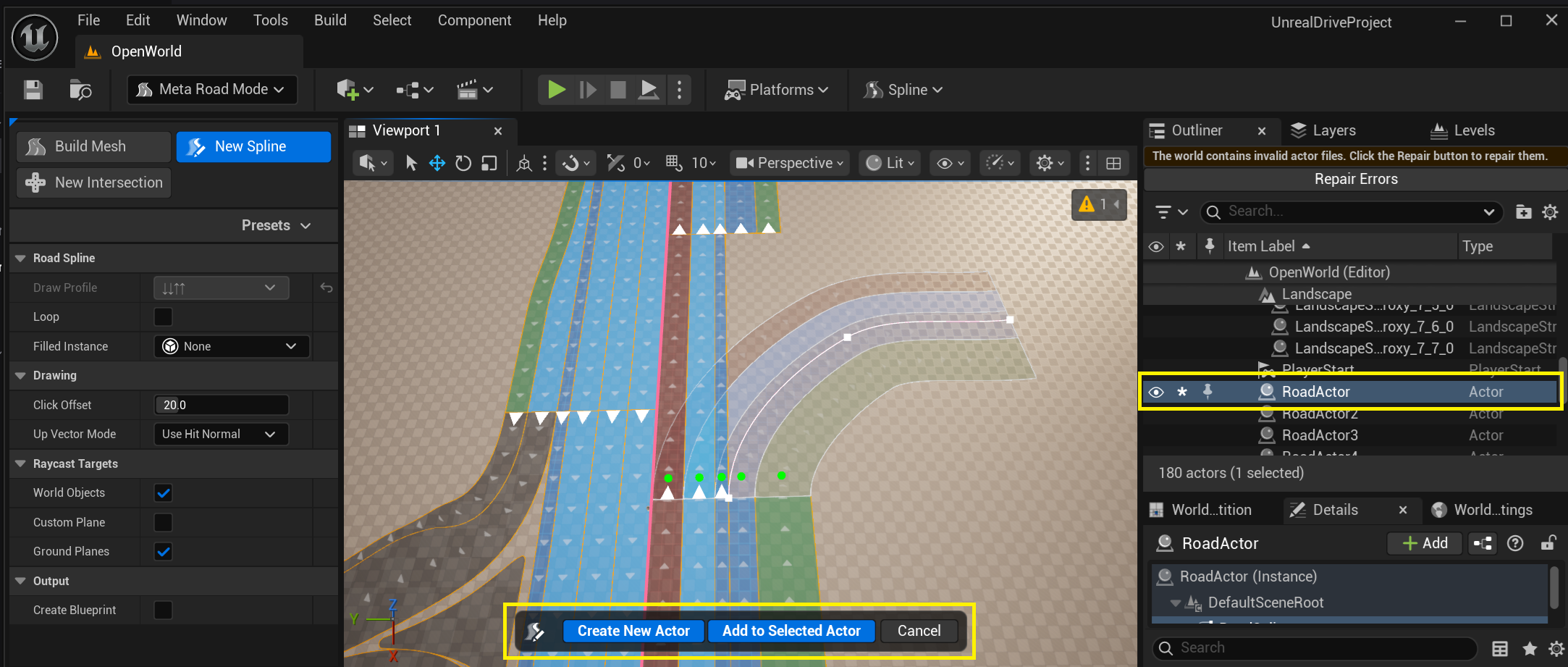
Properties
Property |
Default |
Description |
|---|---|---|
|
|
The Road Profile a new road starts with (Profile mode; disabled when drawing from a connection) |
|
off |
Draw a closed-loop road — see Closed-Loop Splines |
|
— |
Surface zone that fills the loop interior (when |
|
20 |
Offset above the hit surface, cm |
|
Use Hit Normal |
How the road’s up direction is derived at each point |
|
on / off / on |
Which surfaces a click raycasts against |
|
off |
Optionally output a Blueprint instead of a level actor |
Next steps
Configure lanes in Section Mode and shape the reference line in Spline Mode.
Wire roads into junctions — see Intersections and Junctions or the Intersection Tool (Pro).
Bake to generate the mesh.