Intersection Tool (Pro)
Note
This is the Intersection tile in the Create palette of the Meta Road editor mode (see The Meta Road Editor Mode). (Pro feature.)
This tool automates the creation of most standard intersections — it speeds up the common cases. For complex or non-standard junctions and interchanges, build them by hand with the Draw Spline Tool instead.
Supported Intersection Types
The tool handles the most common intersection topologies out of the box:
T-junction — three road ends meeting at a point
X-junction (cross-intersection) — four road ends meeting at a point
Multi-lane — roads with different lane counts on each arm; the tool matches lanes automatically
For grade-separated interchanges, roundabouts, or other unusual topologies, use the Draw Spline Tool and connect the lanes manually in Spline Mode.
Workflow
To generate an intersection:
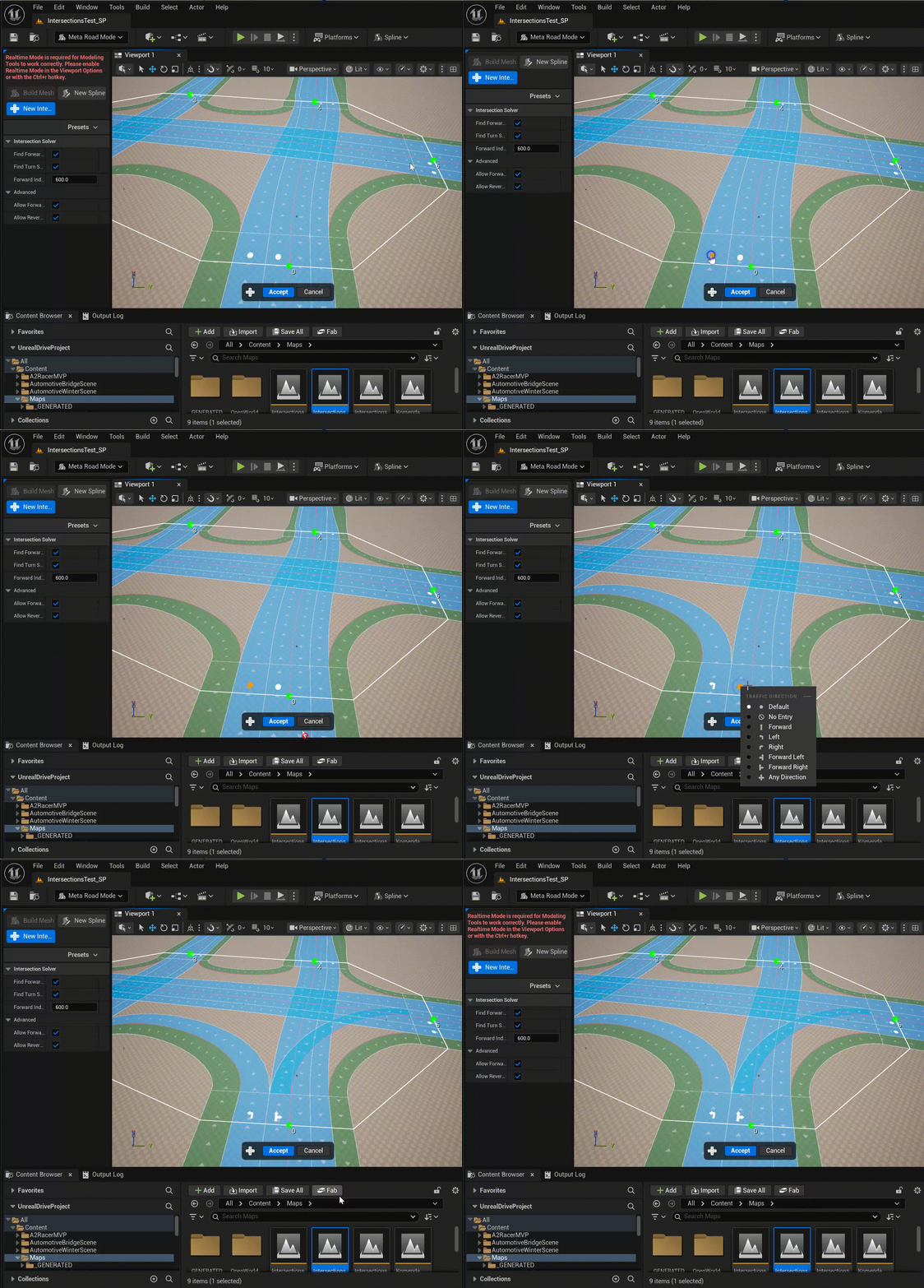
Activate the Intersection tile in the Create palette. Any current selection is cleared — you do not pre-select the roads.
Click the beginning or end of each
URoadSplineComponentthat should join the intersection. Selected endpoints are highlighted, and the splines may belong to any actors in the level.Once all arms are selected, the tool creates a new actor containing the connecting junction splines and wires up all
URoadConnectionandULaneConnectionlinks automatically.

Turn Directions
Right-click a driving lane’s direction marker to open the Traffic Direction menu and choose which movements that entering lane allows:
Default, No Entry
Forward (straight), Turn Left, Turn Right
Forward + Left, Forward + Right, Any Direction
These settings drive how MetaRoad routes lane connectivity through the junction, and feed AI navigation (ZoneGraph) so it generates the correct traversal lanes:
Properties
Solver options in the tool’s Details panel:
Property |
Default |
Description |
|---|---|---|
|
on |
Generate the straight-through connecting splines |
|
on |
Generate the left/right turning connecting splines |
|
600 |
Indent applied to the generated forward splines, cm |
|
on |
Solver passes that search for connecting splines |
Next steps
After generation, switch to Section Mode to fine-tune the lane layout inside the junction splines.
For complex lane-drop or merge scenarios, add asymmetric lane sections to the approach splines before running the tool (see Asymmetric Lane Sections).
To generate the mesh, bake the junction actor separately from the approach-road actors (see Baking). Keep the junction’s splines in one actor and
SubGroupso they fuse into a seamless mesh — see Spline grouping.