Build Preset
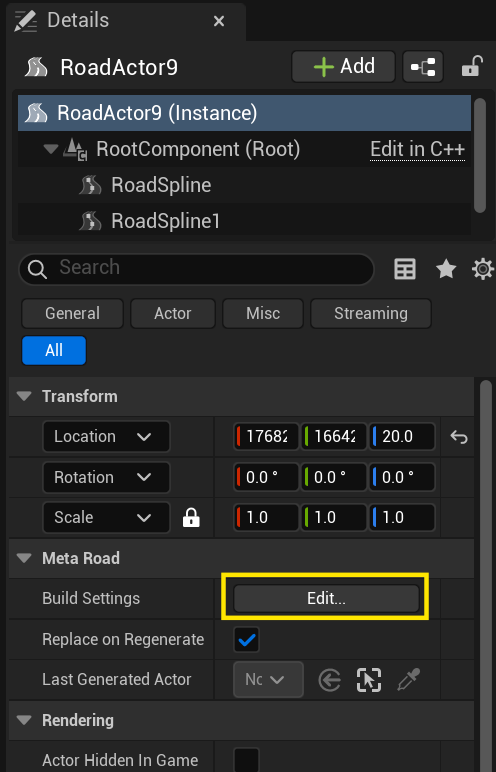
A Build Preset is a reusable Road Build Preset asset (URoadBuildPreset) in the Content Browser. It stores a
complete snapshot of a road’s mesh-build settings — the same UMetaRoadBuildSettings a road actor carries
(triangulation parameters plus one property set per mesh layer: surface, decals, sidewalks, curbs, marks, spline
meshes, …) — together with a Display Name and Description. You apply it to roads from
Preset Mode.
Note
A Build Preset bundles how a road bakes. It is not one of the content Profiles
(Road / Curb / Mark / Attribute / Polygon), which describe road content. No Build Preset ships with the
plugin — you create your own.
Field |
Meaning |
|---|---|
Settings |
The embedded build settings (triangulation + per-layer property sets) — the payload applied to a road |
Display Name |
User-facing name shown in the Preset combo |
Description |
Free-text notes about the preset |
Creating a Build Preset
Right-click in the Content Browser → Meta Road → Road Build Preset. The asset is created with the default property sets and the blue Meta Road asset color; double-click it to fill in the settings, name, and description.
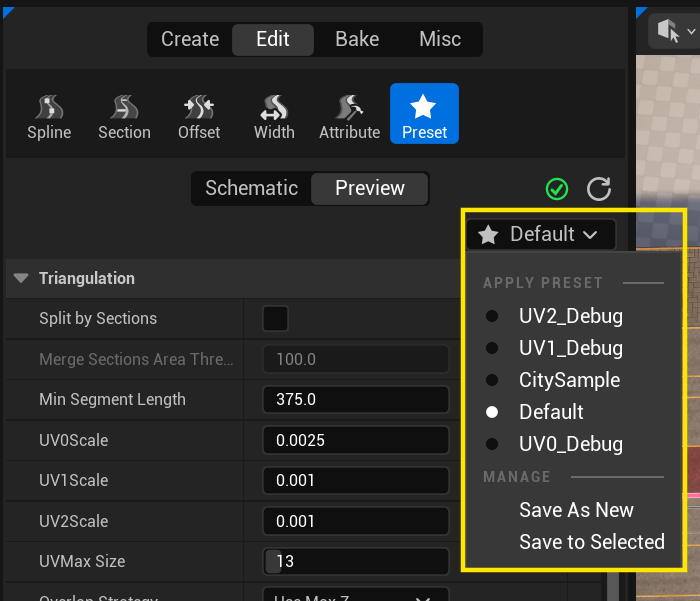
You can also capture a preset from a road you have already set up — from the Preset panel, choose Save As New (a new asset) or Save to Selected (overwrite an existing preset). Both capture the primary (first) selected actor’s build settings.
Editing and updating
Edit the asset — double-click it to change its Settings, Display Name, and Description in the standard asset editor.
Update from a road — from the Preset panel, select the preset, adjust the build settings, and Save to Selected.
Saving or updating a preset changes the asset, not any road actor — save it (Ctrl+S / Save All) to keep the change.
See also
Preset Mode — apply and stage build settings on road actors with a live preview.
Baking — the build settings a preset carries are what the bake reads.