Component Template Attribute
Note
Inherited from Generate Attributes — shares its anchor, alignment, and per-key transform channels.
Places any USceneComponent repeatedly along the lane at the LengthOfSegment interval — convenient for repeating
props such as traffic cones, flagpoles, lamp posts, and power lines. Add it and place keys with
Attribute Mode.
Create new Attribute
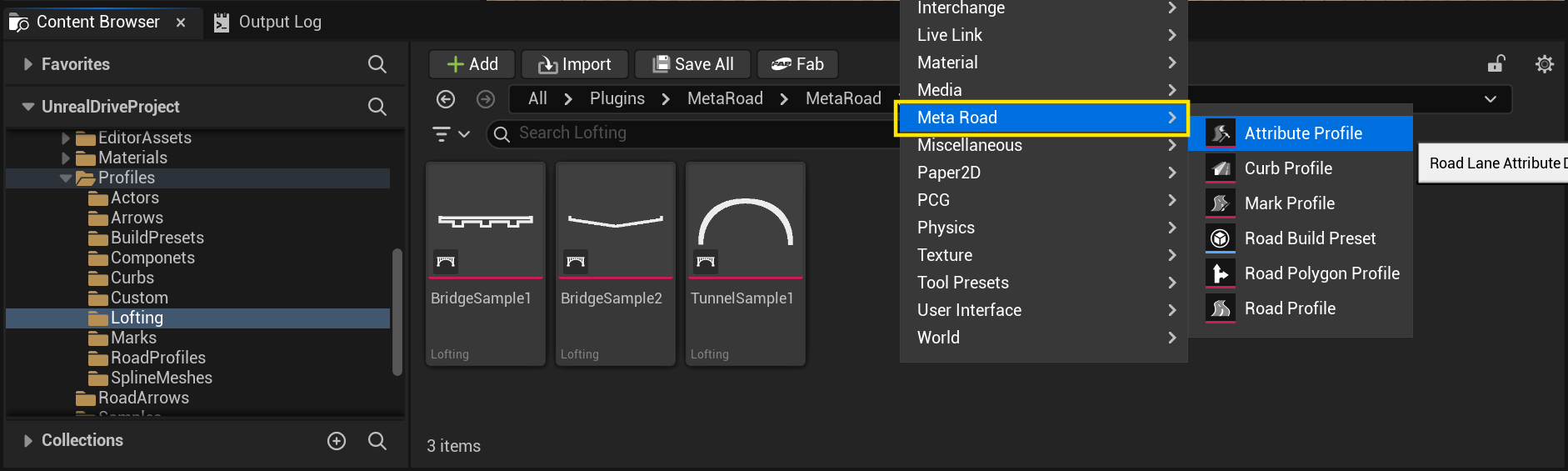
Create a new attribute from the Content Browser under the Meta Road category:
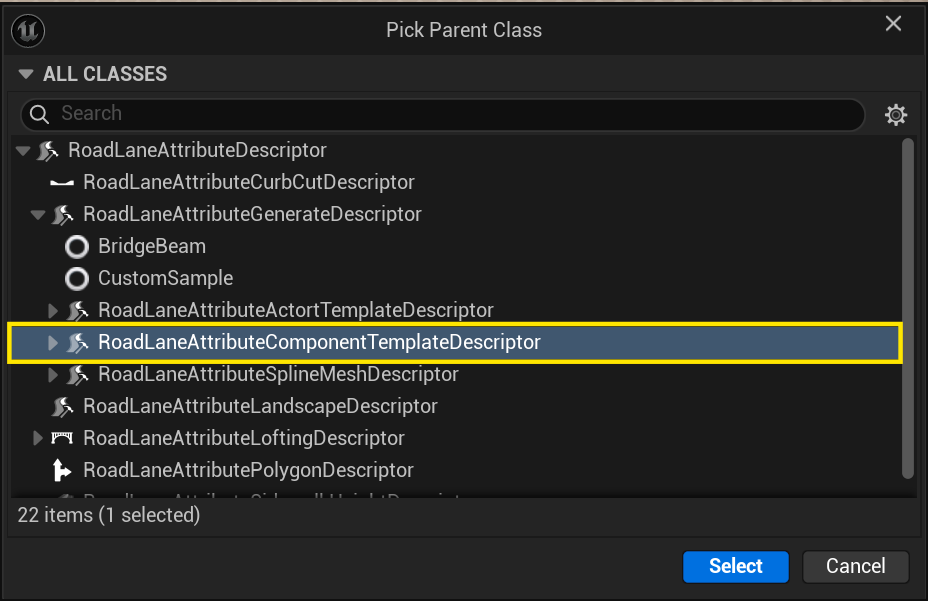
In the Pick Parent Class dialog choose RoadLaneAttributeComponentTemplateDescriptor:
Properties
Property |
Description |
|---|---|
|
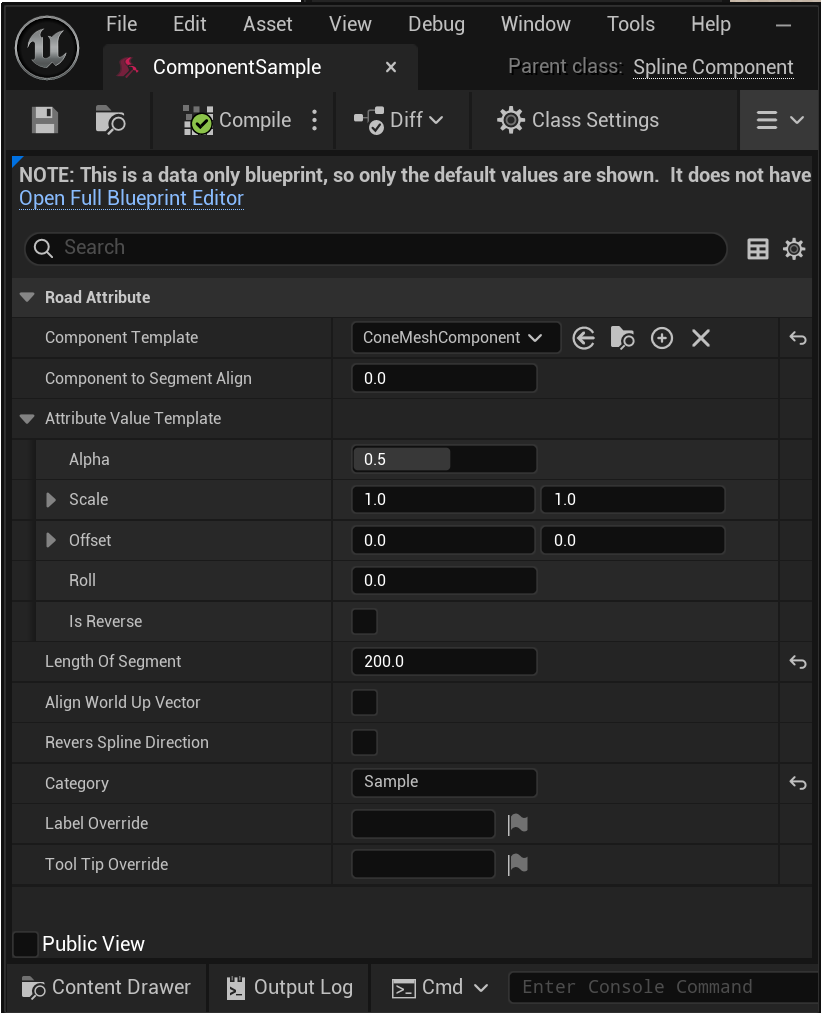
The |
|
Placement point within the segment [0 = start, 0.5 = mid, 1 = end]. |
|
Target arc-length [cm] of each generated segment (segment density). |
|
How the lane is subdivided — By Length of Segment or Between Keys (one component per key interval). |
For the shared per-key transform channels (Alpha, Scale, Offset, Roll, width overrides) and Alignment, see
How a Generate Attribute follows the lane.
Drag and Drop
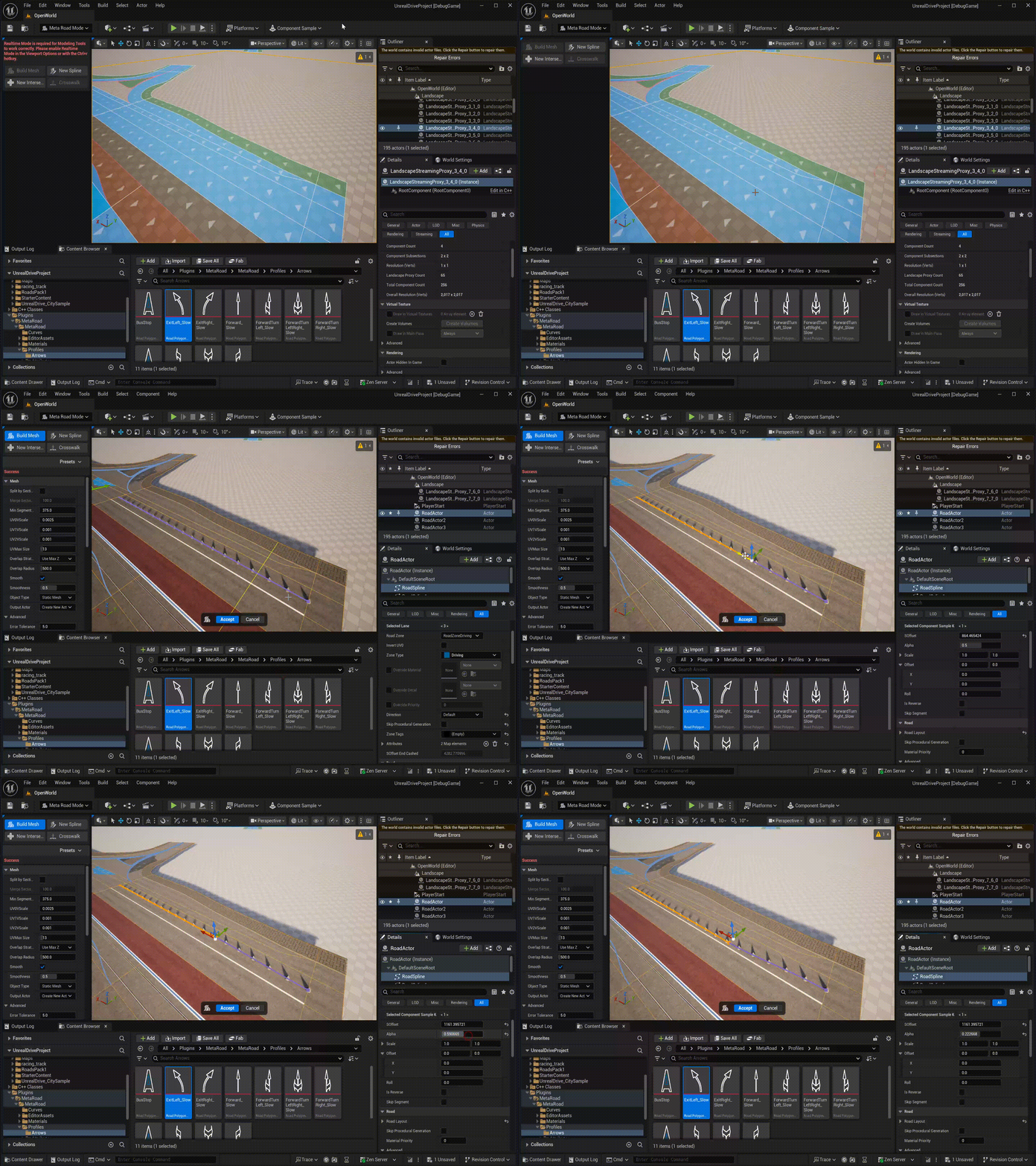
Drag a Component Template attribute profile from the Content Browser onto a road lane to add it directly:
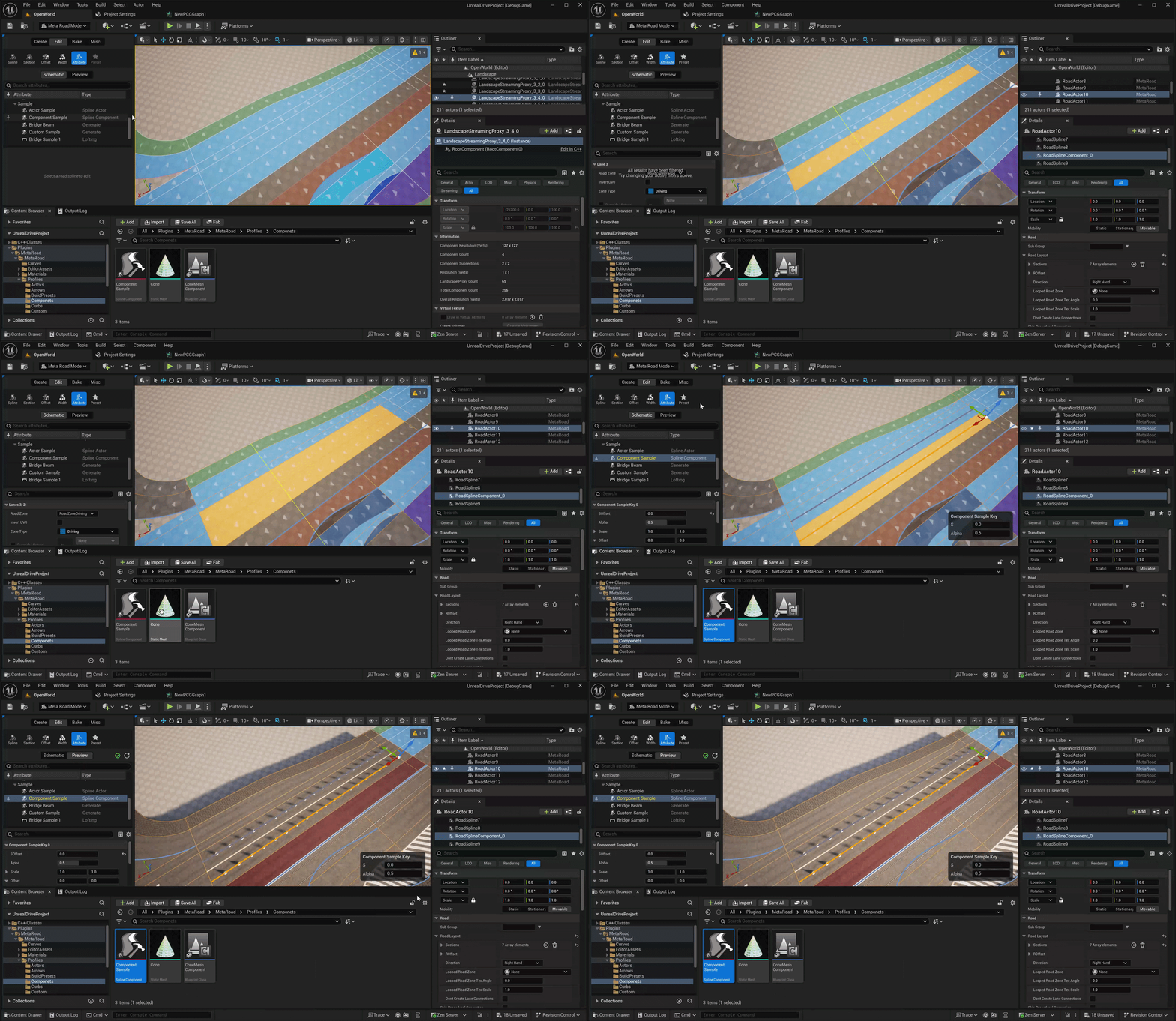
Examples
Sample assets: /MetaRoad/MetaRoad/Profiles/Componets.
See also
Generate Attributes — the base family (anchor / alignment / per-key transform channels).
Attribute Profile — how attribute assets are created in the Content Browser.
Attribute Mode — add the attribute and place keys along a lane.