The Meta Road Editor Mode
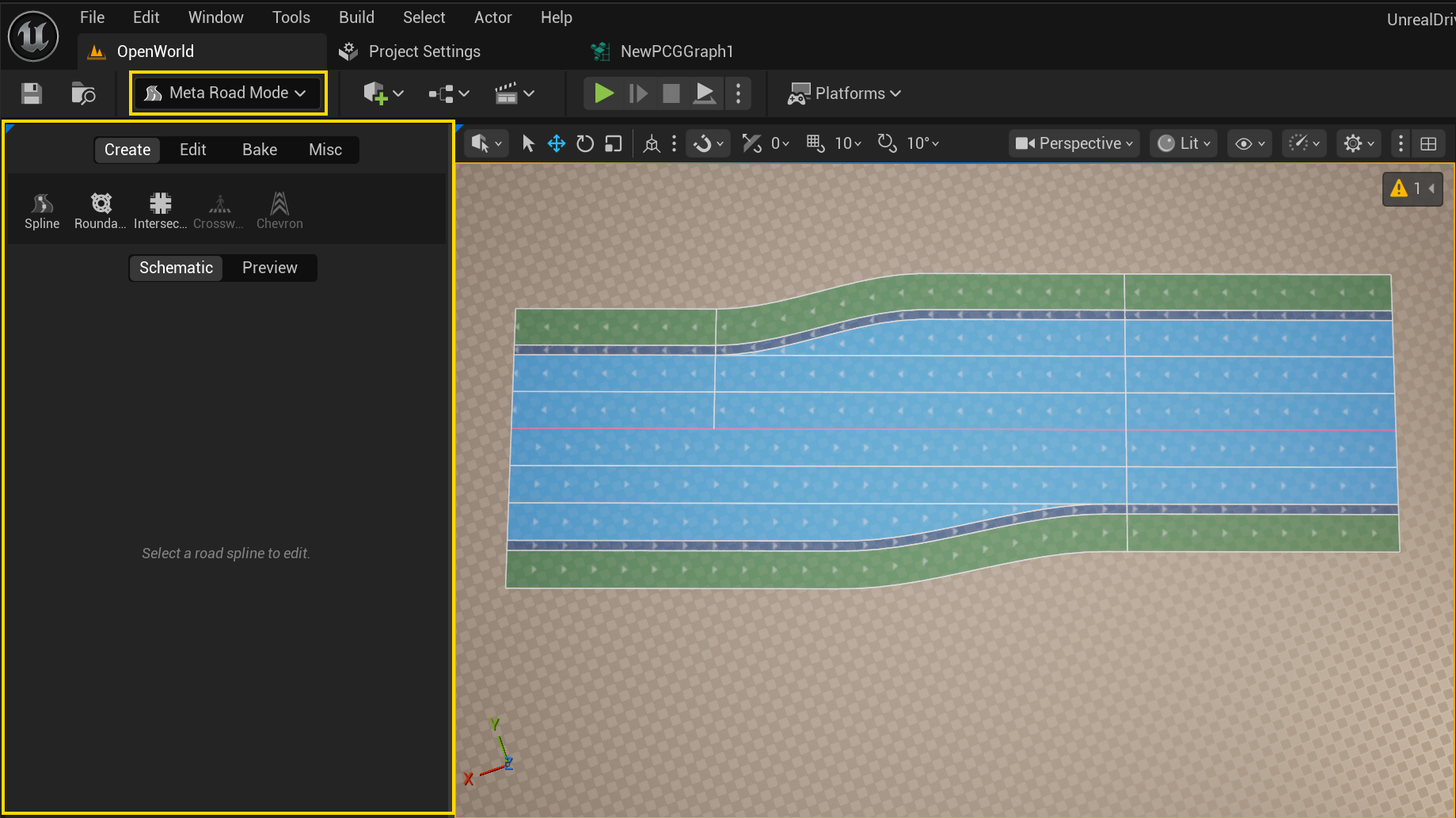
MetaRoad ships its own Unreal editor mode, shown as Meta Road in the level-editor mode dropdown. It is the single entry point for all road authoring — drawing roads, editing them, previewing, and baking all happen here. There is no separate “road” toolset in Modeling Mode any more.
The tile palette
The mode’s panel is an integrated tile palette at the top, split into four categories. Selecting a category shows its tiles; selecting a tile activates that tool or editing sub-mode and shows its panel below.
The categories, in order (Create is the default when the mode opens):
Create — make road geometry
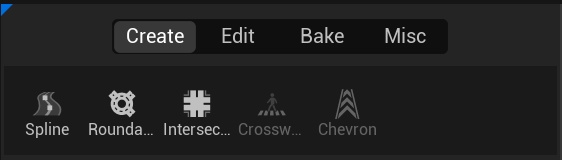
Interactive tools that place new roads. (All except Spline are Pro.)
Tile |
Creates |
|---|---|
Spline |
A new road spline ( |
Roundabout (Pro) |
A circular roundabout road — see Roundabout Tool |
Intersection (Pro) |
A junction linking several roads — see Intersection Tool |
Crosswalk (Pro) |
A pedestrian crossing on the selected road — see Crosswalk Tool |
Chevron (Pro) |
A chevron guide-island marking — see Chevron Marking Tool |
Edit — shape the selected road
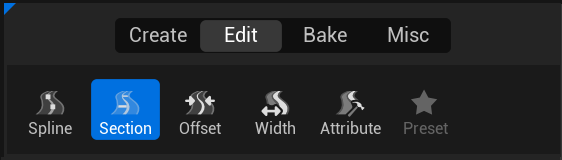
Sub-modes for editing a selected road. Each swaps in a viewport editor and a Details “Selection” panel.
Tile |
Edits |
|---|---|
Spline |
The reference line: nodes, tangents, arc nodes, endpoint connections — see Spline Mode |
Section |
Lanes and lane sections — see Section Mode |
Offset |
The center-line offset curve — see Offset Mode |
Width |
Per-lane width curves — see Width Mode |
Attribute |
Lane attributes (markings, guardrails, …) — see Attribute Mode |
Preset |
Stage mesh-build settings/presets against the live preview — see Preset Mode |
Bake — generate output
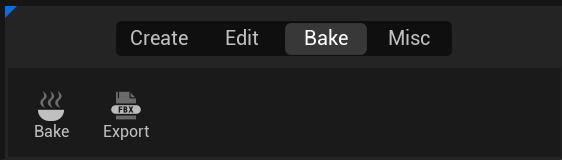
Tile |
Does |
|---|---|
Bake |
Generate or clear road mesh assets/actors (Bake / Clear, Selected / All) — see Baking |
Export |
Export road meshes to |
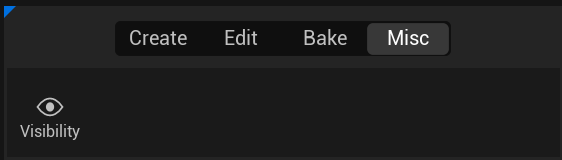
Misc
Tile |
Does |
|---|---|
Visibility |
Editor visibility settings (tile renders, unhide splines, debug draw) — see Visibility |
Schematic vs Preview
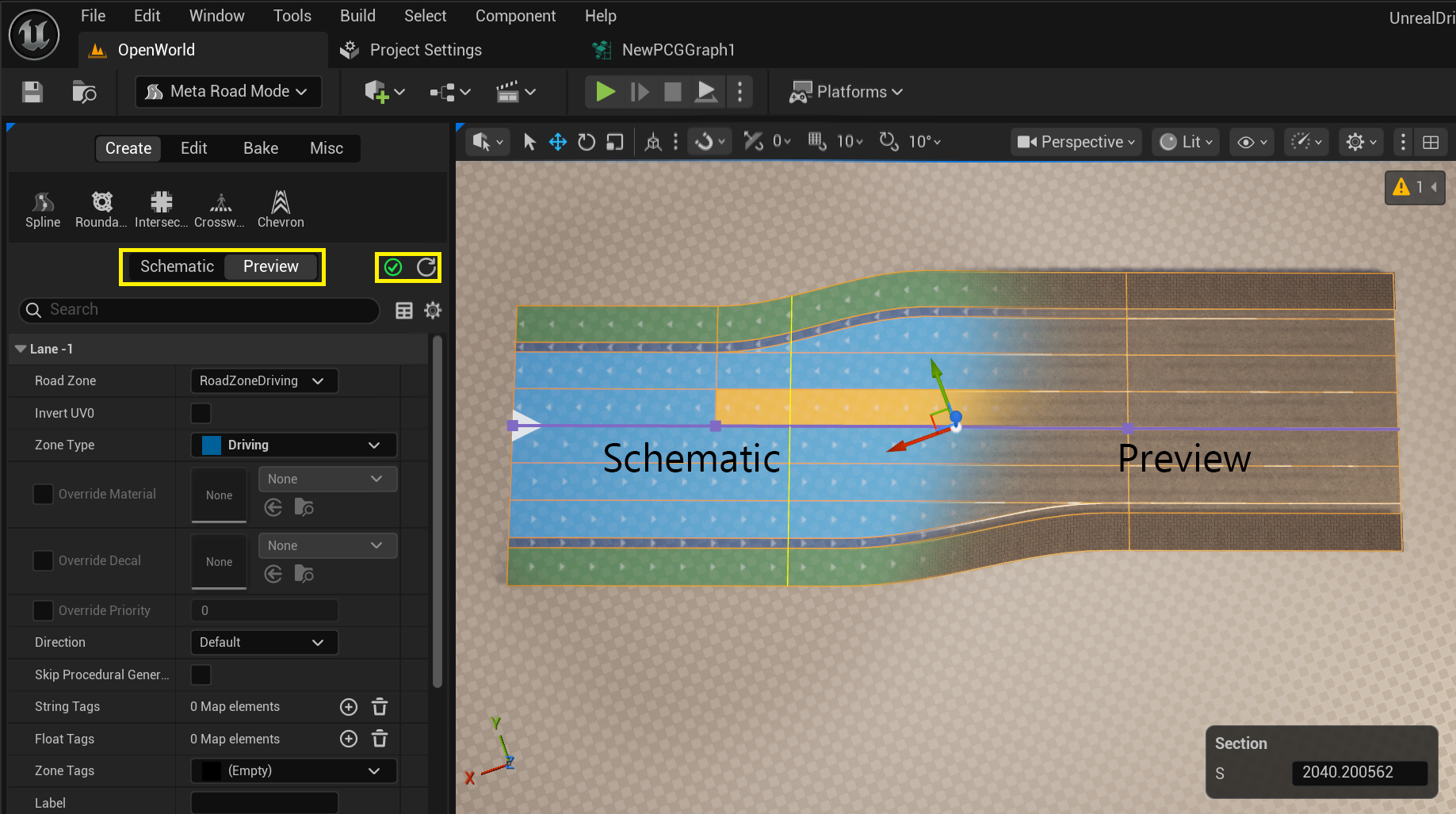
At the top of the panel a toggle switches the viewport between two views:
Schematic — the editable lane graph drawn by the editing sub-modes. This is where you author.
Preview — a live, non-destructive preview of the generated road mesh. Nothing is written to disk; it rebuilds as you edit. Two icon buttons appear next to the toggle while you are in Preview view:
Build status — reflects the live preview build: a spinning throbber while it computes, then a green success, a yellow warning or a red error icon when it finishes. It is hidden while the preview is idle. Click it to open the Output Log and read the full build messages.
Update / Stop — normally a refresh icon that rebuilds the preview from the current spline data and build settings. While a build is running it turns into a red stop icon that cancels the in-progress build. It is disabled when there is no active preview to rebuild.
Editing splines outside the mode
The default Spline editor is always active, even when you are not in the Meta Road mode: select an AMetaRoad
in the level and you can edit its road spline’s points/tangents directly. The other Edit sub-modes
(Section / Offset / Width / Attribute) require the Meta Road mode to be active.
AMetaRoad-only
Road splines are only picked up by the build/preview/bake pipeline when they live on an AMetaRoad actor; splines
on other actors are ignored. The Create tools always produce AMetaRoad actors for you. See
The MetaRoad Workflow for the full picture.
See also
The MetaRoad Workflow — the end-to-end authoring pipeline.
Create tools: Draw Spline Tool, Roundabout Tool (Pro), Intersection Tool (Pro), Draw Crosswalk Tool (Pro), Chevron Marking Tool (Pro).
Edit sub-modes: Spline Mode, Section Mode, Offset Mode, Width Mode, Attribute Mode, Preset Mode.