Preset Mode
Note
This is the Preset tile in the Edit palette of the Meta Road editor mode (see The Meta Road Editor Mode). Active when one or more road actors are selected.
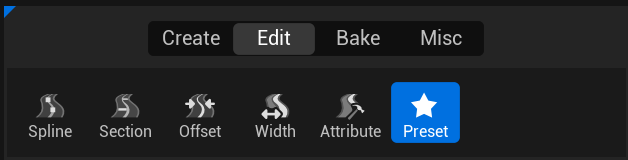
Preset Mode lets you tune the mesh-build settings of the selected road(s) and preview the result before
committing. Build settings control how a road is baked — which mesh layers are generated (surface, decals, sidewalks,
curbs, marks, spline meshes), their materials, triangulation parameters, and so on. They are stored per actor as
UMetaRoadBuildSettings.
Note
Presets vs Profiles. Presets here are saved bundles of build settings managed by this panel. They are not the same thing as the reusable Profiles assets (road/curb/mark/attribute/polygon shapes) in the Content Browser.
The working-copy model
Everything you do in the Preset panel edits a transient working copy of the selected actors’ build settings — shown live when the view toggle is set to Preview. The actor’s committed settings are never touched until you explicitly Apply To Selected. So you can pick presets, tweak values, and compare freely; only Apply writes changes back to the actors, and baking always uses each actor’s committed settings (see Baking).
The Preset panel
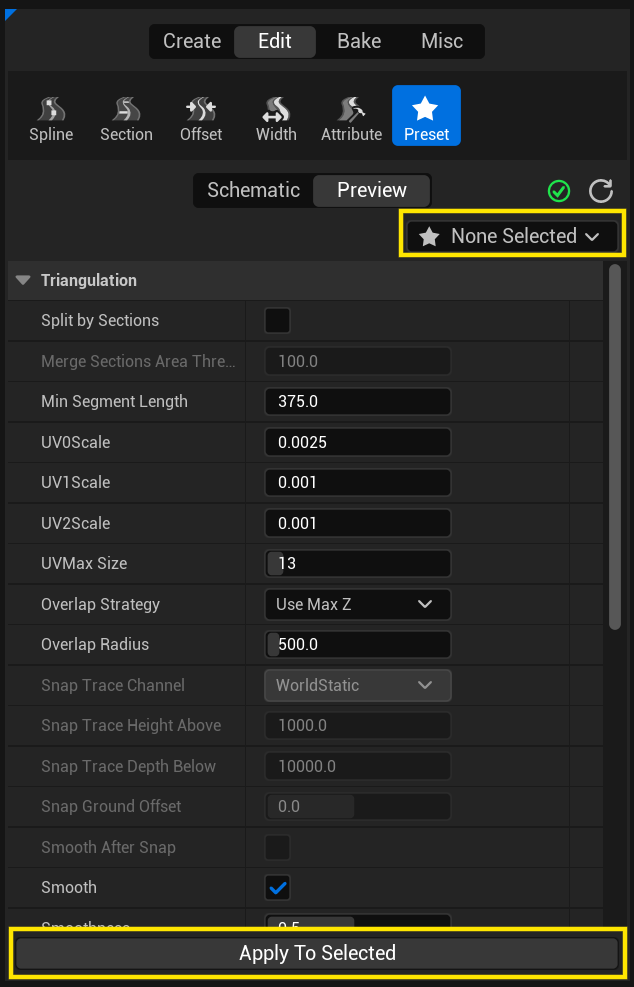
The panel has three parts:
Preset combo (star icon) — its Apply Preset section lists every Build Preset in the project; picking one copies its settings onto the working copy (the Preview updates immediately). Its Manage section (Save As New / Save to Selected) creates or updates a Build Preset from the current settings.
Build settings — a details view of the working copy: the triangulation parameters plus one property set per mesh layer (surface, decals, sidewalks, curbs, marks, spline meshes, …). Editing here updates the Preview; with several actors selected the values are multi-edited across them.
Apply To Selected — writes the working settings into the selected road actors (commit). This is the only action that changes an actor, and it is separate from saving a preset asset.
Workflow
Select one or more road actors.
Open the Preset tile and switch the view toggle to Preview.
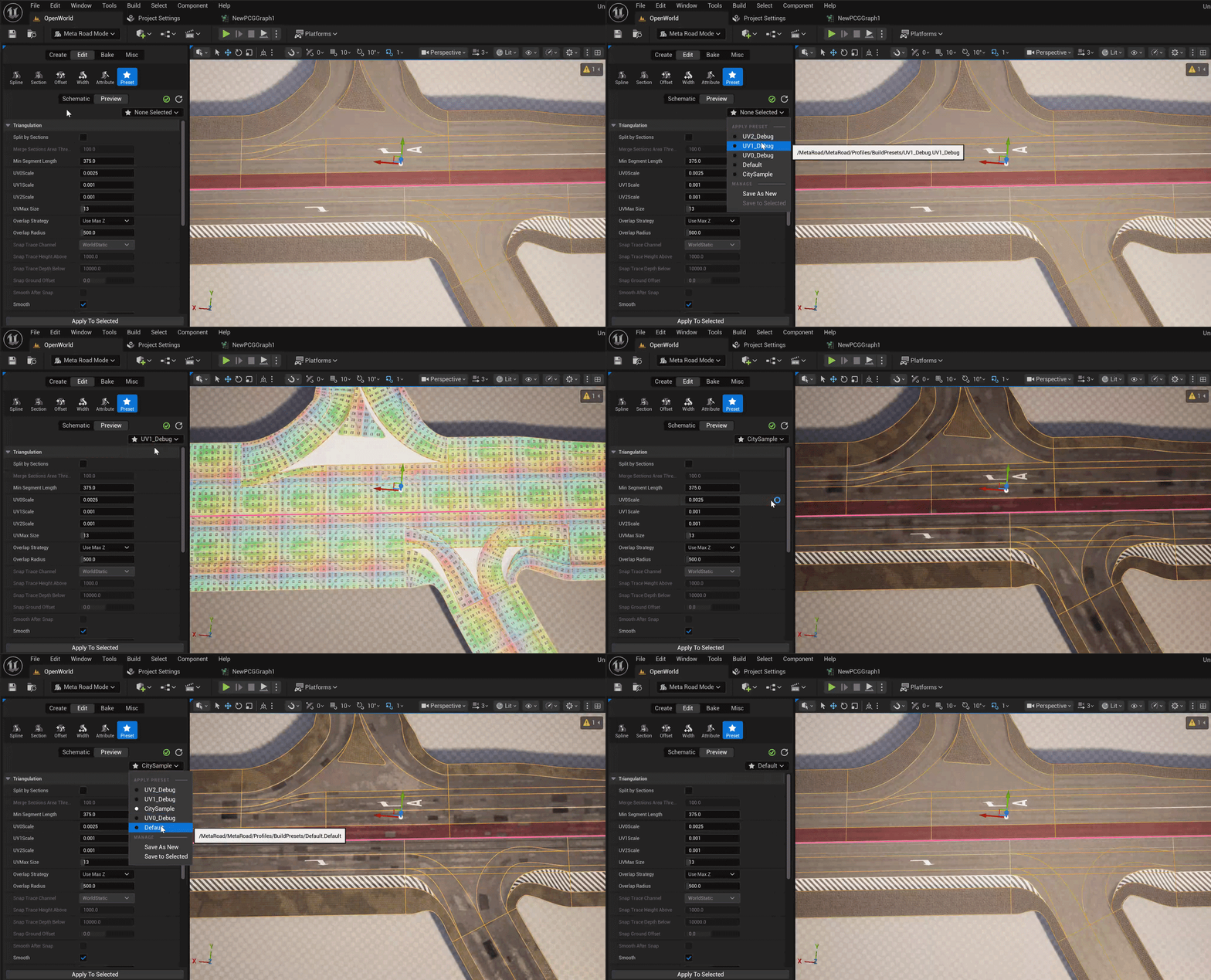
Pick a preset from the combo and/or adjust the build settings in the panel — the Preview updates live on the working copy.
(Optional) save the settings as a reusable Build Preset (combo → Save As New / Save to Selected).
Apply To Selected to commit the settings onto the actors, then bake when ready — the bake uses the committed settings.
See also
Build Preset — the reusable build-settings asset you apply and save here.
Baking — where each actor’s committed build settings are used.