Road Profile
A Road Profile (URoadProfile) is a reusable Content-Browser asset that defines the lane layout a new road starts
with. It is applied by the Draw Spline Tool and the
Roundabout Tool when you draw a road.
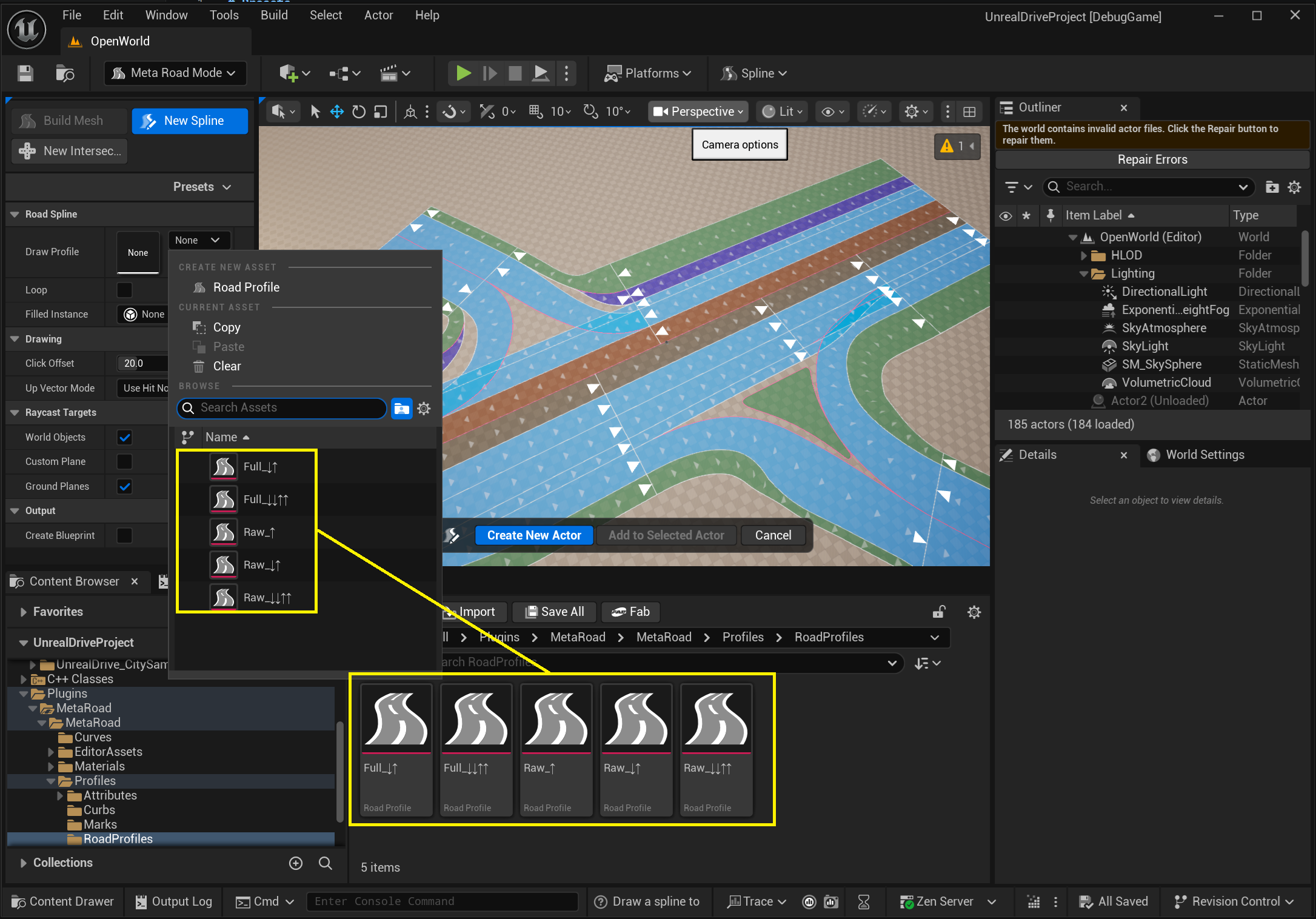
Create one from the Content Browser (right-click → Meta Road → Road Profile); double-click it to open the Road Profile editor described below.
The Road Profile editor
The editor is a small road editor with a live 3D preview, so you shape the profile and see the result immediately.
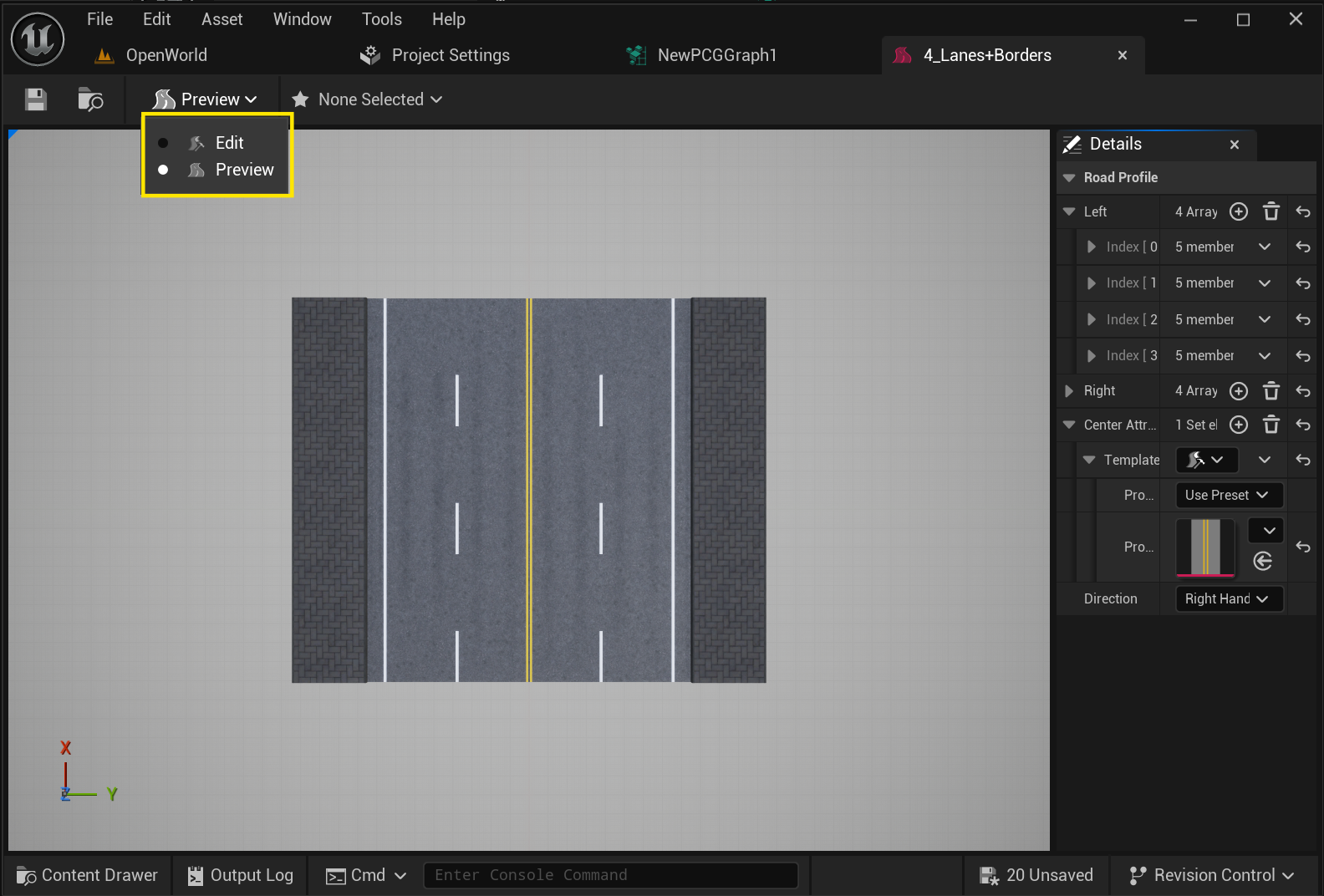
Preview viewport — a 3D preview of the profile.
Details panel — properties of the current selection (a lane, the center line, or the whole profile).
Preview modes
A dropdown in the toolbar switches what the preview shows:
Road Graph — the schematic lane graph (as you edit it).
Generated Mesh — the baked result of the profile.
Editing lanes
Right-click a lane in the preview for its context menu:
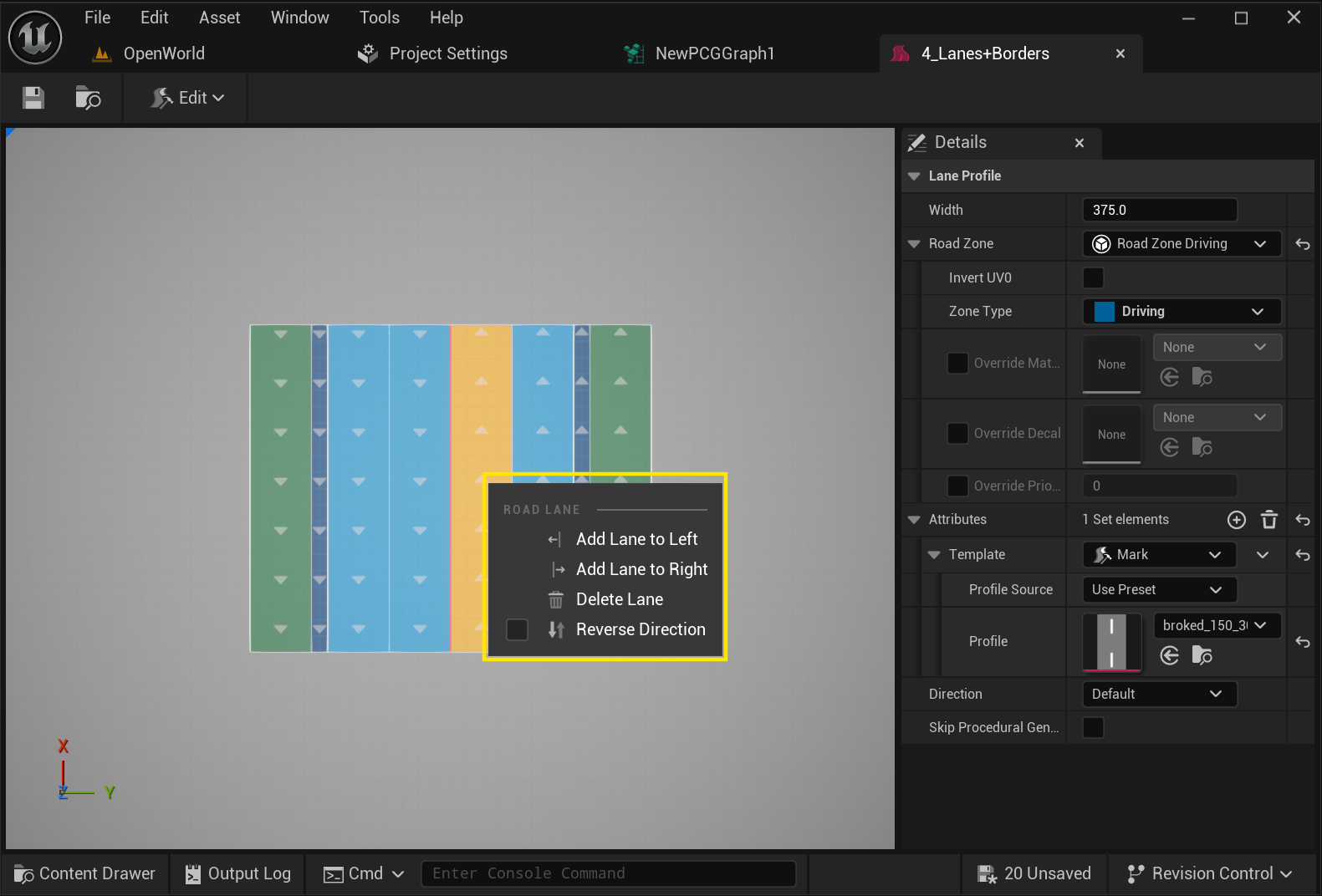
Add Lane (to the left or right of the clicked lane / center)
Delete Lane
Reverse Lane — toggles that lane’s traffic direction
Select a lane, the center line, or the whole profile to edit it in the details panel. Per-lane properties include:
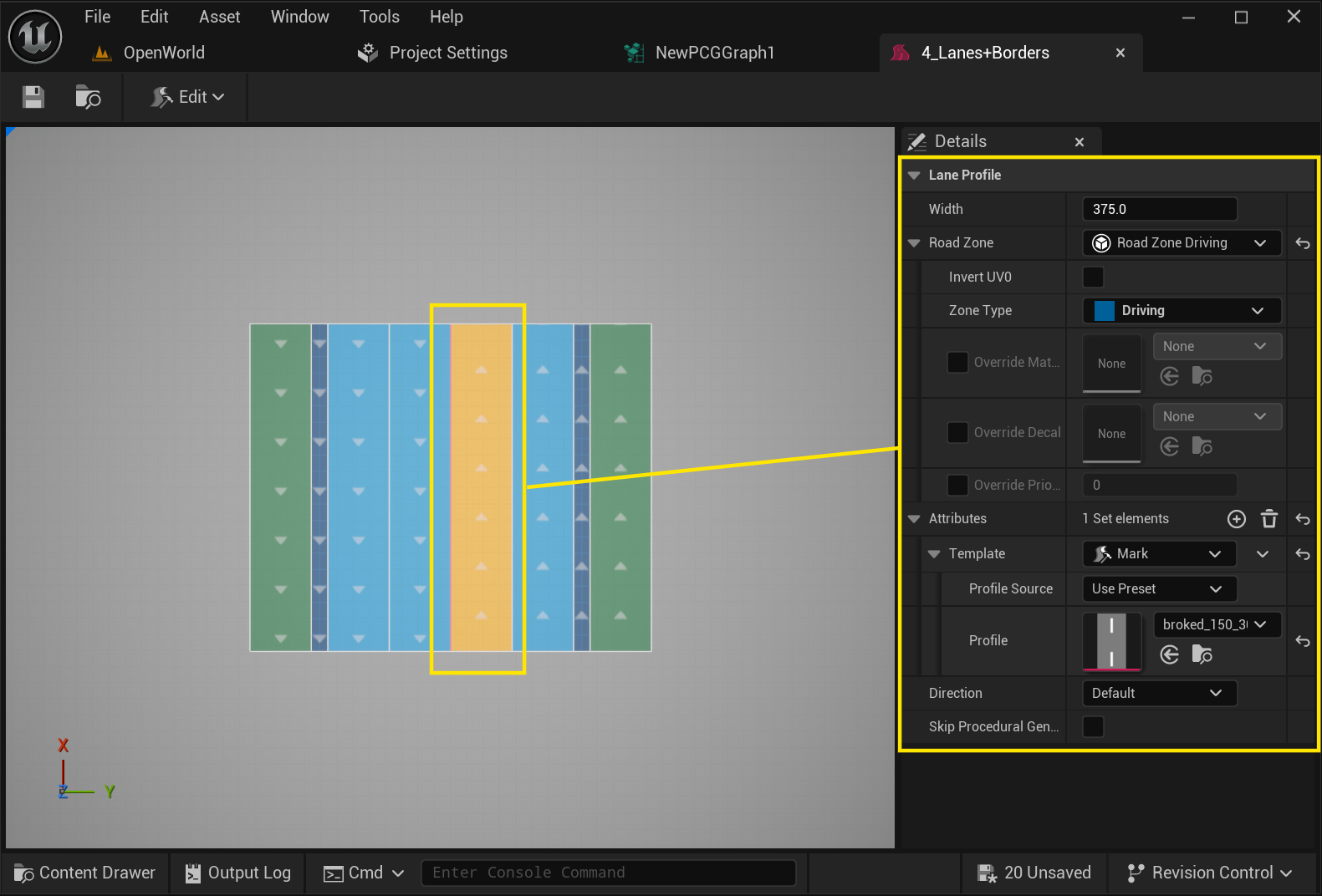
Property |
Description |
|---|---|
|
Lane width |
|
Surface type of the lane (driving, sidewalk, tram, …) — sets material/behavior |
|
Lane attributes carried by the profile (e.g. markings) |
|
Per-lane traffic direction (Default / Invert) |
|
Exclude this lane from mesh generation |
Profile-level properties: center-lane attributes and the road Direction (Right-Hand / Left-Hand traffic).
Presets
A preset panel lets you preview build-setting presets against the profile without changing the asset. See Preset Mode and the Build Preset asset for how build-setting presets work.
Drag and Drop
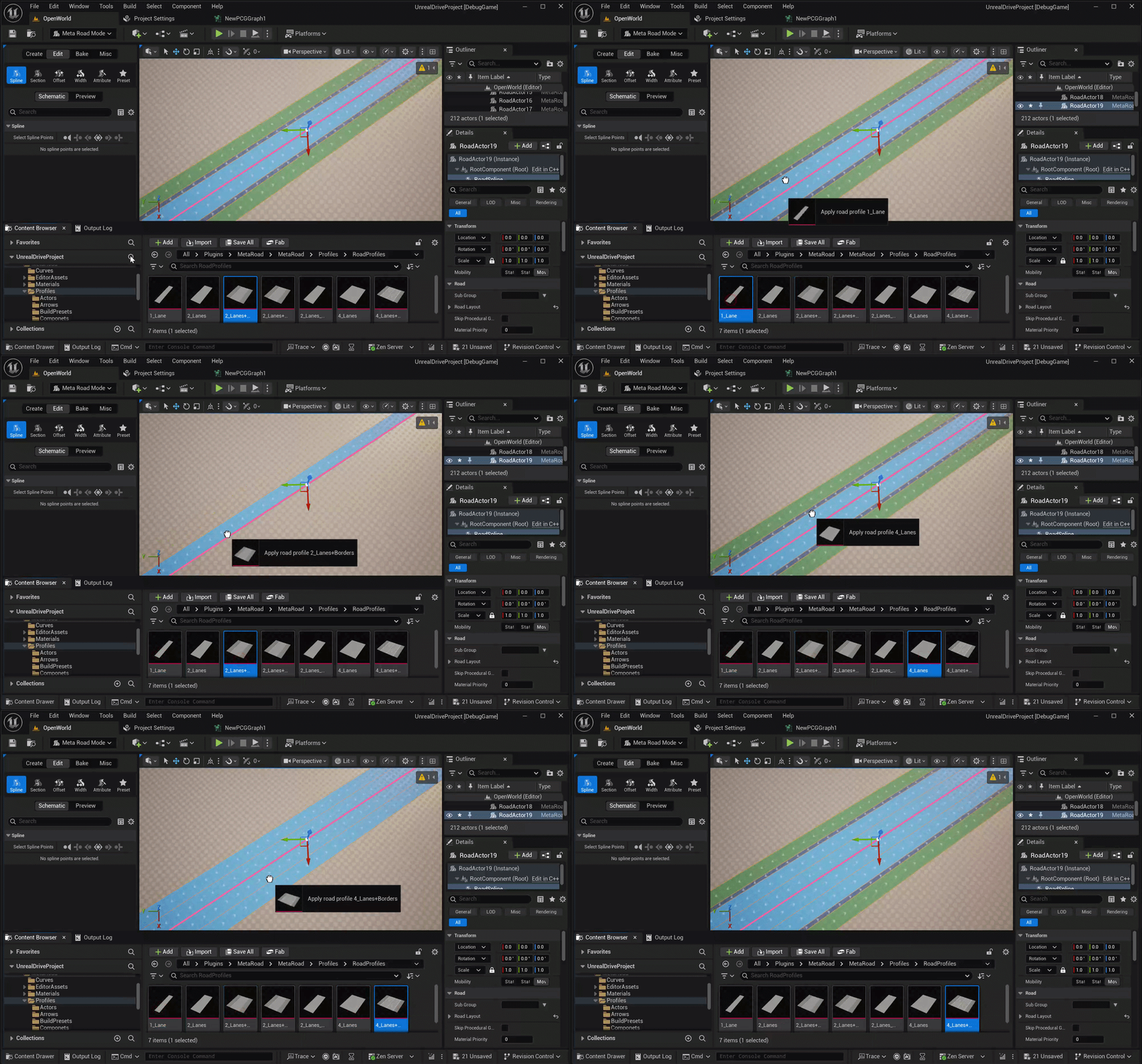
Drag a Road Profile from the Content Browser onto a road to apply its lane layout to that road:
See also
Profiles — all Meta Road profile assets.
Draw Spline Tool — where Road Profiles are used.
Roundabout Tool — also draws roads from a Road Profile.
Preset Mode — preview build-setting presets against the profile.