Installation
Important
You can’t install both MetaRoad Free and MetaRoad Pro plugins simultaneously in a single Unreal Engine. Make sure you only have one version installed.
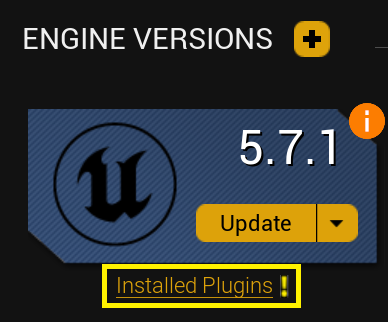
You can remove the extra version of the plugin through Epic Game Launcher here:
MetaRoad is a plugin for Unreal Engine, so the installation procedure for MetaRoad is the same as for a regular Unreal Engine plugin (see Working with Plugins in Unreal Engine):
Copy the MetaRoad Plugin folder to the Plugins folder of your Unreal Engine project (next to the .uproject file) or to the Engine\Plugins folder of the engine. If you purchased and installed the plugin through fab.com, it will already be copied to the Engine\Plugins\Marketplace folder.
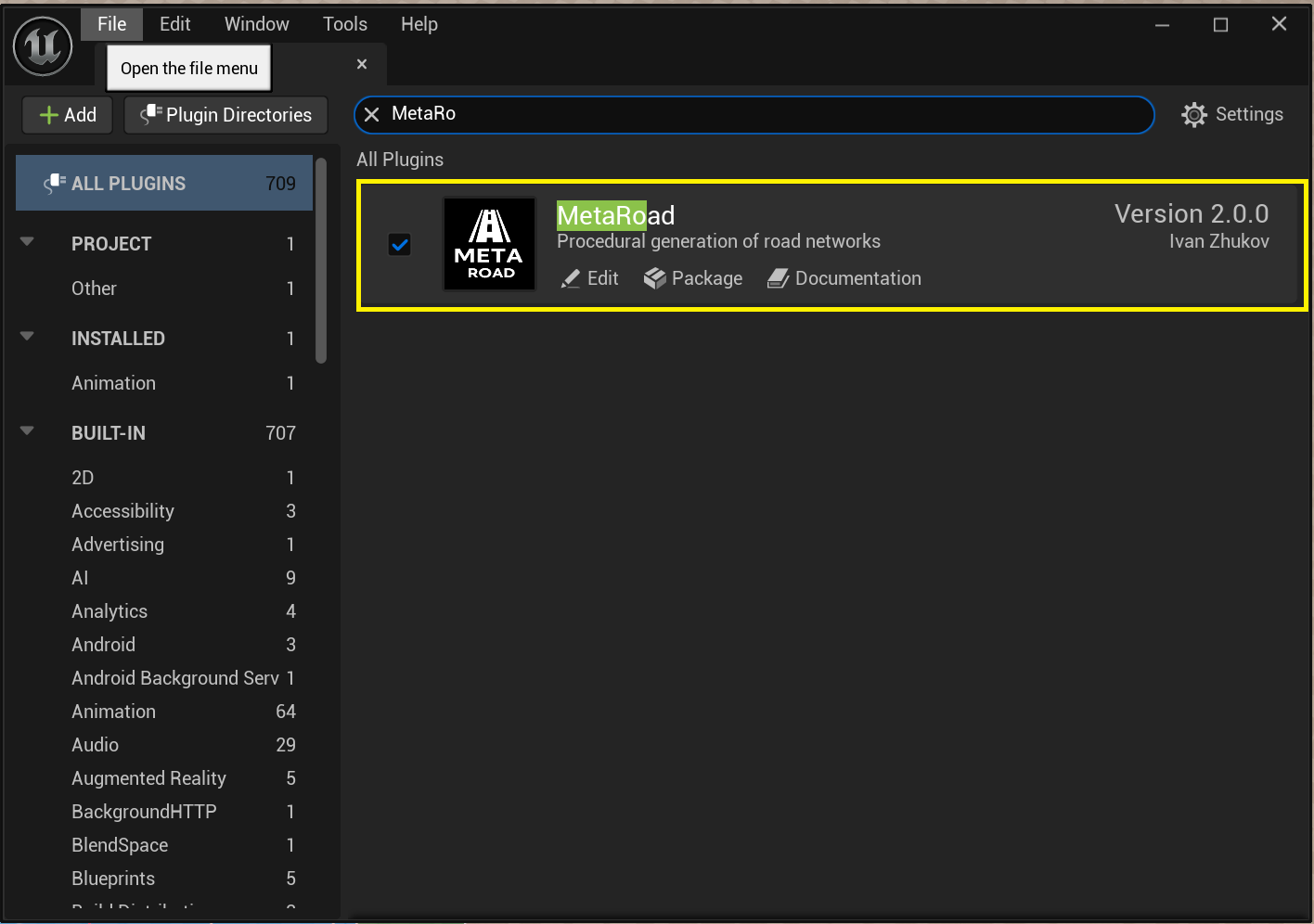
From the main menu, go to Edit -> Plugins. This opens the Plugins window and enables the MetaRoad plugin:
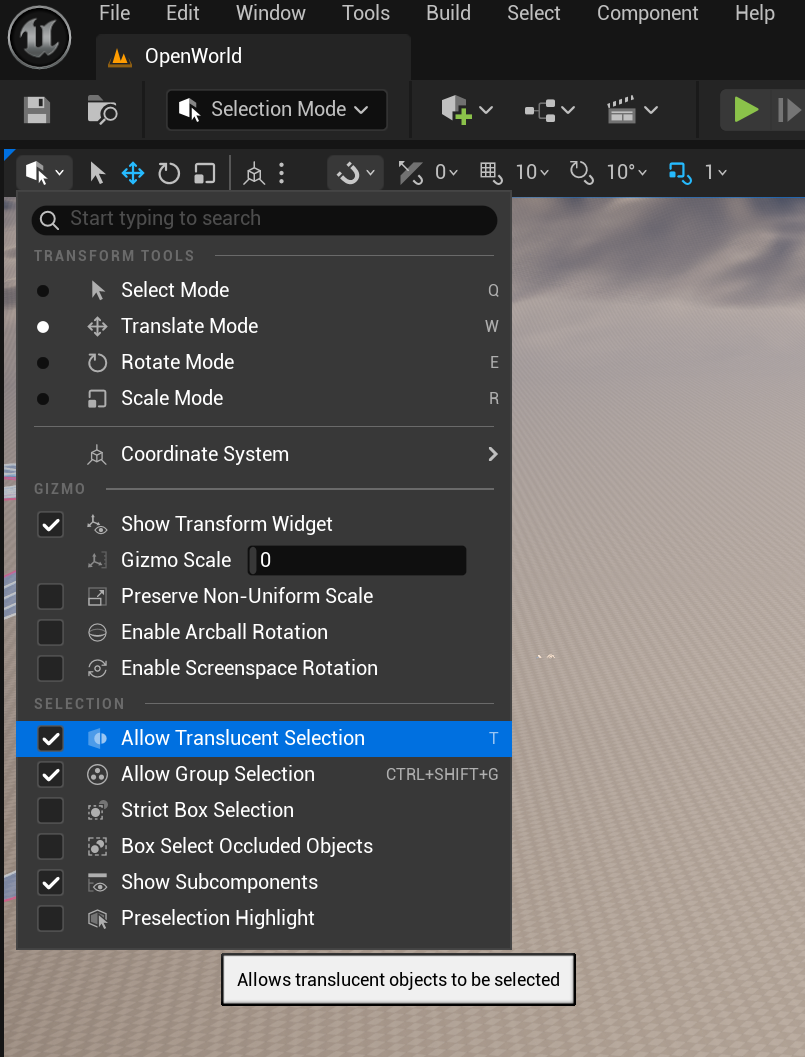
Make sure that Translucent Selection is allowed, otherwise there may be problems with selecting road lanes:
Next steps
Quick Start — build your first road.
The MetaRoad Workflow — how create → edit → bake fit together.