Roundabout Tool (Pro)
Note
This is the Roundabout tile in the Create palette of the Meta Road editor mode (see The Meta Road Editor Mode). (Pro feature.)

The Roundabout Tool draws a closed, circular road spline (URoadSplineComponent) for roundabouts and ring roads
in a single drag gesture. The result is an ordinary closed road — you can edit it afterwards like any other road (add
lanes, attributes, connect approaches).
Drawing a roundabout
Activate the Roundabout tile.
Press and hold LMB at the intended center of the roundabout.
Drag outward to set the radius — the circular preview updates live, and node 0 follows your cursor direction.
Release LMB to place the roundabout. A new
AMetaRoadactor with the closed circular spline is created.
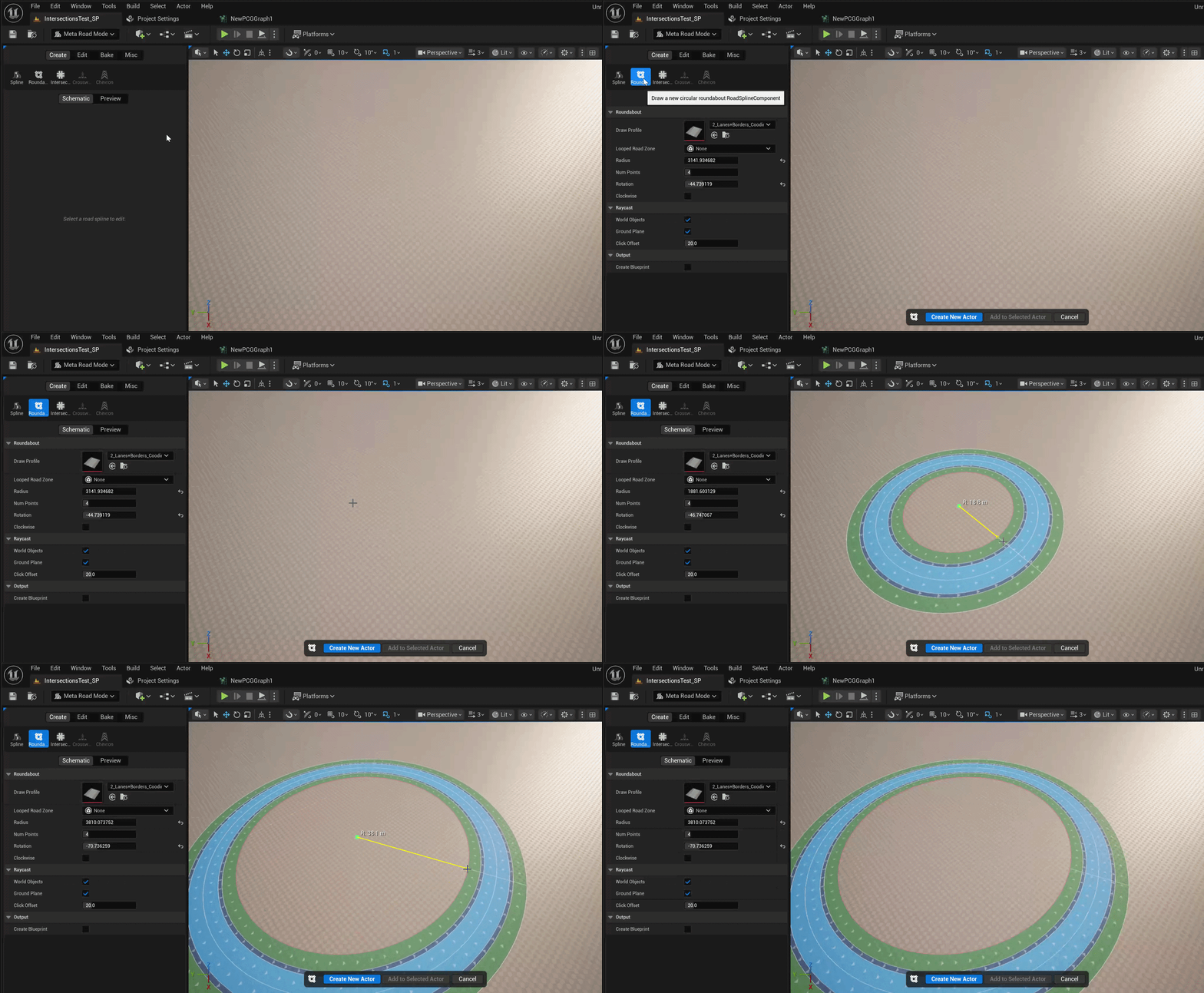
After placing it you can keep tuning the shape from the Details panel (the values below update the spline live).
Properties
Property |
Default |
Description |
|---|---|---|
|
1000 (min 200) |
Circle radius, cm; also set live while dragging |
|
4 (2–16) |
Number of control points; more points = smoother circle |
|
0° (−180…180) |
Rotates node 0 around the center — useful to align entry points with approach roads |
|
off |
Spline traversal direction — off = counter-clockwise, on = clockwise |
|
|
Road Profile applied to the spline after each rebuild |
|
— |
Surface zone that fills the interior island |
|
on / on |
Raycast targets: world geometry and/or the Z=0 plane |
|
20 (0–100) |
Offset above the hit surface, cm |
|
off |
Optionally output a Blueprint instead of a level actor |
Note
The control-point tangents are computed automatically so the spline forms a smooth circle for any Num Points value.
Next steps
Add lanes with Section Mode and markings with Attributes.
Connect approach roads with the Intersection Tool or manually in Spline Mode.
Bake to generate the mesh.