Chevron Marking Tool (Pro)
Note
This is the Chevron tile in the Create palette of the Meta Road editor mode (see The Meta Road Editor Mode). (Pro feature.)

The Chevron Marking Tool draws chevron guide-island markings — the striped “V” islands painted at gore points
where traffic flows split or merge (for example at off-ramps). The marking is a spline-driven
UChevronMarkingComponent added to the selected road actor, and it participates in
baking together with the road surface.
Requirements
Select one actor that contains a URoadSplineComponent before activating the tool.
Drawing a chevron island
Select the road actor and activate the Chevron tile.
Click in the viewport to append a sharp (linear) point to the island outline. A live preview of the chevrons renders as you go.
Click-drag to reposition the last point.
Accept to commit the
UChevronMarkingComponentto the selected actor, or Cancel to discard.
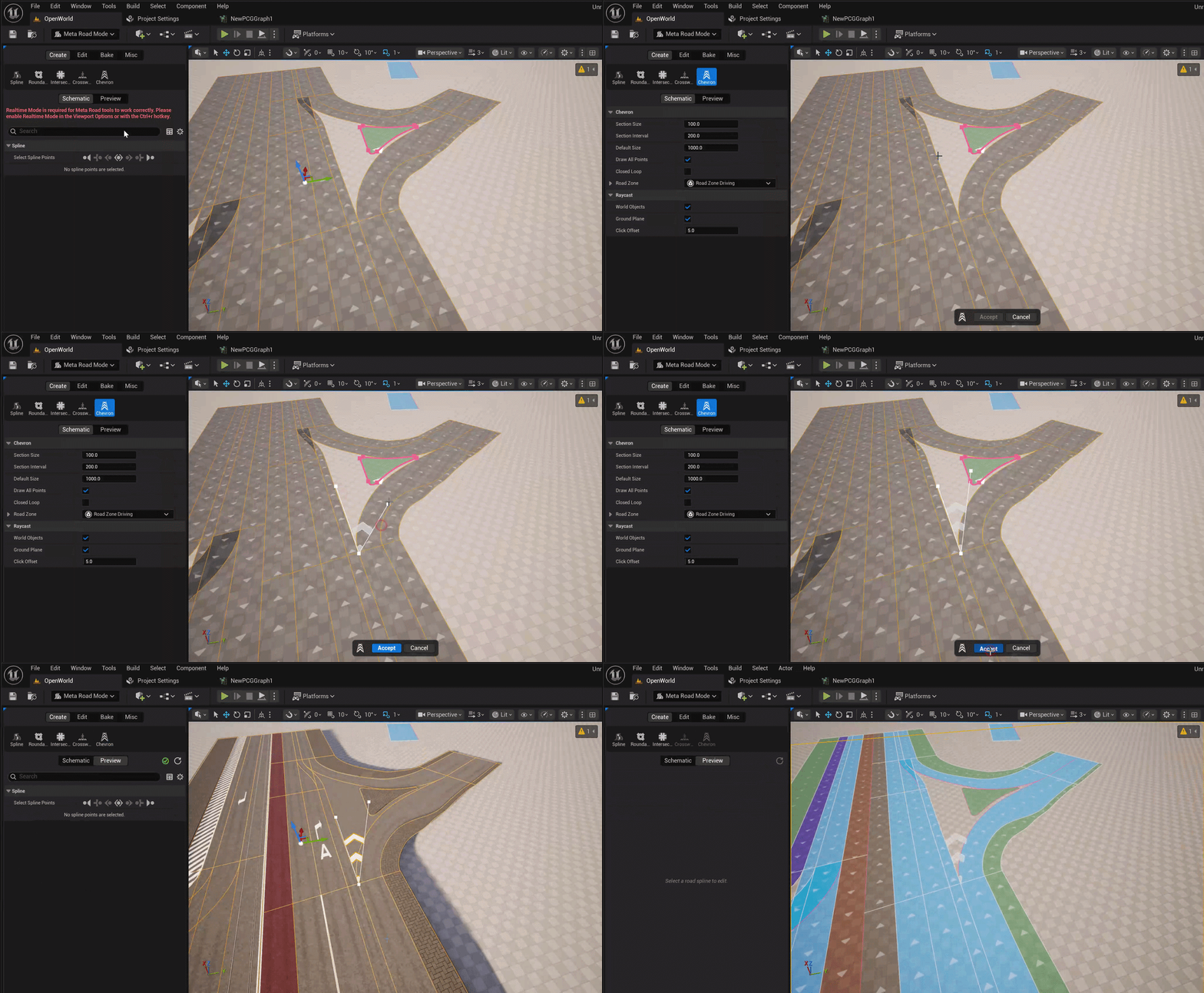
At each interior point of the spline, the point is the apex of a wedge between the two tangent directions; the wedge is filled with chevron V-bands pointing outward. Open-spline endpoints are skipped.
Properties
Component-wide (the component’s Details panel):
Property |
Default |
Description |
|---|---|---|
|
100 |
Depth of one chevron band (the “V”) along the wedge bisector, cm |
|
200 |
Gap between consecutive chevron bands, cm |
|
— |
Road surface type (material/color) applied to the marking |
|
0° |
UV texture rotation, in degrees |
|
1.0 |
UV texture scale multiplier |
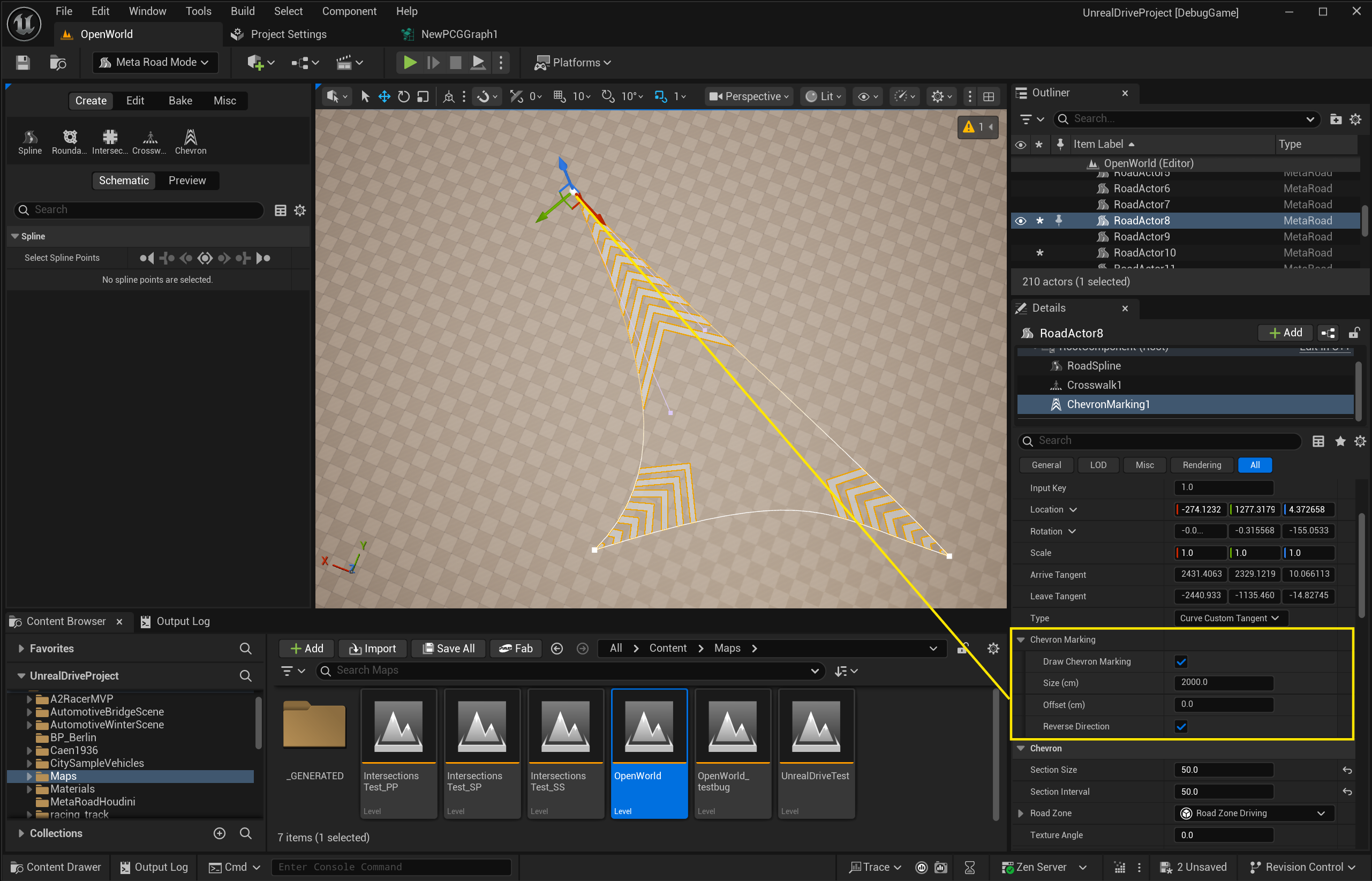
Per-point (in the spline’s Selected Points section — select one or more points first):
Property |
Default |
Description |
|---|---|---|
|
off |
Generate a chevron island at the selected point(s) |
|
1000 |
Island length along the wedge bisector, in cm — drives how many chevron bands fill the island |
|
0 |
Distance from the node where the chevrons start; shifts the whole |
|
off |
Flip the chevron pointing direction — toward the node apex (off) or the wide end of the island (on) |
Next steps
Bake to generate the marking mesh together with the road.