Tile Window
Tile Window is an Actor that allows to render open raster geo-maps such as Google Maps, OSM, Bing, etc. It can be useful for creating digital twins of real-world territories.
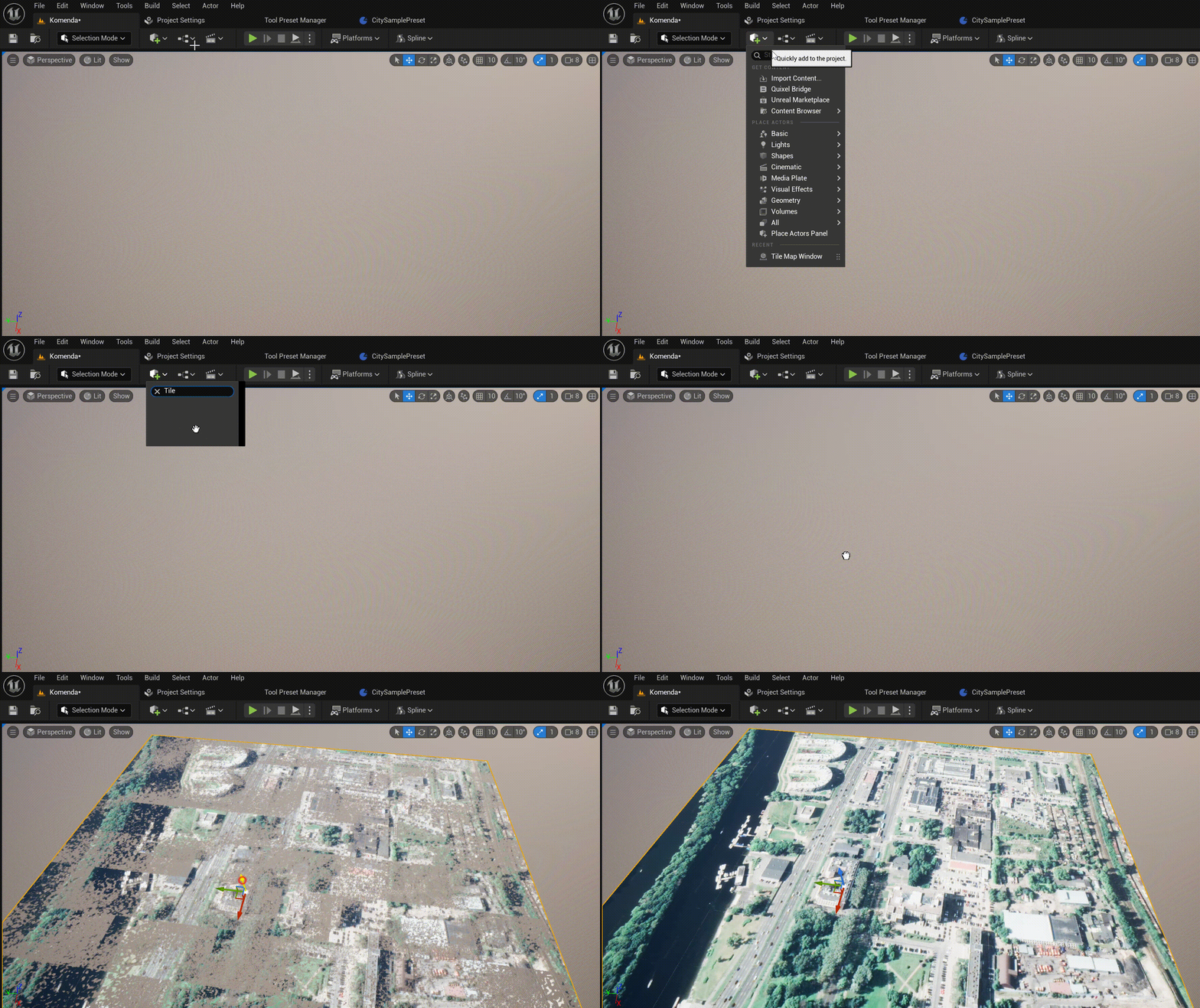
To get started, simply place the Tile Windows actor on the stage:
Coordinate system
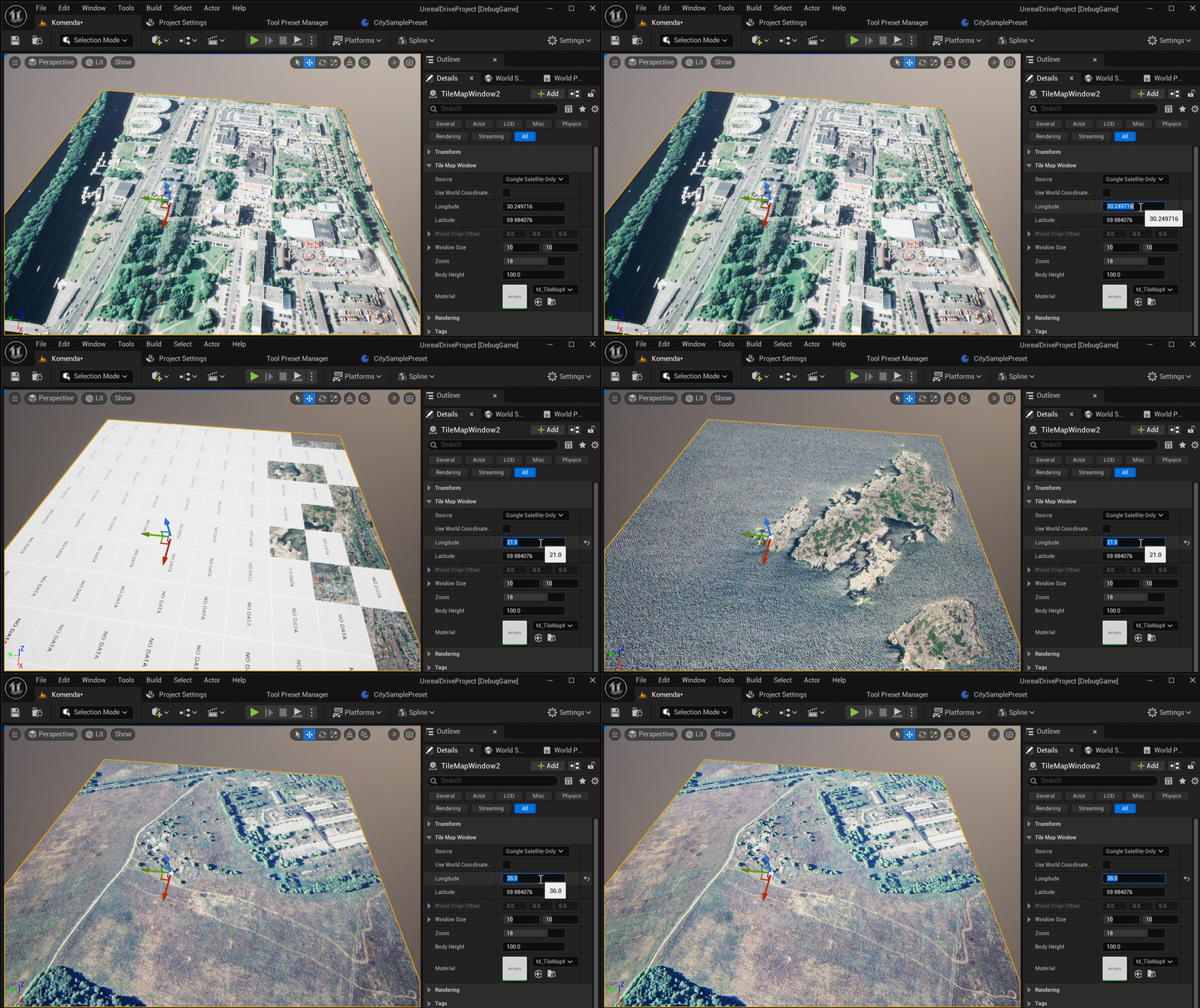
Simply set Longitude and Latitude, and Tile Window will instantly regenerate the window area:
The Use World Coordinate Space parameter defines the geo-origin for Longitude and Latitude in the Unreal Engine world:
If the flag is not set, the geo-origin is taken as position of the Tile Window Actor.
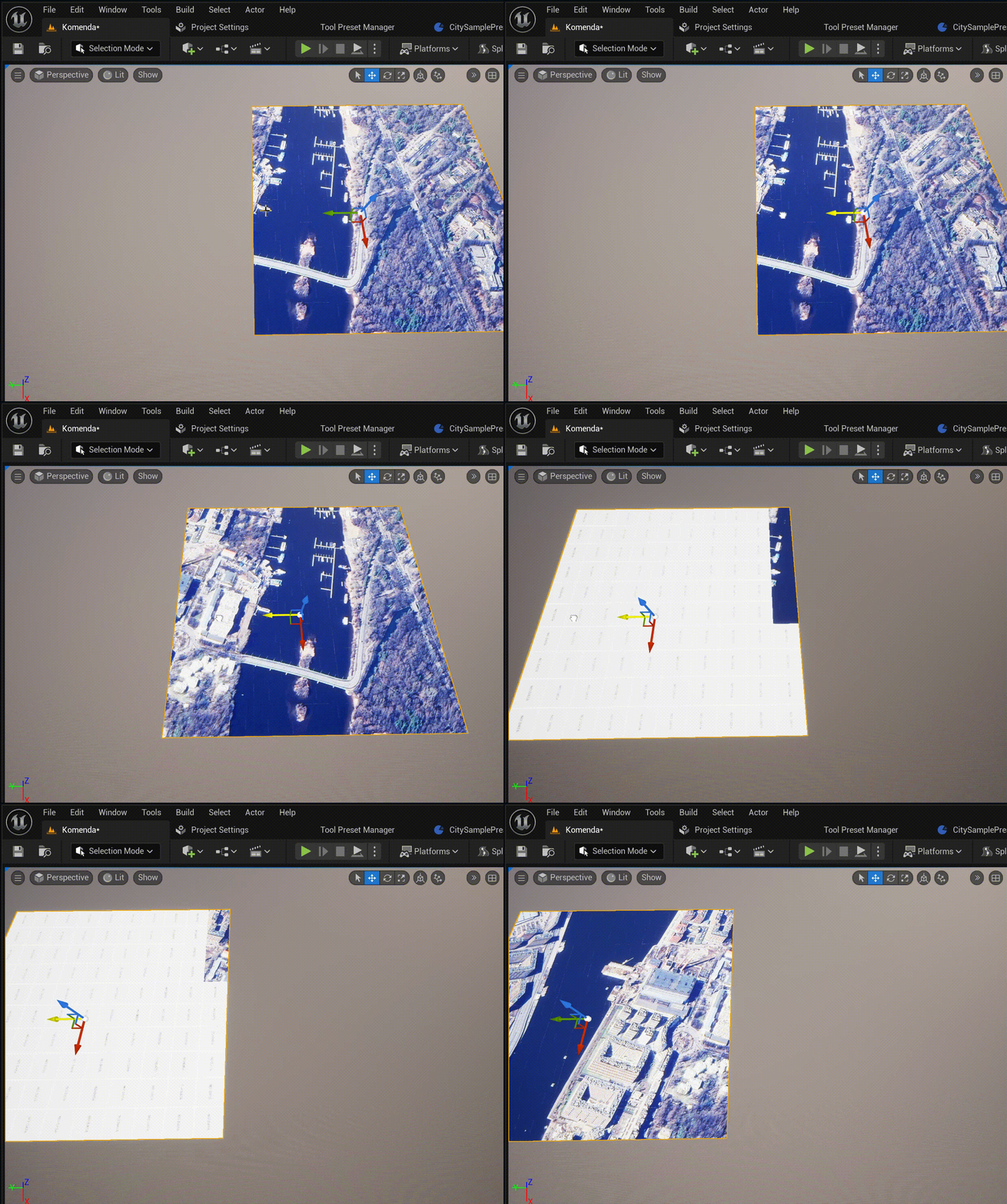
If the flag is set, the point (0, 0) of the Unreal Engine world is taken as the origin. In this case, when the position of the Tile Window is changing, the area of the Tile Window will be automatically recalculated according to the new coordinates. This mode is usually more convenient for recreating large areas of land. In this case, the Tile Window acts as a “window” into the real world, and when it is moved, a new area of the map will be automatically re-rendered:
Window size
To change the size and resolution of the window, use the two parameters Window Size and Zoom:
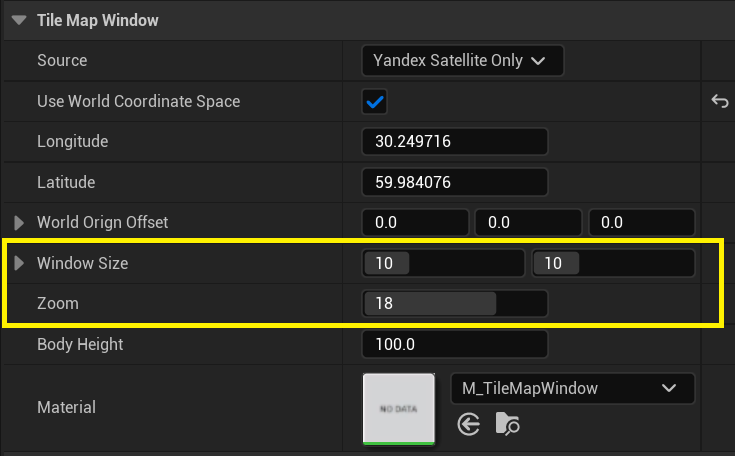
Zoom- Map tile zoom levels determine the level of detail and the number of tiles displayed by dividing the world into a grid of square tiles at each zoom level, more details here. The optimal zoom level is no less than 18. Rarely do tile sources support zoom levels greater than 22.Window Size- determines the number of tiles (horizontally and vertically) to be rendered. Do not specify values that are too large here to avoid video memory overflow: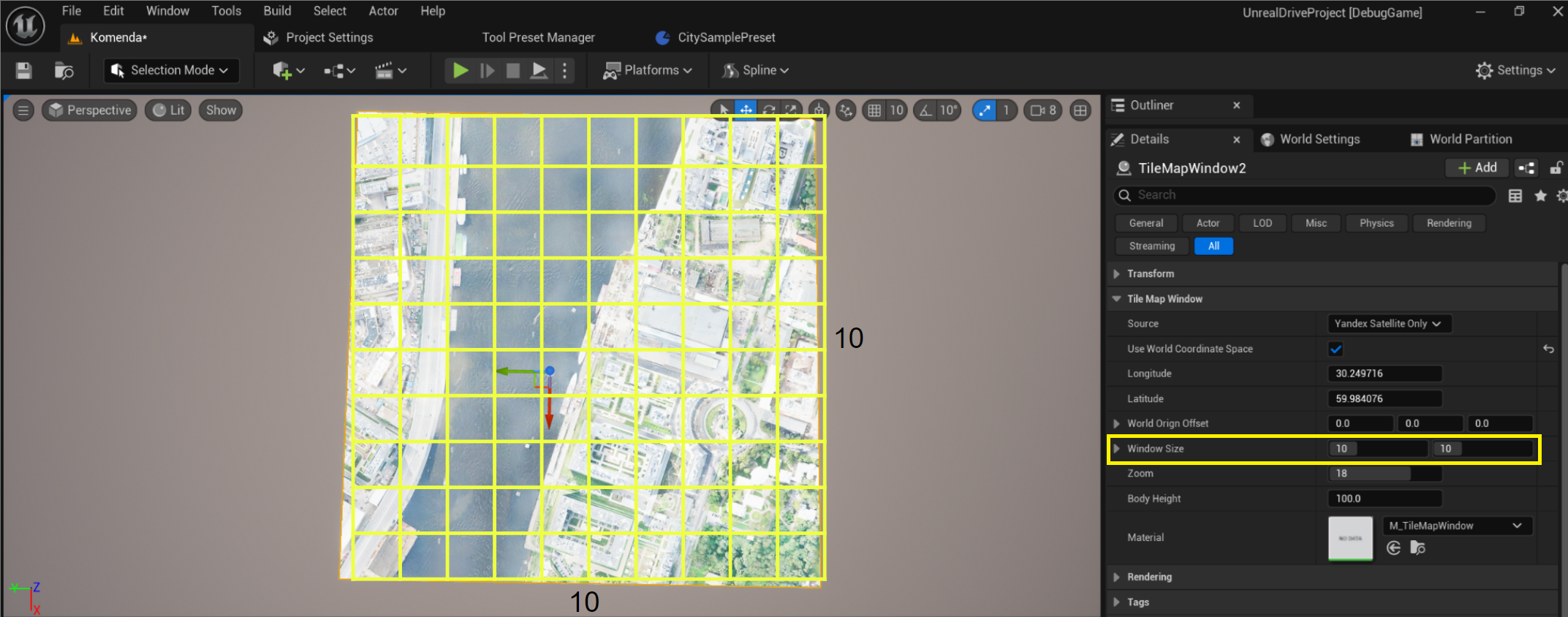
Map data sources
By default, Tile Window supports Google, OSM, and Yandex maps. Simply change the Source:
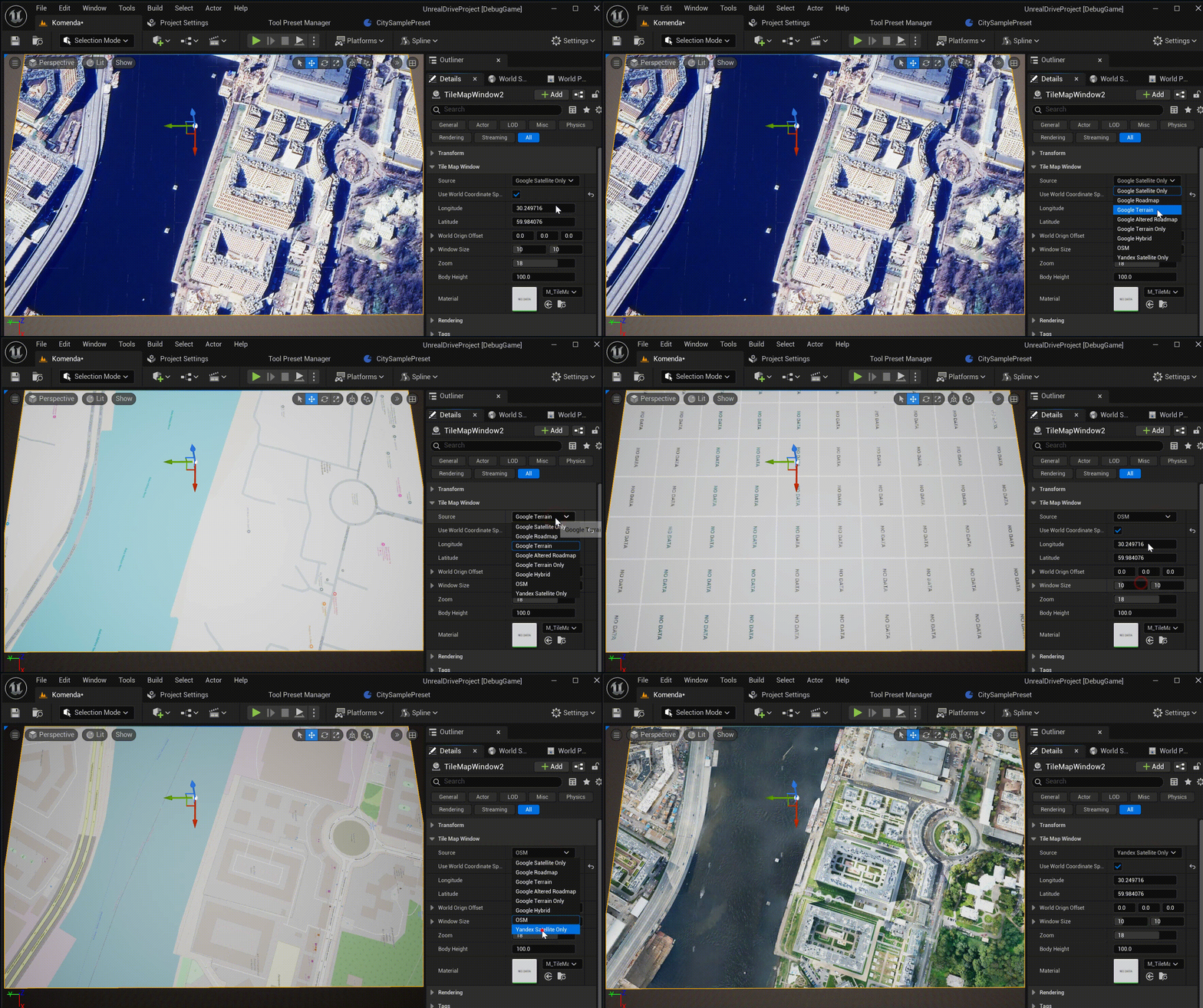
You can also add your own sources. To do this, go to Edit -> Project Settings -> Unreal Drive Editor and add a new source to Tile Sources:

The source URL is an arbitrary URL address in the format https://sample.map.source.com/{x}/{y}{z}, where {x}, {y}, {z} will be replaced with the x, y, z coordinates of the tiles during rendering.
See also
Visibility — the Tiles Visibility toggle that shows or hides Tile Window renders.