Closed-Loop Splines
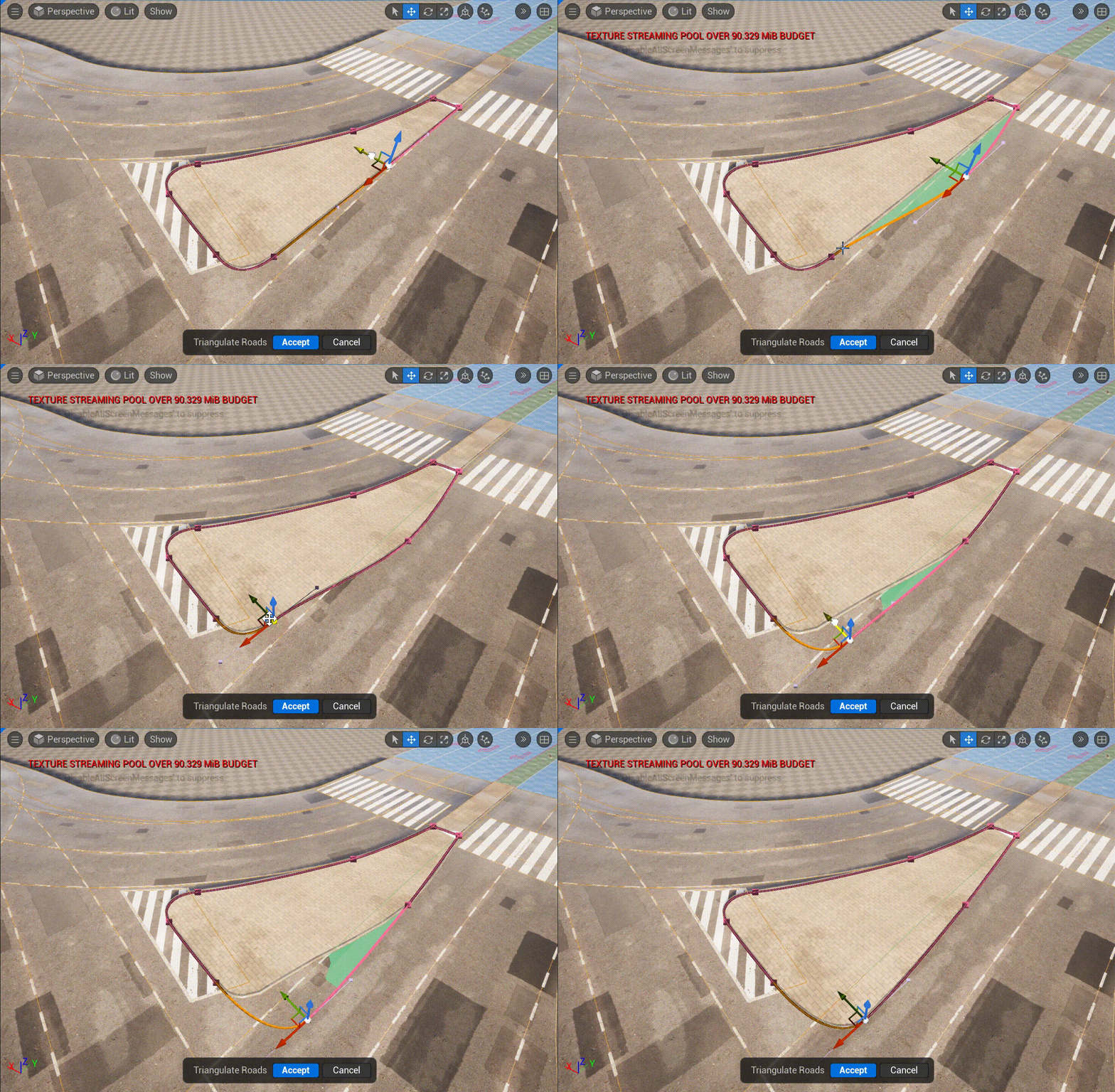
A closed-loop URoadSplineComponent lets you place various “islands” or extra road marks on roads, such as refuge islands, pedestrian crossings, or arrows:
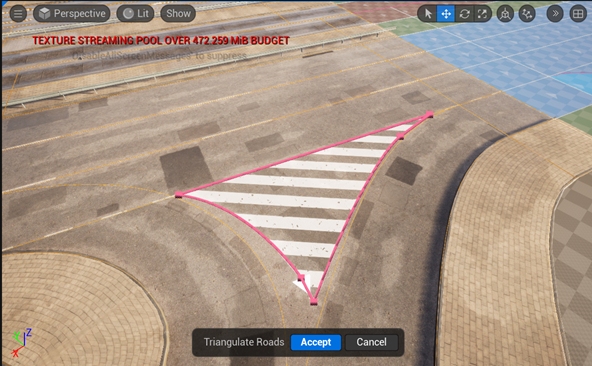
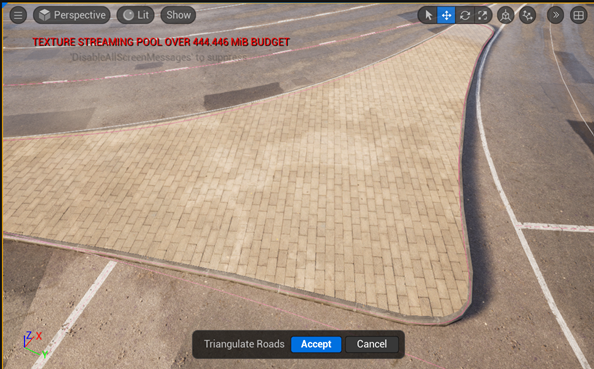
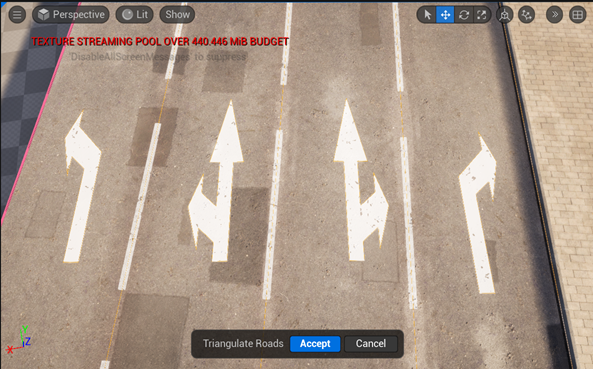
To start using a closed-loop spline, set two parameters on the URoadSplineComponent in the Details Panel:
Set Spline -> Closed Loop to
trueSet Road -> RoadLayout -> LoopedRoadZone to a
DrivingorSidewalkRoad Zone
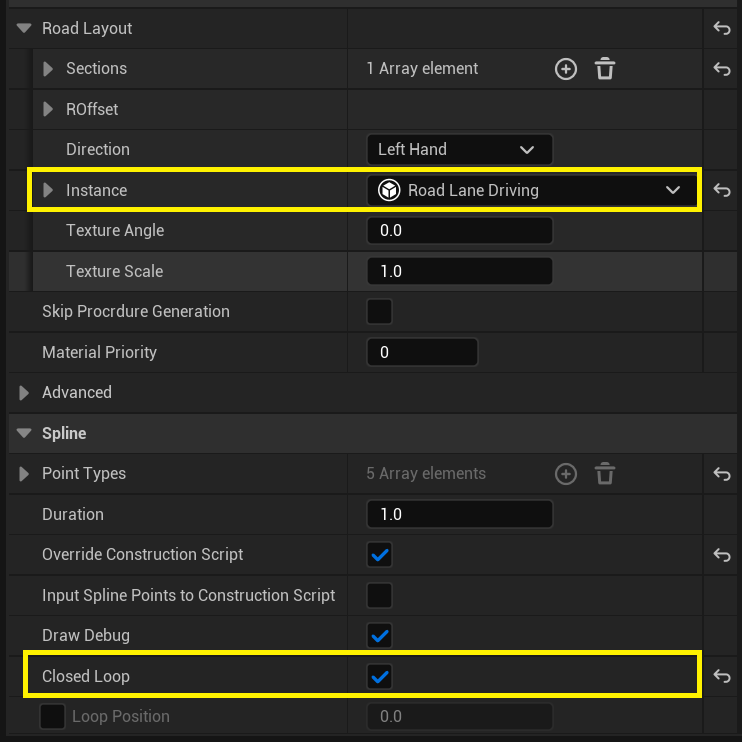
After this, the URoadSplineComponent turns into a familiar polygon-drawing tool:
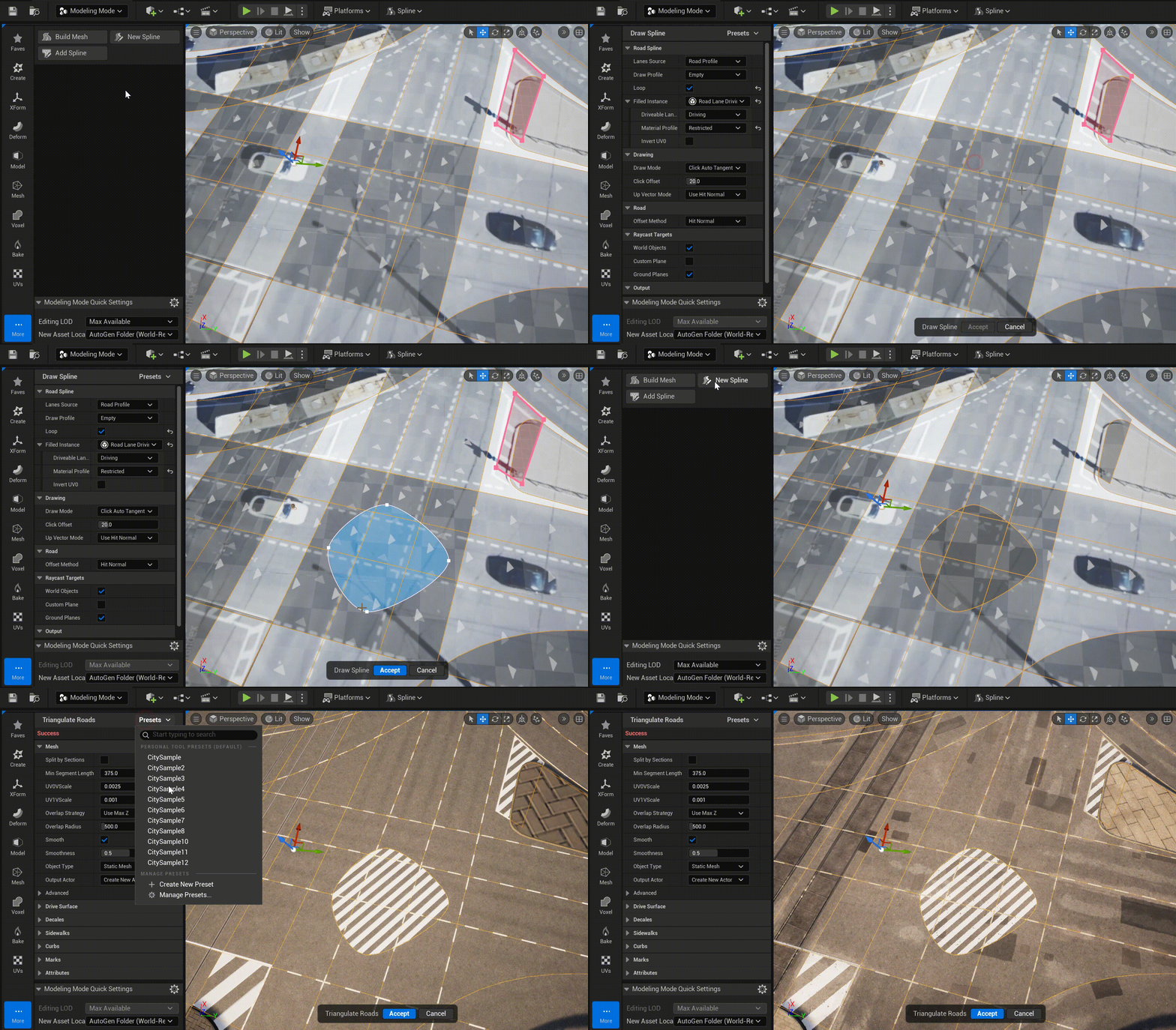
In the Draw Spline Tool you can start drawing a closed-loop URoadSplineComponent immediately. To do this, set the following parameters in the tool:
Set Road Spline -> Loop to
trueSet Road Spline -> LoopedRoadZone to
DrivingorSidewalk
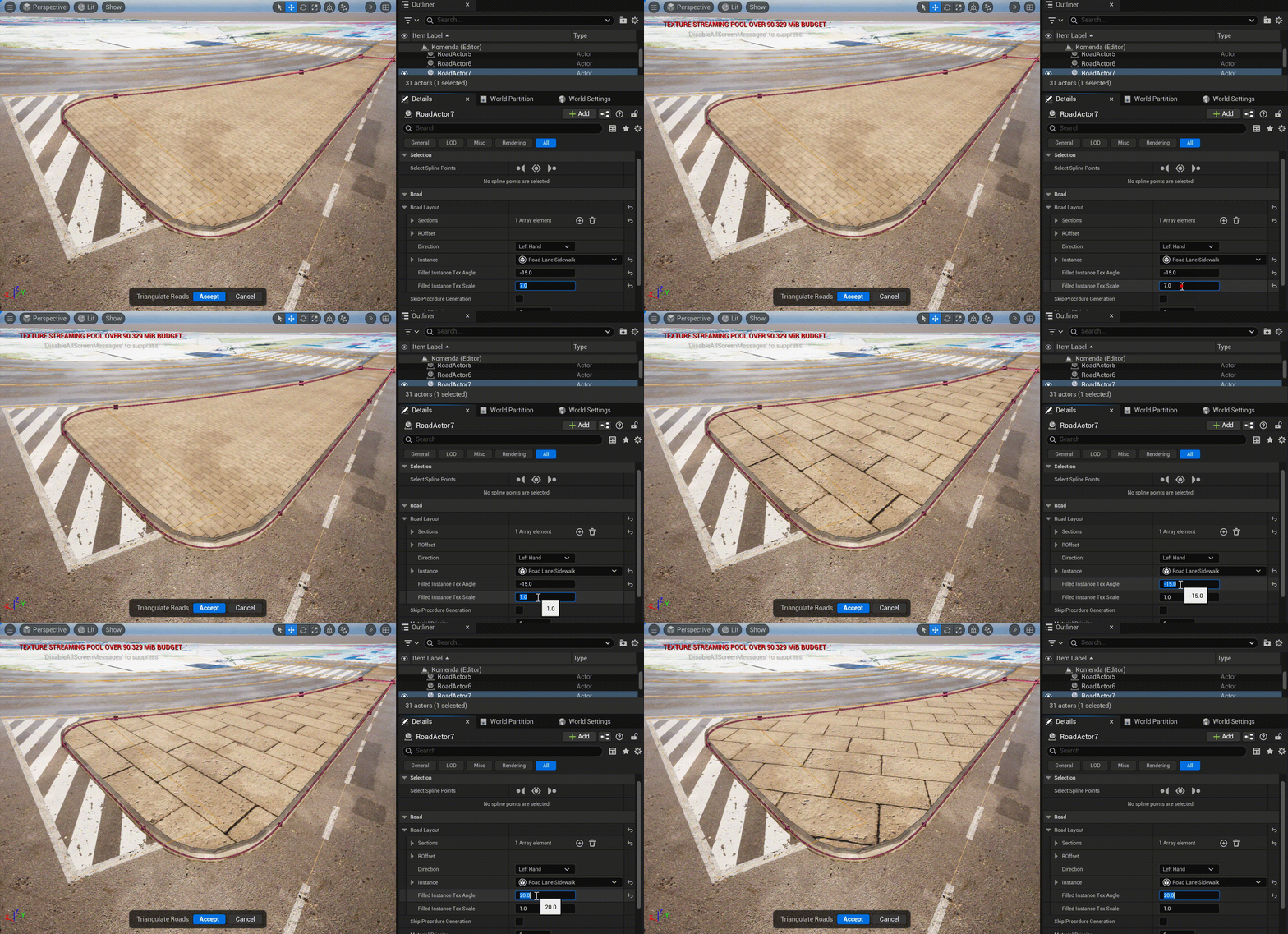
In the Details Panel of the URoadSplineComponent you can set the texture-coordinate parameters for the fill — angle and scale (LoopedRoadZoneTexAngle / LoopedRoadZoneTexScale):
Important
Keep the drawn “islands” in the same actor and SubGroup as the main road surface (the logically related URoadSplineComponents). That way baking generates the whole road section as a single seamless unit.
See also
Road Zones and Zone Types — the
Driving/Sidewalkzone aLoopedRoadZonefills with.Draw Spline Tool — draw a closed-loop spline directly.
Bake: spline grouping — keep islands in one actor +
SubGroupto bake seamlessly.