Section Mode
Note
This is the Section tile in the Edit palette of the Meta Road editor mode (see The Meta Road Editor Mode).
Section Mode edits the Road Lanes and Road Sections of the selected road.
Road Section Editing
Selecting a section
Click a section in the viewport. The selected section is highlighted, a move handle appears at its start, and a viewport overlay shows its S (arc-length) offset. The Details Selection panel then shows the section’s properties:
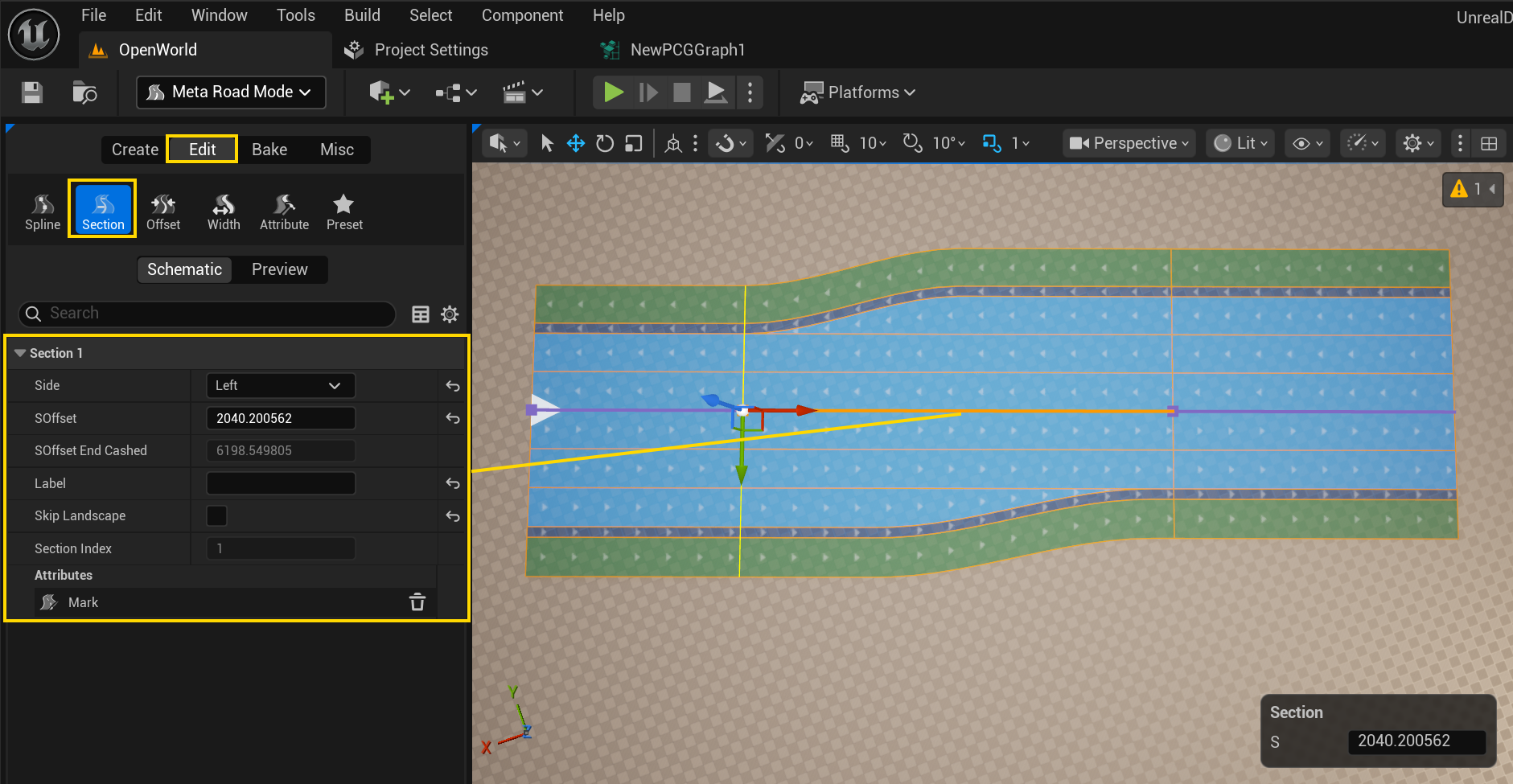
Property |
Meaning |
|---|---|
Side |
|
SOffset |
Arc-length position where the section starts |
SOffset End Cached |
Computed end of the section (read-only) |
Label |
Optional name for the section |
Skip Landscape |
Exclude this section from landscape deformation |
Section Index |
Position in the layout (read-only) |
Attributes |
Section-level attributes (e.g. a road Mark) |
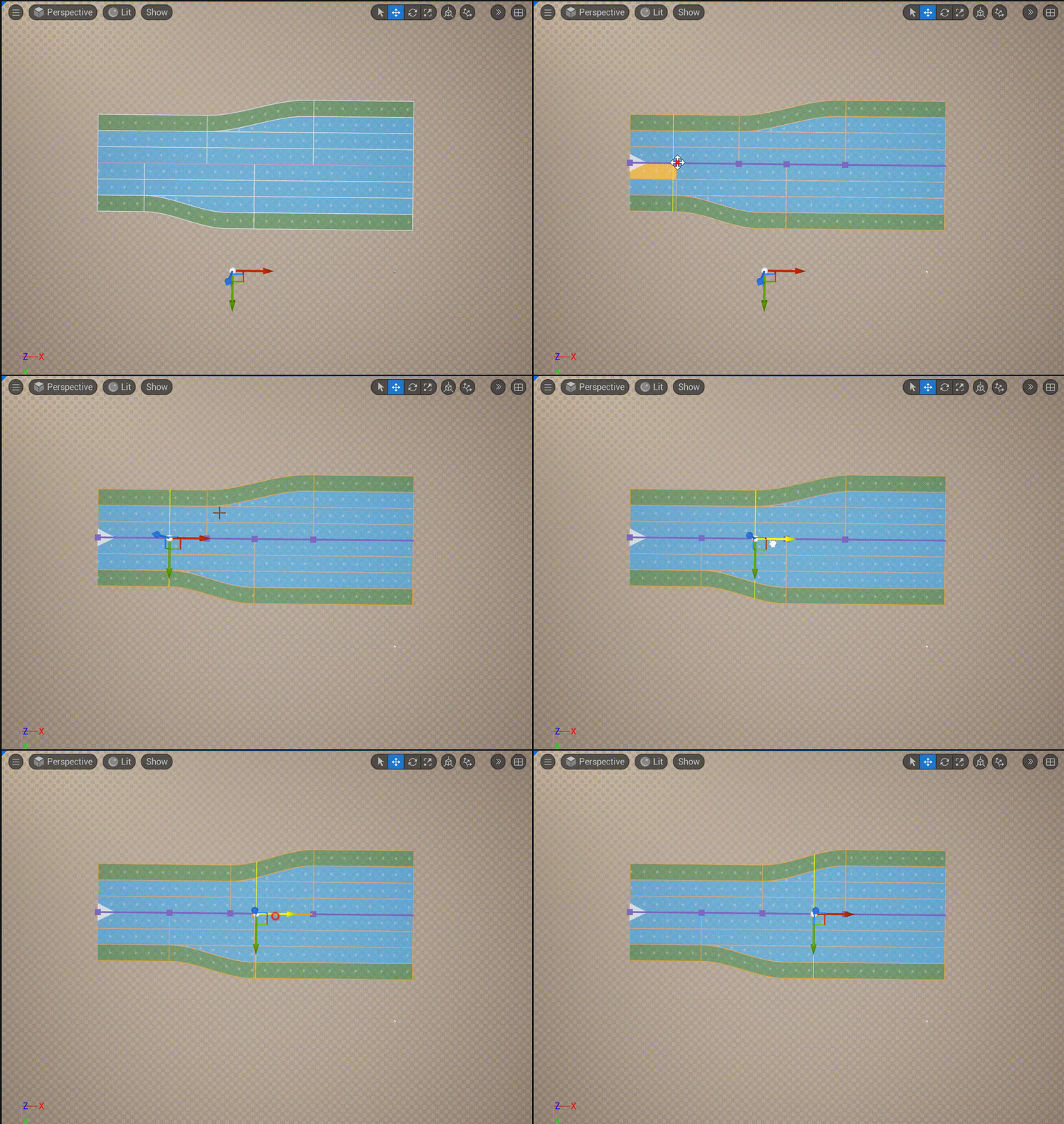
Drag the section handle in the viewport to move its boundary along the road:
Adding and removing sections
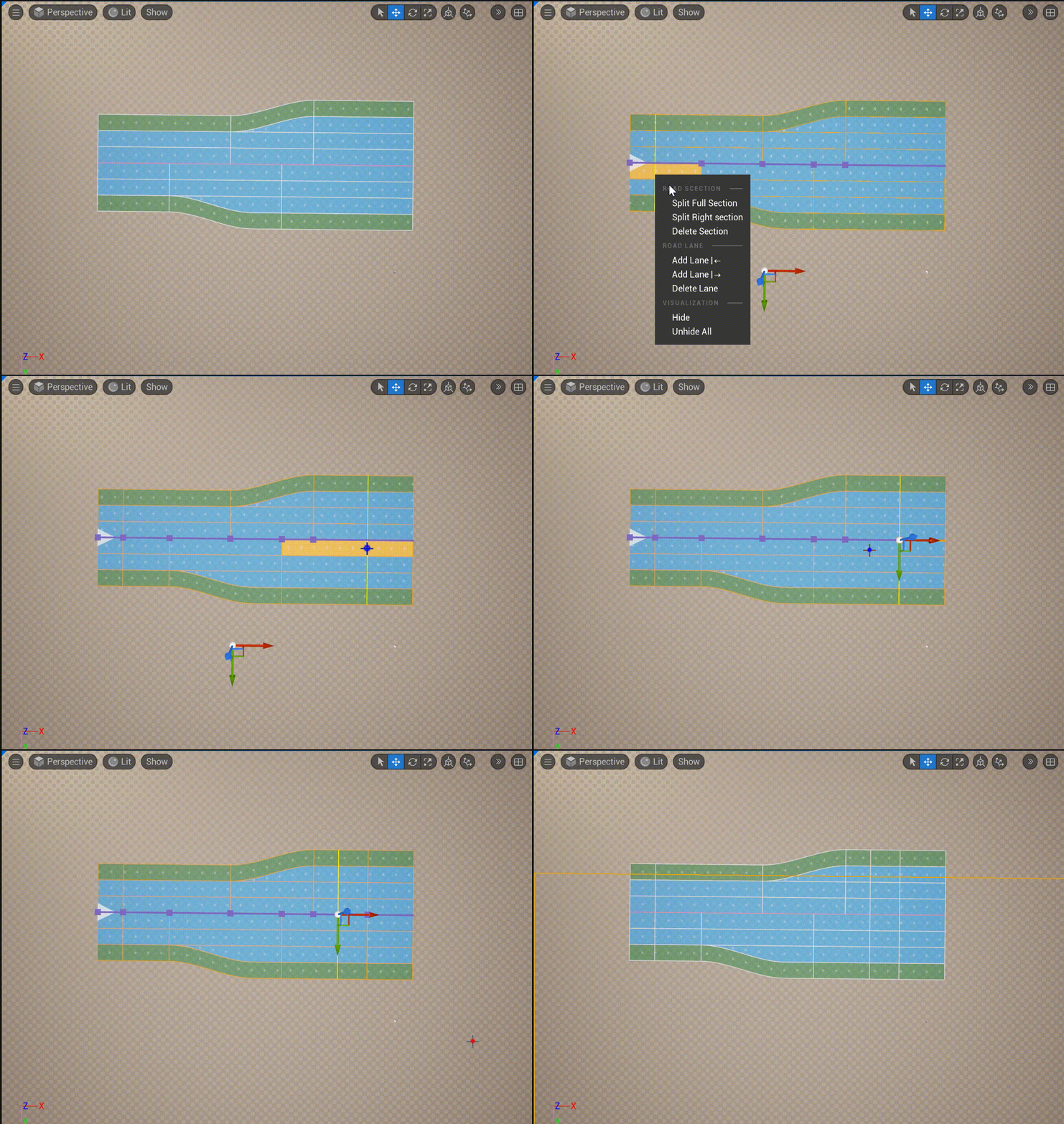
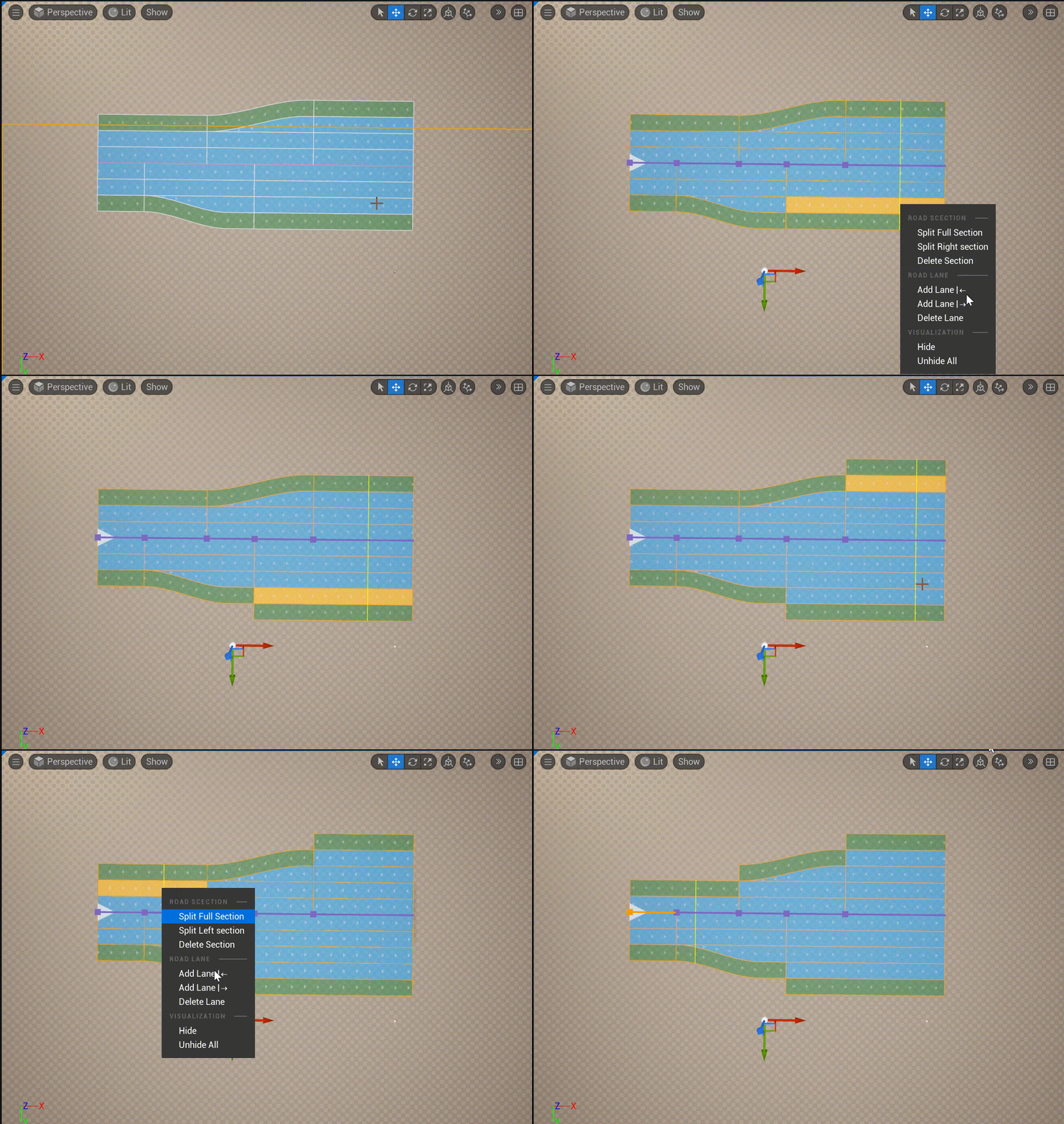
Add (split) and delete Road Sections from the right-click context menu — you need a new section wherever the lane count changes (for example before a ramp):
Road Lane Editing
Selecting a lane
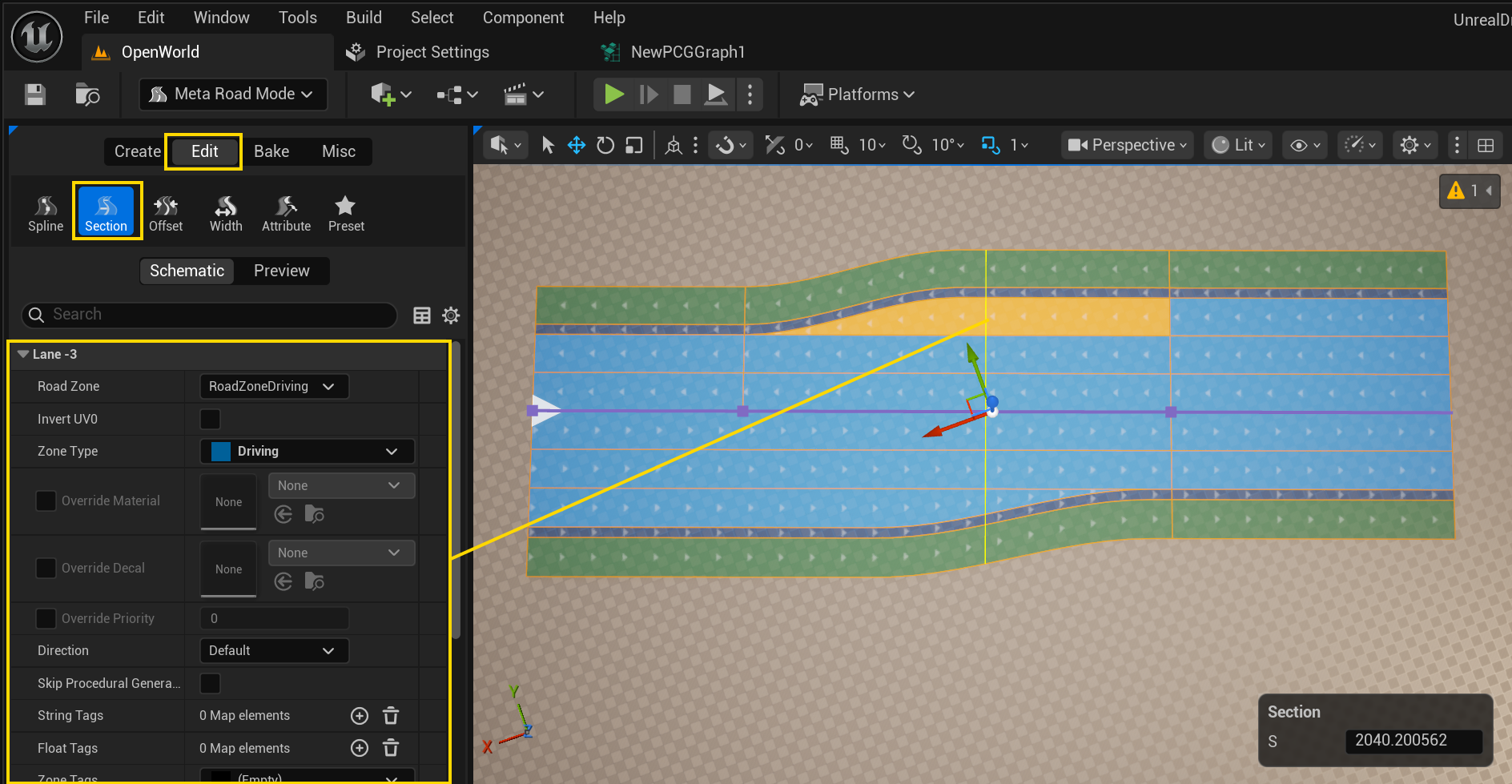
Click a lane in the viewport; it is highlighted (orange) with a move gizmo. The Details Selection panel shows the lane’s properties:
Property |
Meaning |
|---|---|
Road Zone |
The lane’s surface — a Road Zone (a Zone Type + optional material/decal/priority overrides) |
Zone Type |
Which Zone Type the lane uses (Driving / Sidewalk / Tram / …) — sets the default material and behavior |
Direction |
|
Override Material / Decal / Priority |
Per-lane overrides of the zone’s defaults |
Invert UV0, Skip Procedural Generation |
Per-lane mesh flags |
String / Float / Zone Tags |
Arbitrary per-lane metadata |
The surface-type system (Zone Types, Road Zones, materials, project settings) is described in Road Zones and Zone Types.
Selecting multiple lanes
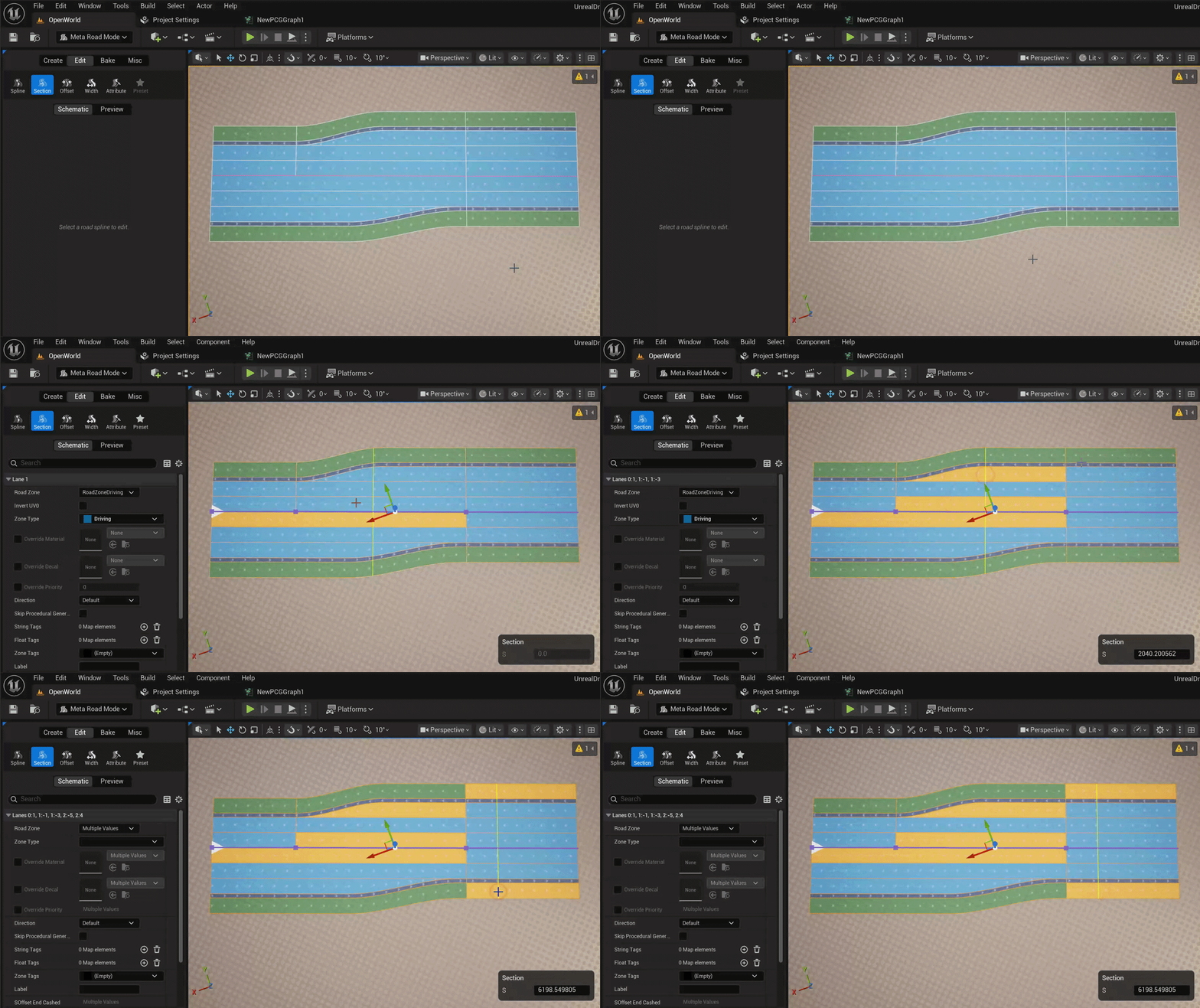
You can select several lanes at once. Hold Ctrl and click lanes to toggle each one in or out of the selection —
the set may span different sections. A plain (non-Ctrl) click clears the set and selects a single lane again. The
last lane you click is the primary one: it carries the move gizmo and drives the Road Zone picker.
With more than one lane selected, the Selection panel becomes a multi-edit:
Editing any property writes it to every selected lane at once.
Where the selected lanes disagree on a value, the field shows
Multiple Values.
The right-click context menu also acts on the whole selection:
Delete Lane — removes all selected lanes.
Reverse Direction — flips the traffic direction of all selected lanes.
Adding and removing lanes
Add and delete Road Lanes from the right-click context menu:
See also
Road Lanes and Lane Sections — the data model this mode edits.
Road Zones and Zone Types — the lane surface types you assign here.
Width Mode and Attribute Mode — other per-lane editing.